
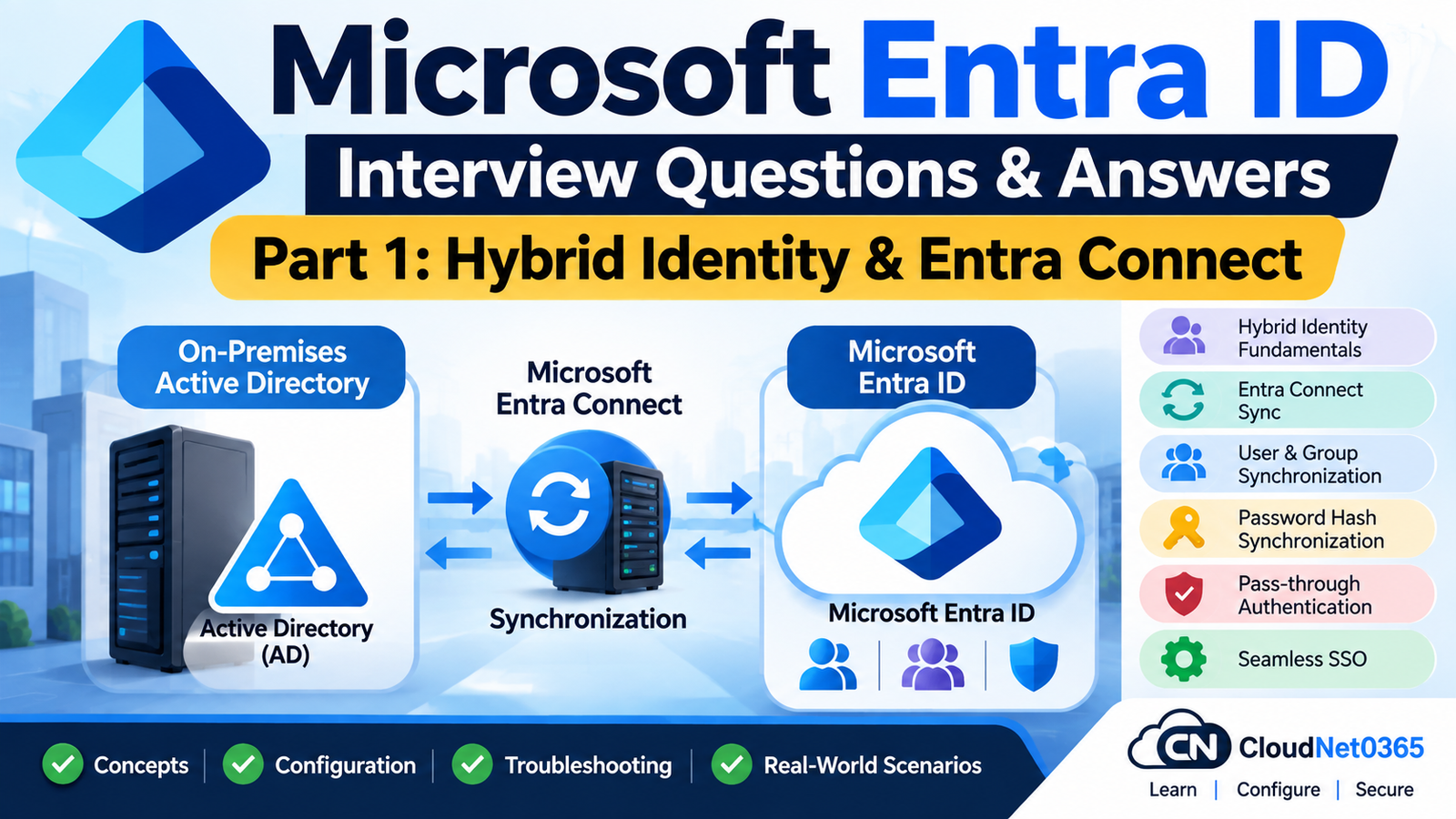
Microsoft Entra ID is a critical component of modern Microsoft 365 and hybrid infrastructure.
For a senior System Administrator, knowing how to create a Microsoft Entra user is not enough.
You should understand how identities move between:
On-Premises Active Directory
            ↓
Microsoft Entra Connect Sync / Cloud Sync
            ↓
Microsoft Entra ID
            ↓
Microsoft 365 / Azure / SaaS Applications
You should also be able to troubleshoot:
- User synchronization
- Attribute synchronization
- Password Hash Synchronization
- Pass-through Authentication
- Seamless SSO
- Source Anchor
- Immutable ID
- Soft matching
- Hard matching
- Duplicate users
- OU filtering
- Domain filtering
- Connector problems
- Metaverse issues
- Export errors
- Password writeback
- Device writeback
- Group writeback
- Staging mode
- Microsoft Entra Cloud Sync
- Hybrid identity migration
- Real-world synchronization incidents
This part focuses on the senior-level hybrid identity knowledge that complements the existing 200 Microsoft Entra ID interview questions on CloudNet0365.com.
Hybrid Identity & Entra Connect
Q1. What is Hybrid Identity?
Hybrid Identity provides a common identity experience between an organization’s on-premises Active Directory and Microsoft Entra ID.
A typical architecture is:
On-Premises Active Directory
            ↓
      Synchronization
            ↓
      Microsoft Entra ID
            ↓
      Microsoft 365
Users can therefore have an identity represented in both environments.
Hybrid Identity is particularly useful when an organization still has:
- On-premises Windows Servers
- Active Directory
- File servers
- Exchange
- Applications requiring AD authentication
while also using:
- Microsoft 365
- Azure
- Microsoft Entra ID
- Cloud applications
Q2. What is Microsoft Entra Connect Sync?
Microsoft Entra Connect Sync is Microsoft’s synchronization service for synchronizing identity information from on-premises Active Directory to Microsoft Entra ID.
It can synchronize objects such as:
- Users
- Groups
- Contacts
- Selected attributes
- Password hashes when Password Hash Synchronization is enabled
It is commonly deployed in hybrid Microsoft 365 environments.
Q3. What is Microsoft Entra Cloud Sync?
Microsoft Entra Cloud Sync is a newer cloud-managed synchronization approach.
Unlike the traditional Entra Connect Sync architecture, much of the provisioning logic is managed in the Microsoft Entra cloud while lightweight provisioning agents operate on-premises.
A simplified architecture is:
On-Premises AD
      ↓
Provisioning Agent
      ↓
Microsoft Entra Cloud
      ↓
Microsoft Entra ID
Cloud Sync and Connect Sync are related technologies but are not identical products.
Organizations should choose based on their topology and required features.
Q4. What is the difference between Entra Connect Sync and Cloud Sync?
Microsoft Entra Connect Sync
Uses:
On-Premises Sync Server
        ↓
Synchronization Engine
        ↓
Microsoft Entra ID
Microsoft Entra Cloud Sync
Uses:
Cloud Provisioning Service
        ↓
On-Premises Provisioning Agent
        ↓
Active Directory
Cloud Sync can simplify some hybrid synchronization architectures, but it does not support every Connect Sync capability in exactly the same way.
Therefore, before migrating from Connect Sync to Cloud Sync, I would perform a feature and topology assessment.
Microsoft provides a current feature-comparison and migration process for organizations moving from Connect Sync to Cloud Sync.
Q5. Can both Entra Connect Sync and Cloud Sync be used in the same environment?
They can coexist in certain supported scenarios, but they must not be configured carelessly to synchronize the same objects in conflicting ways.
For example, Cloud Sync can be used for a particular provisioning requirement while Connect Sync handles the primary synchronization scenario where supported.
Before implementing coexistence, I would verify:
- Object scope
- Source of authority
- Attribute ownership
- Supported topology
- Matching behavior
- Writeback requirements
The goal is to avoid two synchronization engines attempting to control the same objects.
Q6. How many active Entra Connect Sync servers should normally synchronize the same tenant?
For a given Microsoft Entra tenant, Microsoft does not support multiple active Entra Connect Sync servers simultaneously synchronizing the same objects.
A supported high-availability design uses:
Primary Connect Sync Server
          +
Staging Connect Sync Server
The staging server is not actively exporting changes while it is in staging mode.
Microsoft documents the use of a staging server for high availability and specifically states that multiple active sync servers to the same tenant are unsupported except for the staging-server scenario.
Q7. What is Microsoft Entra Connect staging mode?
Staging mode allows a secondary Entra Connect Sync server to:
- Import data
- Synchronize data
- Detect configuration problems
without exporting changes to Microsoft Entra ID or on-premises AD.
This makes it useful for:
- Disaster recovery
- Testing
- Migration
- Upgrade preparation
Example:
Primary Server
      |
      +----> Production synchronization

Staging Server
      |
      +----> Import + Sync
             NO PRODUCTION EXPORT
If the primary server fails, the staging server can be switched into active operation.
Q8. Why would you deploy a staging server?
A senior administrator may deploy a staging server to provide:
- Disaster recovery
- Upgrade safety
- Configuration validation
- Faster recovery from Connect Sync server failure
For example:
Production:
Server A → Active

DR:
Server B → Staging
If Server A fails:
Server B
   ↓
Disable staging mode
   ↓
Become active
Before doing this, I would ensure the configuration is current and the failover process is documented and tested.
Q9. What is Password Hash Synchronization (PHS)?
Password Hash Synchronization synchronizes a processed representation of the user’s on-premises password hash to Microsoft Entra ID.
The cloud then uses the synchronized password hash for authentication.
Conceptually:
User password
      ↓
On-premises AD
      ↓
Password Hash Sync
      ↓
Microsoft Entra ID
      ↓
Cloud authentication
The user’s plaintext password is not synchronized to Microsoft Entra ID.
Q10. What happens when an on-premises user changes their password with PHS enabled?
The new password hash is synchronized to Microsoft Entra ID.
This normally occurs within a short period rather than requiring a manual synchronization every time.
The user can then authenticate to Microsoft cloud services using the new password.
An already-established cloud session does not necessarily terminate immediately simply because the password was changed.
Q11. What is Pass-through Authentication (PTA)?
Pass-through Authentication allows Microsoft Entra ID authentication requests to be validated against on-premises Active Directory through Microsoft Entra authentication agents.
Conceptually:
User
 ↓
Microsoft Entra ID
 ↓
PTA Agent
 ↓
On-Premises AD
 ↓
Authentication Result
The user’s password is not stored in Microsoft Entra ID as a synchronized password hash for the purpose of PTA authentication.
Microsoft describes PTA as validating passwords directly against on-premises Active Directory.
Q12. What is the difference between PHS and PTA?
| Feature | PHS | PTA |
|---|---|---|
| Authentication validation | Cloud | On-premises AD |
| Password hash synchronized | Yes | No for PTA authentication |
| On-prem AD required during cloud sign-in | No | Yes |
| Authentication agents required | No | Yes |
| Cloud authentication during on-prem outage | Generally possible | Dependent on PTA availability |
| Main architecture | Cloud authentication | On-premises password validation |
A senior administrator should understand the operational dependency difference.
Q13. Which authentication method would you choose for a hybrid environment?
There is no universal answer.
I would evaluate:
- Business requirements
- Security requirements
- Existing federation
- Network dependency
- Availability requirements
- Password policies
- Authentication architecture
- Conditional Access
- Disaster recovery
- Existing Microsoft recommendations
PHS is commonly attractive because cloud authentication does not require the authentication request to reach an on-premises domain controller.
PTA can be useful when an organization specifically requires password validation against on-premises AD.
The decision should be architecture-driven rather than based on habit.
Q14. What is Seamless Single Sign-On?
Seamless SSO allows users on supported domain-joined Windows devices on the corporate network to obtain a silent sign-in experience for Microsoft cloud services.
It works with:
- Password Hash Synchronization
- Pass-through Authentication
It is not a replacement for the authentication method itself.
It improves the user experience.
Microsoft currently notes that for Windows 10, Windows Server 2016 and later, Primary Refresh Token-based SSO is the recommended approach for modern Entra-joined/hybrid-joined scenarios, while Seamless SSO remains relevant for supported domain-joined scenarios.
Q15. What is the difference between Seamless SSO and Primary Refresh Token (PRT)?
Seamless SSO
Provides silent sign-in using the domain-joined device and on-premises authentication context.
PRT
A Primary Refresh Token is a key component of modern Microsoft Entra authentication for supported Windows devices.
PRT-based SSO is particularly important for:
- Microsoft Entra joined devices
- Microsoft Entra hybrid joined devices
- Supported registered-device scenarios
Therefore, do not describe Seamless SSO as the universal SSO mechanism for all modern Windows devices.
Q16. Can Seamless SSO be used with PHS?
Yes.
Microsoft supports combining Seamless SSO with Password Hash Synchronization.
The architecture becomes:
PHS
 ↓
Cloud authentication

+

Seamless SSO
 ↓
Improved sign-in experience
Seamless SSO does not replace PHS.
Q17. Can Seamless SSO be used with PTA?
Yes.
Seamless SSO can also be combined with Pass-through Authentication.
The authentication architecture can therefore be:
User
 ↓
Seamless SSO
 ↓
Microsoft Entra ID
 ↓
PTA
 ↓
On-Premises AD
The exact behavior depends on the device and sign-in scenario.
Q18. What is Source Anchor?
Source Anchor is the attribute used to establish a stable relationship between an on-premises object and its corresponding Microsoft Entra object.
For many modern Entra Connect configurations, msDS-ConsistencyGuid is used as the source anchor for users, with the exact behavior depending on configuration.
The purpose is to ensure that:
On-Prem User A
       ↓
Cloud User A
continues to represent the same identity even when certain other attributes change.
Q19. What is Immutable ID?
Historically, the cloud-side representation of the source-anchor relationship is referred to as the ImmutableId attribute for synchronized users.
The source anchor from the on-premises object is represented in the cloud so that synchronization can identify the corresponding object.
For example:
On-Premises
msDS-ConsistencyGuid
        ↓
Source Anchor
        ↓
Microsoft Entra
ImmutableId
The exact object-matching behavior should be considered together with current Microsoft Entra matching rules.
Q20. What is hard matching?
Hard matching uses the source-anchor/ImmutableId relationship to associate an incoming on-premises object with an existing cloud object.
Conceptually:
On-Prem Source Anchor
        =
Cloud ImmutableId
        ↓
Same identity
This is stronger than matching only on UPN or SMTP address.
However, current Microsoft Entra security protections can block certain hard-match takeover scenarios, especially involving privileged or already-associated cloud accounts.
Therefore, hard match should not be treated as a generic “force link” command.
Q21. What is soft matching?
Soft matching allows Microsoft Entra to identify an existing cloud object using attributes such as:
- UserPrincipalName
- Primary SMTP address
when the source-anchor/ImmutableId match is not available.
Conceptually:
On-Prem UPN
      ↓
Cloud UPN
      ↓
Potential match
Soft matching is particularly relevant during migrations where cloud accounts already exist before synchronization is introduced.
Q22. What is the difference between hard match and soft match?
| Hard Match | Soft Match |
|---|---|
| Uses source-anchor relationship | Uses matching attributes |
| Stronger identity linkage | Attribute-based matching |
| Commonly uses ImmutableId relationship | UPN/primary SMTP can be used |
| Useful for controlled object matching | Useful for migration/coexistence |
| Subject to current security protections | Also subject to tenant matching configuration |
A senior administrator should never blindly force a hard match without verifying that the cloud and on-premises identities represent the same person.
Q23. What is hard-match security hardening?
Microsoft Entra now applies additional protections to prevent dangerous cloud-object takeover through hard matching.
Beginning July 1, 2026, Microsoft Entra automatically enforces hard-match security hardening for certain cloud accounts.
A hard match can be blocked when, for example:
- The cloud account has
onPremisesObjectIdentifier. - The account has a privileged Microsoft Entra role.
- The account is eligible for a privileged Microsoft Entra role.
Therefore, if a hard match suddenly fails on a privileged account, I would investigate the current hard-match security protections rather than assuming the sync engine is broken.
Q24. What is UPN in Microsoft Entra ID?
UPN stands for User Principal Name.
Example:
zohaib@company.com
It is commonly used as the user’s sign-in name.
In hybrid environments, the on-premises UPN is often synchronized to Microsoft Entra ID.
Q25. What happens if the on-premises UPN suffix is not a verified Microsoft Entra domain?
The organization should use a verified domain for the cloud sign-in identity.
For example:
On-Premises:
zohaib@company.local
may not be suitable as the user’s desired Microsoft 365 sign-in address.
A common approach is:
zohaib@company.com
where company.com is verified in Microsoft Entra ID.
UPN changes should be planned carefully because they affect user sign-in and applications.
Q26. Can changing the on-premises UPN affect Microsoft 365?
Yes.
Changing a user’s UPN can affect:
- Sign-in
- Outlook profiles
- OneDrive
- Teams
- Applications
- Scripts
- User communication
- Cached credentials
Before changing thousands of UPNs, I would test the change with a pilot group.
I would also verify domain verification and synchronization behavior.
Q27. What is OU filtering in Entra Connect?
OU filtering controls which Active Directory Organizational Units are included in synchronization.
Example:
AD Forest
 |
 +-- Users
 |
 +-- Servers
 |
 +-- Service Accounts
 |
 +-- Disabled Users
 |
 +-- Microsoft 365 Users
If only:
Microsoft 365 Users
is selected, objects outside the selected synchronization scope are not synchronized.
Q28. What is domain filtering?
Domain filtering allows an administrator to select which Active Directory domains within the configured forest should participate in synchronization.
For example:
Forest
 |
 +-- company.com
 |
 +-- europe.company.com
 |
 +-- asia.company.com
You may synchronize only the required domains.
Q29. What is attribute-based filtering?
Attribute-based filtering uses an AD attribute to determine whether an object should be synchronized.
For example, an organization may use an attribute such as:
extensionAttribute15 = SyncToCloud
and synchronize only users meeting the configured condition.
Attribute-based filtering must be designed carefully because changing the attribute can change the user’s synchronization scope.
Q30. A user exists in Active Directory but does not appear in Microsoft Entra ID. What do you check?
I would check systematically:
- Does the user exist in the correct AD domain?
- Is the user enabled?
- Is the user located in a synchronized OU?
- Is the domain included in synchronization?
- Does attribute filtering exclude the user?
- Is the user object valid?
- Are there synchronization errors?
- Did the synchronization cycle run?
- Does the connector import the object?
- Does the object appear in the Metaverse?
- Did export to Microsoft Entra succeed?
I would not immediately recreate the user in Microsoft Entra ID.
Synchronization Engine
Q31. What is the Synchronization Service Manager?
Synchronization Service Manager is a management and troubleshooting interface associated with Microsoft Entra Connect Sync.
It allows administrators to inspect:
- Connectors
- Import operations
- Synchronization operations
- Export operations
- Errors
- Object details
- Synchronization statistics
A senior administrator should know how to use it when troubleshooting complex synchronization problems.
Q32. What is a Connector in Entra Connect Sync?
A Connector represents a connection between the synchronization engine and a connected directory/system.
For example:
Active Directory Connector
          ↓
Synchronization Engine
          ↓
Microsoft Entra Connector
The AD Connector reads information from Active Directory.
The Microsoft Entra Connector is responsible for communicating changes with Microsoft Entra ID.
Q33. What is Connector Space?
Connector Space is the local representation of objects from a connected directory within the synchronization engine.
Conceptually:
Active Directory
      ↓
Import
      ↓
Connector Space
It allows the synchronization engine to track objects and their attributes before synchronization into the Metaverse.
Q34. What is the Metaverse?
The Metaverse is the central representation of synchronized identities within the synchronization engine.
A simplified model is:
AD Connector Space
        ↓
     Join
        ↓
     Metaverse
        ↓
Entra Connector Space
        ↓
Microsoft Entra ID
The Metaverse allows the synchronization engine to combine information from connected directories and determine the resulting synchronized object.
Q35. What is the difference between Connector Space and Metaverse?
Connector Space
Represents objects as seen from a particular connected directory.
Metaverse
Represents the consolidated identity used by the synchronization engine.
Example:
AD Connector Space
       |
       +---- User123
              |
              v
          Metaverse
              |
              v
      Microsoft Entra
Understanding this distinction is extremely useful when troubleshooting joins and attribute-flow problems.
Q36. What are Import, Synchronization and Export operations?
Import
Reads changes from the connected directory.
AD
 ↓
Import
 ↓
Connector Space
Synchronization
Processes objects, joins them and determines attribute changes.
Connector Space
 ↓
Sync
 ↓
Metaverse
Export
Writes resulting changes to the target connected directory.
Synchronization Engine
 ↓
Export
 ↓
Microsoft Entra ID
Therefore:
Import → Sync → Export
is a useful simplified troubleshooting model.
Q37. A user appears in Connector Space but not in the Metaverse. What could you investigate?
I would investigate:
- Join rules
- Filtering
- Object type
- Attribute requirements
- Synchronization errors
- Whether the object is projected into the Metaverse
- Whether another object already represents the identity
The important point is:
Import success does not necessarily mean that the object has successfully joined/projected into the Metaverse.
Q38. A user appears in the Metaverse but is not exported to Microsoft Entra ID. What would you check?
I would check:
- Export filtering.
- Attribute errors.
- Duplicate attributes.
- Connector configuration.
- Export errors.
- Object scope.
- Whether the object is intentionally filtered.
- Pending export changes.
The Synchronization Service Manager can show the relevant export status and errors.
Synchronization and Writeback
Q39. What is Password Writeback?
Password writeback allows password changes or resets performed in Microsoft Entra ID to be written back to on-premises Active Directory.
Example:
User
 ↓
Microsoft Entra SSPR
 ↓
Password Writeback
 ↓
On-Premises AD
This is particularly useful in hybrid environments where on-premises AD remains the authority for user passwords.
Q40. A user successfully resets their password in Microsoft Entra SSPR, but the new password does not work on-premises. What would you check?
I would check:
- Password writeback enabled.
- Required licensing.
- Entra Connect/Cloud Sync configuration.
- Permissions of the synchronization/provisioning account.
- AD replication.
- Password policy.
- Minimum password age.
- Synchronization/provisioning errors.
- Whether the affected user is in scope.
- Logs/events.
Microsoft specifically documents that on-premises AD permissions and password-policy settings can prevent password writeback from functioning correctly.
Q41. What is Device Writeback?
Device Writeback allows supported device information from Microsoft Entra ID to be written back to on-premises Active Directory.
It can be used in specific hybrid scenarios where on-premises AD needs a representation of a Microsoft Entra device.
The feature should not be enabled automatically just because an organization has hybrid identity.
It should be enabled only when the required scenario supports it.
Q42. What is Group Writeback?
Group Writeback allows supported cloud groups to be provisioned back into on-premises Active Directory.
However, the exact capabilities depend on the synchronization technology and feature version.
Current Microsoft documentation is particularly important here:
- The old Group Writeback v2 preview in Entra Connect Sync is deprecated.
- Microsoft is moving supported group provisioning scenarios toward Microsoft Entra Cloud Sync.
- Group Writeback v1 remains relevant for certain Microsoft 365 group scenarios.
Therefore, do not answer an interview question by simply saying:
“Enable Group Writeback v2 in Entra Connect.”
That is outdated.
Q43. What is the difference between synchronization and writeback?
Synchronization
Generally:
On-Premises AD
      ↓
Microsoft Entra ID
Writeback
Generally:
Microsoft Entra ID
      ↓
On-Premises AD
Examples include:
- Password writeback
- Device writeback
- Supported group writeback
Writeback must be explicitly configured for the supported scenario.
Advanced Troubleshooting
Q44. Entra Connect is showing synchronization errors for a user. How would you troubleshoot?
I would first identify the exact error.
Then:
- Open Synchronization Service Manager.
- Identify the affected connector.
- Check the Import/Sync/Export operation.
- Open the affected object.
- Identify the attribute causing the error.
- Check for duplicate UPN.
- Check duplicate SMTP/proxy address.
- Check invalid attribute values.
- Check filtering.
- Correct the source AD object.
- Run synchronization.
- Verify export.
- Verify the resulting Microsoft Entra object.
I would fix the source data rather than repeatedly forcing synchronization.
Q45. Two users have the same proxy address. What problem can this create?
SMTP proxy addresses must be unique where they are used for mail-enabled identity objects.
A duplicate can cause synchronization/export errors.
For example:
User A:
SMTP: support@company.com

User B:
SMTP: support@company.com
The synchronization engine cannot correctly export both objects with the same unique address.
I would identify which object should own the address and correct the source AD attributes.
Q46. A synchronized user was accidentally moved to an unsynchronized OU. What happens?
The user can become out of synchronization scope.
Depending on the synchronization configuration, the cloud object may become subject to deprovisioning behavior after the change is processed.
Therefore, moving a user between OUs is not merely an organizational change when OU filtering is used.
Before moving large numbers of users, I would verify synchronization scope and the expected cloud behavior.
Q47. How would you safely migrate from one Entra Connect server to another?
I would use a controlled migration.
Step 1
Document the current configuration.
Step 2
Back up the Entra Connect configuration.
Step 3
Build the new server.
Step 4
Configure the new server to match the existing environment.
Step 5
Place the new server in staging mode.
Step 6
Verify:
- Connectors
- Filtering
- Sync rules
- Authentication configuration
- Writeback features
- Attribute flow
Step 7
Run imports/synchronization in staging mode.
Step 8
Review pending exports.
Step 9
When validated, switch the new server to active operation.
Step 10
Monitor synchronization closely.
This minimizes the risk of unintended exports.
Q48. How would you migrate from Entra Connect Sync to Cloud Sync?
I would not simply install Cloud Sync and disable Connect Sync.
I would:
- Inventory the existing Connect Sync configuration.
- Identify unsupported/custom features.
- Review the Microsoft feature comparison.
- Back up the existing configuration.
- Build Cloud Sync provisioning agents.
- Configure Cloud Sync.
- Validate object scope.
- Use Connect Sync staging mode where appropriate during migration.
- Run validation/on-demand synchronization.
- Monitor object matching and attributes.
- Switch production responsibility in a controlled manner.
- Maintain a rollback plan.
Microsoft’s current migration guidance specifically recommends validating Cloud Sync while Connect Sync is in staging mode before switching production synchronization.
Q49. A cloud user already exists, and you now want to synchronize the matching on-premises user. What would you do?
I would first establish whether the cloud and on-premises objects truly represent the same person.
Then I would check:
- UPN
- Primary SMTP
- Source Anchor
- Existing
onPremisesImmutableId onPremisesObjectIdentifier- Existing privileged roles
- Duplicate objects
If matching can occur safely through normal synchronization matching, I would allow that.
If an explicit hard match is required, I would follow Microsoft’s current hard-match requirements and security protections.
I would not blindly overwrite ImmutableId or force a match, especially for privileged accounts.
Q50. You are the senior administrator and synchronization has stopped for the entire organization. How would you handle the incident?
I would treat this as a production identity incident.
Step 1 — Establish scope
Determine:
- Is synchronization completely stopped?
- Are only some objects affected?
- Are authentication services still working?
- Are existing users able to sign in?
Step 2 — Check Entra Connect server
Check:
- Server availability
- CPU/memory
- Disk space
- Windows services
- Network
- DNS
- Certificates
- Recent Windows changes
Step 3 — Check Synchronization Service
Review:
- Last successful sync
- Import
- Synchronization
- Export
- Errors
Step 4 — Check Connectors
Determine whether:
AD Connector
or:
Microsoft Entra Connector
is failing.
Step 5 — Check recent changes
Look for:
- AD schema changes
- OU changes
- Filtering changes
- Password changes
- Domain changes
- Entra Connect configuration changes
- Certificate changes
- Firewall/network changes
Step 6 — Determine authentication impact
If PHS is being used, existing synchronized users may still be able to authenticate to Microsoft 365 using the last synchronized password data.
However, new AD changes will not reach Microsoft Entra until synchronization is restored.
If PTA is being used, authentication architecture and PTA agent availability must also be considered.
Step 7 — Recover
Depending on the failure:
- Restart the affected service if appropriate.
- Correct the configuration.
- Resolve the connector error.
- Use the staging server if the primary server cannot be recovered.
- Run a controlled synchronization.
Step 8 — Validate
Test:
- New user synchronization
- User attribute changes
- Group membership
- Password synchronization if applicable
- Microsoft 365 sign-in
- Required writeback functions
Step 9 — Root Cause
Document:
- Failure
- Timeline
- Impact
- Root cause
- Recovery
- Preventive actions
A senior administrator should restore synchronization without creating a second synchronization problem.
Important PowerShell Commands
Start a Delta Synchronization
Start-ADSyncSyncCycle -PolicyType Delta
Use Delta synchronization for normal incremental changes.
Start an Initial Synchronization
Start-ADSyncSyncCycle -PolicyType Initial
An Initial cycle performs a more comprehensive synchronization operation and should not be used unnecessarily for routine changes.
Check ADSync service
Get-Service ADSync
Restart ADSync service
Restart-Service ADSync
Use this only when appropriate during troubleshooting.
Do not restart synchronization services repeatedly without identifying the underlying issue.
Check the scheduler
Get-ADSyncScheduler
This can help determine:
- Whether the scheduler is enabled
- Next synchronization time
- Scheduler state
View synchronization configuration
Get-ADSyncGlobalSettings
Microsoft Graph connection
For Microsoft Entra administration:
Connect-MgGraph
The required permissions depend on the operation.
Hybrid Identity Troubleshooting Flow
Use this methodology during an incident:
                    User Problem
                         |
                         v
                 Does user exist in AD?
                         |
                        Yes
                         |
                         v
                 Is object in sync scope?
                         |
                  +------+------+
                  |             |
                 No            Yes
                  |             |
                  v             v
            Fix filtering   Check Import
                                |
                                v
                         Connector Space
                                |
                                v
                           Metaverse
                                |
                                v
                         Synchronization
                                |
                                v
                            Export
                                |
                                v
                       Microsoft Entra ID
                                |
                                v
                         Authentication
                                |
                                v
                       Microsoft 365
This model helps determine exactly where the identity stopped.
Real-World Scenario 1: New Employee Not Appearing in Microsoft 365
Problem
HR creates:
user01@company.com
in Active Directory.
The user does not appear in Microsoft 365.
Troubleshooting
Check:
- AD user exists.
- User is enabled.
- User is in the correct OU.
- OU is included in synchronization.
- Domain is included.
- Attribute filtering.
- Import result.
- Connector Space.
- Metaverse.
- Export result.
- Microsoft Entra object.
Then run:
Start-ADSyncSyncCycle -PolicyType Delta
Finally verify the object in Microsoft Entra ID.
Real-World Scenario 2: User Changed Password but Microsoft 365 Rejects the New Password
Problem
The user changes their AD password.
The new password works on the domain but not in Microsoft 365.
If PHS is used
I would check:
- Password Hash Sync status
- Synchronization service
- User scope
- Connector health
- Password sync errors
- Last successful synchronization
If PTA is used
I would check:
- PTA agents
- Agent health
- Network connectivity
- Domain controller availability
- Authentication logs
The troubleshooting path depends on the authentication architecture.
Real-World Scenario 3: Cloud User and AD User Become Duplicate Accounts
Problem
A user already exists in Microsoft Entra ID.
An administrator creates the corresponding user in on-premises AD.
After synchronization, two cloud identities appear or synchronization reports a matching problem.
Investigation
I would compare:
- UPN
- Primary SMTP
- Proxy addresses
- Source Anchor
- ImmutableId
- Existing object state
Then determine whether the existing cloud account and AD account are genuinely the same person.
I would not immediately delete either account.
Real-World Scenario 4: Entra Connect Server Fails
Problem
The production synchronization server has a hardware failure.
Recovery
If a properly configured staging server exists:
Primary Connect Server
       X
       |
       v
Staging Connect Server
       |
       v
Disable Staging Mode
       |
       v
Production Sync
Before activating the staging server, I would verify its configuration and confirm that the primary server is not simultaneously exporting changes.
Real-World Scenario 5: Synchronization Suddenly Starts Generating Thousands of Errors
I would not immediately start correcting thousands of users individually.
I would first identify:
- First affected synchronization cycle
- Common error
- Attribute involved
- Recent configuration change
- Scope of affected objects
If thousands of users fail with the same error, there is likely a common cause.
For example:
Thousands of errors
       ↓
Same attribute
       ↓
Recent sync-rule/configuration change
       ↓
Common root cause
This is much more efficient than troubleshooting each user independently.
Real-World Scenario 6: User Moved to Another OU and Disappeared from Microsoft 365
Problem
An administrator moves:
User01
from:
OU=CloudUsers
to:
OU=ServiceAccounts
The ServiceAccounts OU is excluded from synchronization.
Result
The user may leave synchronization scope.
Correct approach
I would:
- Confirm OU filtering.
- Confirm the user’s current OU.
- Move the user to the correct synchronized OU if appropriate.
- Run synchronization.
- Verify the object’s state.
This demonstrates why OU filtering must be treated as a production identity dependency.
Real-World Scenario 7: Cloud Sync Migration
Existing environment
AD
 ↓
Entra Connect Sync
 ↓
Microsoft Entra ID
Target
AD
 ↓
Cloud Sync Agent
 ↓
Microsoft Entra Cloud
I would not perform an immediate cutover.
Instead:
Inventory
   ↓
Feature comparison
   ↓
Backup
   ↓
Cloud Sync configuration
   ↓
Validation
   ↓
Connect Sync staging
   ↓
Test synchronization
   ↓
Production cutover
   ↓
Monitoring
Microsoft’s current migration guidance supports using Connect Sync staging mode during migration so the existing synchronization environment can remain available for rollback.
Quick Revision
Hybrid Identity
On-Prem AD
    ↓
Synchronization
    ↓
Microsoft Entra ID
    ↓
Microsoft 365
Entra Connect Sync
- On-premises synchronization engine.
- Synchronizes supported objects and attributes.
- Supports multiple hybrid identity features.
Cloud Sync
- Cloud-managed provisioning architecture.
- Uses on-premises provisioning agents.
- Different feature set from Connect Sync.
PHS
AD Password Hash
       ↓
Microsoft Entra
       ↓
Cloud Authentication
PTA
User
 ↓
Microsoft Entra
 ↓
PTA Agent
 ↓
On-Prem AD
Seamless SSO
Provides a silent sign-in experience in supported domain-joined scenarios.
Source Anchor
Provides stable identity matching between on-premises and cloud objects.
Hard Match
Uses source-anchor/ImmutableId relationship.
Soft Match
Can use UPN/primary SMTP matching.
Synchronization Engine
Import
  ↓
Connector Space
  ↓
Sync
  ↓
Metaverse
  ↓
Export
  ↓
Microsoft Entra
Writeback
Microsoft Entra
      ↓
On-Premises AD
Examples:
- Password writeback
- Device writeback
- Supported group writeback
Exam Answer Summary
1. What is Hybrid Identity?
Hybrid Identity provides a common identity architecture between on-premises Active Directory and Microsoft Entra ID, allowing organizations to integrate their existing AD environment with Microsoft cloud services.
2. PHS vs PTA?
PHS synchronizes password hashes to Microsoft Entra ID so cloud authentication can occur without contacting on-premises AD. PTA validates passwords through authentication agents against on-premises Active Directory.
3. What is Source Anchor?
Source Anchor is the stable identifier used to associate an on-premises object with its corresponding Microsoft Entra object.
4. Hard Match vs Soft Match?
Hard match uses the source-anchor/ImmutableId relationship, while soft match can use attributes such as UPN or primary SMTP to identify an existing cloud object.
5. What is staging mode?
Staging mode allows a secondary Entra Connect Sync server to import and synchronize data for validation without exporting changes, making it useful for disaster recovery, migration and testing.
6. What is Connector Space?
Connector Space is the synchronization engine’s representation of objects from a connected directory before they are processed into the Metaverse.
7. What is the Metaverse?
The Metaverse is the central identity representation used by the synchronization engine to combine and process objects from connected directories.
8. What is Password Writeback?
Password Writeback allows password changes or resets performed through supported Microsoft Entra functionality to be written back to on-premises Active Directory.
9. How would you troubleshoot a user missing from Microsoft Entra ID?
I would check the AD object, synchronization scope, OU/domain filtering, import, Connector Space, Metaverse, synchronization rules, export errors and finally the Microsoft Entra object.
10. How would you migrate from Connect Sync to Cloud Sync?
I would inventory and back up the existing configuration, verify feature compatibility, configure Cloud Sync, validate synchronization, use staging/controlled migration where appropriate, perform the cutover, monitor the result and maintain a rollback plan.
Senior Interview Tip
When troubleshooting Hybrid Identity, never think only in terms of:
“Is Entra Connect running?”
Instead ask:
“At which stage did the identity stop?”
Use this model:
Active Directory
      ↓
Scope
      ↓
Import
      ↓
Connector Space
      ↓
Join / Projection
      ↓
Metaverse
      ↓
Attribute Flow
      ↓
Export
      ↓
Microsoft Entra ID
      ↓
Authentication
      ↓
Microsoft 365
If you know the exact stage where the problem occurs, troubleshooting becomes much faster.
For example:
Not in Connector Space
        ↓
Scope / Import problem

In Connector Space
but not Metaverse
        ↓
Join / filtering problem

In Metaverse
but not Entra
        ↓
Export problem

In Entra
but authentication fails
        ↓
Authentication / policy problem
This is the type of reasoning expected from a senior System Administrator rather than simply knowing how to run a sync command.
Progress in Microsoft Entra ID Interview Questions Series
Part 1 — Hybrid Identity, Entra Connect & Synchronization
Covered:
- Hybrid Identity
- Entra Connect Sync
- Entra Cloud Sync
- Connect Sync vs Cloud Sync
- Supported coexistence considerations
- Staging mode
- High availability
- PHS
- PTA
- Seamless SSO
- PRT vs Seamless SSO
- Source Anchor
- ImmutableId
- Hard Match
- Soft Match
- Hard-match security hardening
- UPN
- OU filtering
- Domain filtering
- Attribute filtering
- Synchronization Service Manager
- Connectors
- Connector Space
- Metaverse
- Import
- Synchronization
- Export
- Password Writeback
- Device Writeback
- Group Writeback
- Synchronization errors
- Duplicate objects
- Entra Connect migration
- Cloud Sync migration
- Real-world hybrid identity scenarios
Next Part
Microsoft Entra ID Interview Questions – Part 2: Advanced Synchronization, Authentication & Hybrid Troubleshooting
The next part will continue from this Q1–Q50 bank without repeating these questions.
It will go deeper into:
- Advanced attribute flow
- Synchronization rules
- Join and projection behavior
- Duplicate attribute problems
- ProxyAddresses troubleshooting
- UPN/domain migration
- Authentication failures
- PHS troubleshooting
- PTA agent troubleshooting
- Seamless SSO troubleshooting
- Password writeback troubleshooting
- Conditional Access interaction with hybrid identity
- Microsoft Entra Connect Health
- Hybrid identity monitoring
- Multi-domain/multi-forest scenarios
- Identity migration scenarios
- Advanced production troubleshooting
The existing 200-question Entra ID series will continue to be treated as the base interview bank, so these posts will fill senior-level gaps rather than artificially recreate those questions.