
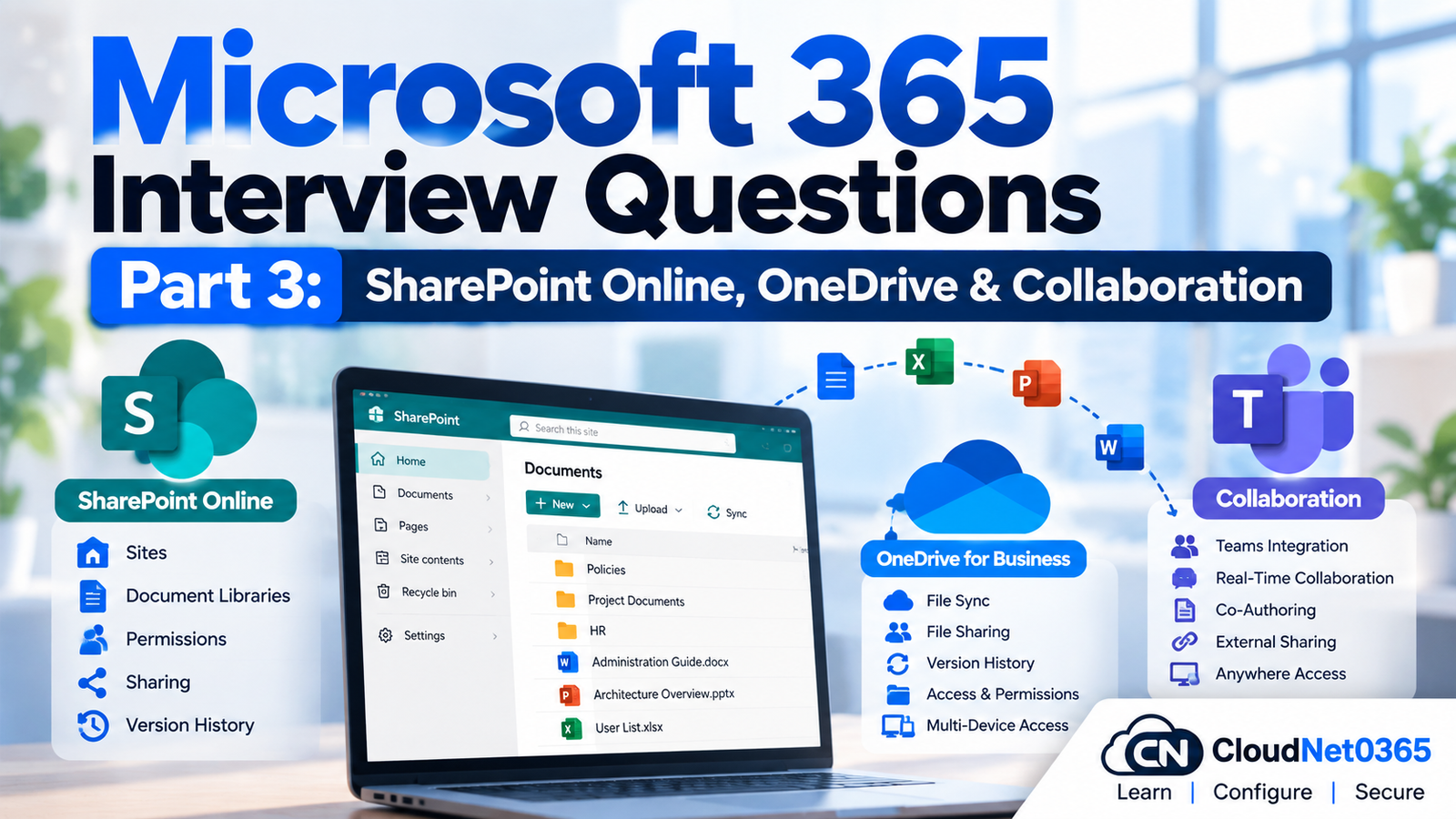
SharePoint Online and OneDrive are two of the most important Microsoft 365 services for file storage, document management and collaboration.
For a senior Microsoft 365 administrator, knowing how to create a SharePoint site or access OneDrive is not enough.
You should understand:
- SharePoint site architecture
- Team sites
- Communication sites
- Hub sites
- Microsoft 365 group-connected sites
- SharePoint permissions
- Permission inheritance
- Unique permissions
- Owners, Members and Visitors
- External sharing
- Sharing links
- OneDrive architecture
- OneDrive vs SharePoint
- OneDrive synchronization
- Files On-Demand
- Version history
- Recycle Bin
- Storage problems
- Access-denied troubleshooting
- Site provisioning
- Real-world SharePoint and OneDrive incidents
Part 1 covered Microsoft 365 tenant administration, licensing, roles, groups and general administration.
Part 2 covered Exchange Online, mail flow, connectors, accepted domains, Message Trace and Exchange troubleshooting.
This part focuses specifically on SharePoint Online and OneDrive.
Continue the Microsoft 365 Interview Series
← Previous Part: [Part 2: Exchange Online, Mail Flow & Troubleshooting] | Complete Series: [Microsoft 365 Interview Questions & Answers – Complete Series] | Next Part →: [Part 4: Microsoft Teams, Collaboration & Troubleshooting]
SharePoint Online is Microsoft’s cloud-based collaboration and content management platform within Microsoft 365.
Organizations use it for:
- Document management
- Team collaboration
- Intranet sites
- Communication sites
- Lists
- Libraries
- Pages
- Knowledge management
- File sharing
- Business applications and workflows
SharePoint Online stores organizational content while providing permissions and collaboration capabilities.
The simplest interview answer is:
OneDrive is primarily an individual’s work-file storage and sharing location, while SharePoint is primarily designed for team and organizational content.
For example:
OneDrive
Zohaib's work documents
Personal working files
Draft documents
Individual files
IT Department
    ├── Policies
    ├── Procedures
    ├── Documentation
    └── Shared Projects
However, OneDrive and SharePoint use closely related Microsoft 365 storage and sharing technologies, and OneDrive can also be used for collaboration.
A team site is designed for collaboration around a team, department or project.
It can contain:
- Document libraries
- Lists
- Pages
- Shared files
- Site content
- Microsoft 365 group integration
- Teams integration
A group-connected team site is associated with a Microsoft 365 group.
Microsoft recommends managing permissions for group-connected team sites primarily through the associated Microsoft 365 group or Teams team.
A communication site is designed primarily for communicating information to a broad audience.
Examples:
- Company intranet
- HR portal
- Corporate announcements
- IT knowledge portal
- Company policies
- News portal
A communication site normally has:
Owners
Members
Visitors
Unlike a Microsoft 365 group-connected team site, a communication site isn’t connected to a Microsoft 365 group by default.
Q5. What is the difference between a team site and a communication site?
| Feature | Team Site | Communication Site |
|---|---|---|
| Main purpose | Collaboration | Communication |
| Typical audience | Team/project | Large organization |
| Microsoft 365 group | Common for group-connected team sites | No by default |
| Editing audience | Team members | Smaller publishing group |
| Readers | Team members/others as permitted | Usually large audience |
| Typical example | IT Project | Corporate Intranet |
A senior administrator should select the site type based on the business requirement rather than simply creating every site as a team site.
A hub site provides a way to organize and connect related SharePoint sites.
For example:
              IT HUB
                 |
       +---------+---------+
       |         |         |
     Infra     Security   Helpdesk
      Site       Site       Site
Hub sites can provide common:
- Navigation
- Branding
- Search/content aggregation experiences
- Association between related sites
A hub association does not automatically mean that users of one site receive permissions to another site.
Permissions remain controlled by the individual sites.
No.
Hub association is primarily an organizational/navigation relationship.
It does not automatically grant users permission to content on every associated site.
For example:
IT Hub
 ├── Infrastructure Site
 ├── Security Site
 └── HR Site
A user having access to Infrastructure Site does not automatically gain access to HR Site.
A document library is a SharePoint location used to store and manage files.
It can provide:
- Version history
- Metadata
- Permissions
- Sharing
- Views
- Co-authoring
- Approval/workflow capabilities
- Integration with OneDrive synchronization
Example:
IT Documentation
    ├── Windows Server
    ├── VMware
    ├── Networking
    └── Microsoft 365
A document library is primarily designed for files.
A SharePoint list is primarily designed for structured information.
Example list:
| Asset | Owner | Location | Status |
|---|---|---|---|
| Server01 | IT | DC1 | Active |
| Server02 | IT | DC1 | Maintenance |
A document library would instead contain files such as:
Server01-Diagram.pdf
Server02-Configuration.docx
Network-Design.vsdx
SharePoint permissions normally inherit from the parent object.
For example:
Site
 ↓
Document Library
 ↓
Folder
 ↓
File
By default, permissions flow downward.
If unique permissions are assigned to a child object, inheritance can be broken.
Microsoft documents inheritance across sites, libraries, folders and individual items.
Common SharePoint groups include:
Owners
Normally have:
Full Control
Members
Normally have:
Edit
or an appropriate contribution-level permission depending on the site configuration.
Visitors
Normally have:
Read
Microsoft documents Owners, Members and Visitors as standard SharePoint permission groups.
Owners
Manage:
- Permissions
- Site settings
- Site structure
- Content
Members
Normally create and edit site content.
Visitors
Normally have read access.
A good security practice is to keep the Owners group small because Owners have broad control over the site.
A permission level is a collection of individual permissions.
Examples include:
- Read
- Edit
- Contribute
- Full Control
Instead of assigning dozens of individual permissions, administrators normally assign an appropriate permission level.
Q14. What happens when you break permission inheritance?
Suppose:
Site
  ↓
Document Library
The library normally inherits permissions from the site.
If inheritance is broken:
Site permissions
      ↓
Document Library
      X
Independent permissions
The library can then have its own permission configuration.
The same concept can apply to folders and files.
However, excessive unique permissions can make administration and troubleshooting significantly more complicated. Microsoft recommends keeping unique permission scopes under control for performance and manageability.
I would check:
- Whether the document has unique permissions.
- Whether inheritance was broken.
- Direct permissions on the document.
- Folder permissions.
- Sharing links.
- Whether the user’s group membership is correct.
- Whether access was removed from the item.
- Any external-sharing restrictions.
I would use Manage Access on the item to understand exactly how the user received or lost access.
Q16. Why should you avoid giving individual permissions to many files?
Because it creates permission sprawl.
For example:
10,000 files
500 users
Thousands of individual permissions
This makes it difficult to answer:
“Who has access to this data?”
A better design is generally:
Security/Microsoft 365 Group
          ↓
SharePoint Group
          ↓
Site/Library permissions
Use unique item-level permissions only when there is a genuine business requirement.
Limited Access is a permission mechanism that can allow a user to reach a specific resource to which they have been granted access without giving them broad access to the entire parent site.
For example, a user may receive access to a particular document while not having normal access to the whole site.
It is not simply the same as Read permission.
No.
The user may have access specifically to the shared file or folder without having broader site permissions.
This can happen because permissions can be unique at the file/folder level.
Therefore, always distinguish:
Access to specific item
from:
Access to entire site
A Microsoft 365 group-connected team site is associated with the Microsoft 365 group.
The group provides collaboration services such as:
- Membership
- Group mailbox
- Calendar
- SharePoint site
- Other integrated Microsoft 365 services
Group owners become site owners and group members become site members for the associated SharePoint site.
Teams uses SharePoint for file storage.
For a standard Team:
Microsoft Team
      ↓
Microsoft 365 Group
      ↓
SharePoint Team Site
      ↓
Document Libraries
Files shared in standard Teams channels are stored in the associated SharePoint site/document library.
Private and shared channels have their own SharePoint channel sites.
Q21. Where are files uploaded to a standard Teams channel stored?
For a standard Teams channel, files are stored in the SharePoint site associated with the Team.
Conceptually:
Teams
  ↓
Team
  ↓
Standard Channel
  ↓
SharePoint document library/folder
Therefore, troubleshooting a Teams file problem may require investigating SharePoint.
Q22. Where are files from a private Teams channel stored?
Private Teams channels use a separate SharePoint site associated with the private channel.
This is important because administrators should not assume every Teams channel uses exactly the same SharePoint site structure.
Private and shared channel sites also have special permission-management behavior.
Microsoft states that permissions for private/shared channel sites are managed through Teams rather than independently through SharePoint.
I would check whether the user has another access path.
Possible sources include:
- Direct SharePoint permission
- SharePoint group membership
- Microsoft 365 group membership
- Security group membership
- Shared link
- Folder/file-specific permission
Removing someone from Teams does not necessarily remove every possible SharePoint permission they may have received separately.
4. External Sharing
External sharing allows users to share SharePoint or OneDrive content with people outside the organization.
Examples:
Company
   ↓
Vendor
Customer
Partner
Consultant
External sharing can be configured at organization and site levels.
The more restrictive applicable setting wins.
Depending on the organization’s configuration, common options include:
- Anyone
- New and existing guests
- Existing guests
- Only people in the organization
The exact available options depend on the organization-level configuration.
Microsoft documents these sharing levels for SharePoint sites.
Q26. What is an “Anyone” sharing link?
An Anyone link is a sharing link that does not require the recipient to authenticate as a specific user.
Because the link can potentially be forwarded, it should be used carefully.
For sensitive information, organizations should generally prefer authenticated sharing and appropriate access controls.
Q27. What is a “Specific people” sharing link?
A specific-people link is intended for the people explicitly specified when sharing the content.
It provides more controlled access than a freely forwardable Anyone link.
The recipient may be required to authenticate depending on the configuration.
I would check:
- SharePoint organization-level sharing.
- Site-level sharing.
- OneDrive-specific sharing if the file is in OneDrive.
- Whether the requested sharing method is allowed.
- Microsoft Entra/B2B-related configuration where applicable.
- Guest restrictions.
- User/site permissions.
- Whether the site has a more restrictive configuration.
The key rule is:
Organization-level sharing must permit the scenario, and the site can be configured more restrictively.
Microsoft documents organization-level and site-level sharing controls and their interaction.
Q29. Can a site have more restrictive external sharing than the organization?
Yes.
For example:
Organization:
External sharing = Allowed

Sensitive HR Site:
External sharing = Disabled
This is a common security design.
The organization setting establishes the upper boundary; the site can be more restrictive.
Yes.
Microsoft documents that an individual OneDrive can be configured to be the same as or more restrictive than the organization’s SharePoint/OneDrive sharing configuration.
5. OneDrive
Q31. What is OneDrive for work or school?
OneDrive for work or school provides an individual user’s cloud storage location within Microsoft 365.
It is designed primarily for the user’s work files and can support:
- File synchronization
- Sharing
- Collaboration
- Office integration
- Version history
- Files On-Demand
Q32. What happens when a new licensed user is provisioned for OneDrive?
OneDrive is provisioned for the user when required/initiated according to the Microsoft 365 service behavior and licensing.
If a user cannot access OneDrive, I would check:
- Appropriate license
- User account
- OneDrive provisioning status
- SharePoint Online service
- Storage/quota
- Permissions
- Service Health
I would not assume that assigning a license alone means every provisioning issue is immediately resolved.
Q33. A licensed user cannot open OneDrive. What would you troubleshoot?
I would use this sequence:
1. Verify the license
Confirm the user has a license containing the required SharePoint/OneDrive service.
2. Check SharePoint/OneDrive Service Health
Determine whether Microsoft has an active service incident.
3. Check the user’s OneDrive URL/provisioning
Verify whether the OneDrive site exists.
4. Check access
Confirm that the user is the correct account and can authenticate.
5. Check storage
Determine whether the OneDrive is over quota.
6. Use Microsoft diagnostics
Microsoft provides SharePoint and OneDrive self-help diagnostics, including checks for user access and locked sites.
Q34. What is OneDrive Files On-Demand?
Files On-Demand allows users to see files in File Explorer without necessarily storing the complete file contents locally.
Common states include:
Online-only
The file is primarily stored in the cloud.
Locally available
The file has been downloaded locally.
Always available
The file is kept locally and available offline.
This helps users access large SharePoint/OneDrive libraries without downloading everything to the device.
Q35. What is the difference between OneDrive “Sync” and “Add shortcut to OneDrive”?
Both can provide access to SharePoint files through the OneDrive experience.
However, Microsoft currently recommends OneDrive shortcuts as the more versatile option.
One important distinction is:
- A shortcut can provide access across the user’s devices.
- Traditional Sync is associated with a particular device.
Microsoft documents both approaches and recommends shortcuts as the more versatile option.
Q36. A user’s OneDrive files are not appearing in File Explorer. What would you check?
I would check:
- OneDrive client is installed.
- User is signed into the correct work account.
- OneDrive client is running.
- Sync relationship exists.
- Files are actually shared/available to the user.
- Files On-Demand state.
- OneDrive client version.
- Network connectivity.
- Storage availability.
- Sync errors.
- Whether the user is using a shortcut or device-specific sync.
Microsoft recommends using the current OneDrive sync client and provides dedicated sync troubleshooting guidance.
Q37. OneDrive sync shows an error. What is your troubleshooting process?
I would:
- Check the exact OneDrive error.
- Confirm the user is signed in.
- Check OneDrive client status.
- Verify the affected file/folder.
- Check file/folder naming and path issues.
- Check permissions.
- Check storage.
- Update the OneDrive client.
- Restart/reconnect synchronization where appropriate.
- Test the same file through the web interface.
The web interface is useful because it helps determine whether the problem is:
Cloud/SharePoint problem
or:
Local OneDrive client problem
6. Version History and Recovery
Version history stores previous versions of files so that users can review or restore earlier versions.
For example:
Report.docx
   |
   +-- Version 1
   +-- Version 2
   +-- Version 3
   +-- Version 4
It is useful when:
- A document was modified incorrectly.
- A user overwrote content.
- A previous version needs to be restored.
- Changes need to be reviewed.
Microsoft currently provides configurable version-history limits at organization, site, library and OneDrive levels.
I would first check:
- Version history.
- Restore the appropriate previous version.
- Confirm the restored content.
- Determine why the overwrite occurred.
- Check whether additional protection or governance is required.
I would not immediately restore the entire site or library when the problem is only one document.
SharePoint provides recycle-bin functionality for deleted content.
The recycle bin can be used to recover content that was accidentally deleted, subject to the applicable retention/recovery period and configuration.
For a deleted document, I would check the appropriate SharePoint recycle-bin level before considering more advanced recovery options.
Q41. A user deleted a file and cannot find it in the normal document library. What would you check?
I would check:
- User’s Recycle Bin.
- Site Recycle Bin where appropriate.
- Whether the file was moved rather than deleted.
- Version history if the file still exists.
- Permissions.
- Search.
- Audit/recovery tools if necessary.
I would first establish whether the item was actually deleted.
7. Storage
Q42. What happens when a OneDrive site exceeds its storage quota?
A user’s OneDrive can enter a read-only state when its storage quota is exceeded.
Symptoms can include:
- Cannot upload files
- Cannot create new files
- Cannot modify existing files
- Storage-quota warnings
Microsoft documents this as a specific OneDrive storage-quota scenario.
Q43. How would you troubleshoot a OneDrive storage-quota problem?
I would:
- Check current storage usage.
- Check the user’s storage quota.
- Identify large/unnecessary files.
- Check the recycle bin because deleted files can continue to consume storage until permanently removed.
- Increase the quota if appropriate and supported.
- Reduce storage usage if necessary.
- Wait for the service to reevaluate the quota.
- Test file creation/editing again.
Microsoft specifically recommends reducing usage or increasing the applicable storage entitlement/quota as appropriate.
I would check:
- Site lock state.
- Storage/quota.
- SharePoint Service Health.
- Whether maintenance is occurring.
- Site policies.
- Administrative configuration.
- Permissions.
- Whether the issue affects one site or many sites.
Microsoft documents several causes of SharePoint/OneDrive read-only states, including site lock and maintenance conditions.
8. Advanced Troubleshooting Scenarios
I would follow a structured process:
Step 1 — Identify the resource
Is the user accessing:
- Site?
- Library?
- Folder?
- File?
- Teams channel site?
Step 2 — Check user identity
Confirm the correct Microsoft Entra account is being used.
Step 3 — Check permissions
Determine whether access comes through:
- SharePoint group
- Microsoft 365 group
- Security group
- Direct permission
- Sharing link
Step 4 — Check inheritance
Determine whether the resource has unique permissions.
Step 5 — Check external sharing
If the user is external, verify site and organization sharing settings.
Step 6 — Check Teams relationship
If the site is Teams-connected, determine whether Teams controls membership.
Step 7 — Test with web access
Determine whether the problem is permission-related or client-related.
Microsoft provides a specific Check User Access diagnostic for SharePoint and OneDrive.
This distinction is important:
Browser access = works
Sync = fails
That suggests the problem may be related to:
- OneDrive client
- Sync configuration
- Files On-Demand
- File/folder restrictions
- Local device
- Storage
- Client authentication
- Sync relationship
I would first verify that the user can access the files through SharePoint in the browser, then troubleshoot the OneDrive sync client.
I would check:
- User’s permission level.
- Whether the document is read-only.
- Whether the library has configuration preventing editing.
- Whether the file is checked out where applicable.
- Whether the site/library is read-only.
- Whether storage quota has been exceeded.
- Office/browser session.
- Whether the document is locked by another process where applicable.
The key is to distinguish:
User permission problem
from:
File/library/site state
I would check:
- Organization external-sharing setting.
- Site external-sharing setting.
- OneDrive setting if the file is in OneDrive.
- Sharing link type.
- Recipient identity.
- Whether the invitation was accepted using the correct account.
- Guest/B2B configuration where applicable.
- Whether the link has expired or was revoked.
- Whether the file was moved or deleted.
Microsoft specifically recommends checking organization and site sharing settings when external sharing fails.
It can create:
- Permission-management complexity
- Difficult troubleshooting
- Increased risk of accidental data exposure
- Administrative overhead
- Performance considerations
SharePoint supports unique permission scopes, but Microsoft recommends keeping the number of unique ACLs under control; its current guidance notes a maximum of 50,000 unique ACLs per document library and recommends staying under 5,000 for best performance.
A better design is generally to manage access through groups and library/site boundaries instead of thousands of individual file permissions.
I would not place everything into one large site with complicated item-level permissions.
I would design separate logical collaboration boundaries.
For example:
Corporate SharePoint
        |
        +-- HR
        |
        +-- Finance
        |
        +-- IT
        |
        +-- General Collaboration
Each site can have:
- Appropriate owners
- Appropriate members
- Appropriate visitors
- Appropriate external-sharing configuration
- Appropriate libraries
- Appropriate sensitivity/security controls
For highly sensitive departments such as HR and Finance, I would prefer separate sites with restrictive sharing rather than trying to secure thousands of files individually.
The design should follow:
Least privilege + clear ownership + group-based access + minimal unique permissions.
Connect to SharePoint Online
Install/use the current SharePoint Online Management Shell and connect with:
Connect-SPOService -Url https://tenant-admin.sharepoint.com
Replace:
tenant
with your actual tenant name.
Get SharePoint sites
Get-SPOSite -Limit All
Get details for a specific site
Get-SPOSite -Identity https://tenant.sharepoint.com/sites/IT
Check a site’s sharing capability
Get-SPOSite -Identity https://tenant.sharepoint.com/sites/IT |
    Select Url, SharingCapability
Set a site’s sharing capability
Example:
Set-SPOSite -Identity https://tenant.sharepoint.com/sites/IT `
    -SharingCapability Disabled
Use such configuration changes carefully and only after confirming the organization’s security requirements.
Check OneDrive/site storage information
Get-SPOSite -Identity https://tenant-my.sharepoint.com/personal/user_company_com
Connect to Exchange Online
Although Exchange was covered in Part 2, remember that Microsoft 365 administration often requires multiple PowerShell modules.
Connect-ExchangeOnline
Practical Troubleshooting Matrix
| Problem | First Checks |
|---|---|
| SharePoint Access Denied | User, groups, permissions, inheritance |
| File Access Denied | File/folder unique permissions |
| External sharing fails | Organization + site sharing settings |
| OneDrive unavailable | License, provisioning, service health |
| OneDrive sync fails | Client, authentication, sync state |
| File not syncing | File/path/name restrictions, permissions |
| Document accidentally modified | Version history |
| Deleted file | Recycle Bin |
| OneDrive read-only | Storage quota/site state |
| SharePoint site read-only | Site lock, storage, maintenance |
| Teams file problem | Teams + associated SharePoint site |
| User removed from Team but still has file access | Direct/SharePoint/group/link permissions |
| Too many permissions | Redesign around groups/sites/libraries |
When a SharePoint or OneDrive issue occurs, don’t immediately change permissions.
Use this sequence:
                    Problem
                       |
                       v
                 Define Scope
                       |
             +---------+---------+
             |                   |
          One User           Multiple Users
             |                   |
             v                   v
        Check Access        Service Health
             |                   |
             +---------+---------+
                       |
                       v
                  Identify
                  Resource
                       |
          +------------+------------+
          |            |            |
         Site        Library      File
          |            |            |
          +------------+------------+
                       |
                       v
                Check Permissions
                       |
                       v
              Check Inheritance
                       |
                       v
             Check Sharing Settings
                       |
                       v
             Check Storage / Lock
                       |
                       v
          Check OneDrive Client if Sync
                       |
                       v
                  Test Fix
                       |
                       v
                Document RCA
This prevents administrators from randomly changing permissions and potentially creating a larger security problem.
Real-World Scenario 1: CEO Cannot Access a Finance Document
Problem
The CEO can access the Finance SharePoint site but receives:
Access Denied
when opening one document.
Investigation
I would:
- Confirm the correct user account.
- Confirm site access.
- Open the document’s Manage Access information.
- Check whether the file has unique permissions.
- Check folder/library permissions.
- Check whether a sharing change removed access.
- Restore appropriate access through the correct group.
Senior approach
I would avoid giving the CEO permanent Full Control just to solve the issue.
I would identify the intended permission level and correct the underlying permission model.
Real-World Scenario 2: OneDrive Is Read-Only
Problem
A user reports:
“I can open my files but I cannot create or modify anything.”
Investigation
I would check:
OneDrive storage usage
        ↓
Storage quota
        ↓
Recycle Bin
        ↓
Site lock/state
        ↓
Service Health
If the user’s OneDrive has exceeded its storage quota, SharePoint can place the site into a read-only state.
Resolution
Depending on the organization’s policy:
- Reduce storage usage.
- Empty recycle-bin content when appropriate.
- Increase the applicable quota/entitlement if supported.
- Allow the service to reevaluate the state.
- Test file creation/editing.
Problem
An IT department shares:
Network-Diagram.pdf
with an external vendor.
The vendor receives an access error.
Investigation
Check:
Organization sharing
        ↓
Site sharing
        ↓
File sharing
        ↓
Link type
        ↓
Recipient identity
        ↓
Guest/B2B access
If organization-level sharing is enabled but the site is configured more restrictively, the site restriction can prevent the sharing operation.
Microsoft documents that the more restrictive organization/site configuration applies.
Real-World Scenario 4: Teams User Cannot Access Channel Files
Problem
A user says:
“I can see the Team, but the Files tab is giving me an access problem.”
Investigation
I would determine:
- Which Team?
- Which channel?
- Standard, private or shared channel?
- Which SharePoint site is associated?
- Is the user a member of the appropriate Team/channel?
- Does the user have SharePoint access?
- Is the SharePoint site healthy?
For private/shared channels, permissions are managed through Teams rather than independently through SharePoint.
Real-World Scenario 5: OneDrive Sync Works for Other Users but Not One User
Problem
Twenty employees use the same SharePoint library.
Nineteen users can synchronize it.
One user cannot.
Investigation
Because the problem is isolated to one user, I would first investigate:
User account
   ↓
Permissions
   ↓
OneDrive client
   ↓
Authentication
   ↓
Sync relationship
   ↓
Local device
I would test:
- Browser access.
- OneDrive status.
- Correct work account.
- Sync relationship.
- Client version.
- File/path issue.
- Local device problem.
I would avoid changing tenant-wide SharePoint settings for a single-user sync problem.
Quick Revision
SharePoint
- Team site → collaboration.
- Communication site → broad communication/intranet.
- Hub site → connects related sites.
- Document library → file storage.
- List → structured data.
- Permissions normally inherit.
- Breaking inheritance creates unique permissions.
- Owners → Full Control.
- Members → normally Edit/Contribute depending on site.
- Visitors → Read.
Teams + SharePoint
Teams
  ↓
Microsoft 365 Group
  ↓
SharePoint
Standard Teams channel files are stored in the associated SharePoint site.
Private/shared channels use separate SharePoint channel sites.
OneDrive
- Primarily individual work-file storage.
- Supports sharing and collaboration.
- Uses SharePoint technology.
- Supports Files On-Demand.
- Supports synchronization.
- Can become read-only when storage quota is exceeded.
External Sharing
Remember:
Organization setting
        +
Site setting
        +
OneDrive setting where applicable
        ↓
Effective sharing capability
The more restrictive applicable setting wins.
Permissions
Site
 ↓
Library
 ↓
Folder
 ↓
File
By default, permissions inherit downward.
Exam Answer Summary
1. What is SharePoint Online?
SharePoint Online is Microsoft’s cloud-based collaboration and content-management platform used for document management, intranet sites, team collaboration, lists, libraries, pages and controlled content sharing.
2. SharePoint vs OneDrive?
OneDrive is primarily intended for an individual’s work files and personal working storage, while SharePoint is primarily intended for team and organizational content and collaboration.
3. Team Site vs Communication Site?
A Team Site is designed primarily for collaboration among a team or project, while a Communication Site is designed primarily to publish information to a broad audience.
4. What is a Hub Site?
A Hub Site connects related SharePoint sites and provides shared navigation and organizational context. Association with a hub does not automatically grant users permission to other associated sites.
5. What is permission inheritance?
Permission inheritance means child SharePoint objects normally inherit permissions from their parent. Inheritance can be broken to create unique permissions on a site, library, folder or item.
6. What is external sharing?
External sharing allows SharePoint or OneDrive content to be shared with people outside the organization. Organization-level and site-level settings control what type of external sharing is permitted.
7. What is Files On-Demand?
Files On-Demand allows users to see cloud files through File Explorer without requiring all file contents to be stored locally.
8. How do you troubleshoot SharePoint Access Denied?
I identify the exact resource, verify the user’s identity and permissions, check group membership, inspect inheritance and unique permissions, check external-sharing restrictions if applicable, and then test access again.
9. How do you troubleshoot OneDrive sync?
I first determine whether the issue is cloud-side or client-side by testing browser access. Then I check the OneDrive client, authentication, sync relationship, permissions, Files On-Demand, file/path restrictions, storage and client version.
Senior Interview Tip
A junior administrator often thinks:
“The user cannot access the file, so I will give the user Full Control.”
A senior administrator asks:
“Why does this user not have the expected access, and what is the correct permission boundary?”
Always investigate the permission path:
User
 ↓
Microsoft Entra / Group membership
 ↓
Microsoft 365 Group / Security Group
 ↓
SharePoint Group
 ↓
Site
 ↓
Library
 ↓
Folder
 ↓
File
Then determine whether inheritance has been broken.
For OneDrive and SharePoint incidents, also separate:
Permission problem
        vs
Sharing-policy problem
        vs
Storage problem
        vs
Site-state problem
        vs
OneDrive-client problem
        vs
Microsoft service problem
That distinction is a major senior-level troubleshooting skill.
Progress in Microsoft 365
Continue the Microsoft 365 Interview Series
← Previous Part: [Part 2: Exchange Online, Mail Flow & Troubleshooting] | Complete Series: [Microsoft 365 Interview Questions & Answers – Complete Series] | Next Part →: [Part 4: Microsoft Teams, Collaboration & Troubleshooting]
Part 1 — Microsoft 365 Administration, Tenant & Core Concepts
Covered:
- Microsoft 365 architecture
- Tenants
- Domains
- Subscriptions
- Licenses
- Service plans
- Admin centers
- Administrative roles
- Least privilege
- Users and groups
- Microsoft 365 groups
- Distribution groups
- Service Health
- Message Center
- General Microsoft 365 administration
Part 2 — Exchange Online Administration, Mail Flow & Troubleshooting
Covered:
- Exchange Online
- Mailboxes
- Shared mailboxes
- Mailbox permissions
- Send As
- Send on Behalf
- Accepted domains
- Authoritative domains
- Internal relay
- MX
- Exchange Online Protection
- Connectors
- Mail-flow rules
- Message Trace
- NDR troubleshooting
- Hybrid Exchange
- Exchange Online PowerShell
- Advanced mail-flow scenarios
Covered:
- SharePoint Online
- Team sites
- Communication sites
- Hub sites
- Document libraries
- Lists
- SharePoint permissions
- Permission inheritance
- Unique permissions
- Owners/Members/Visitors
- Microsoft 365 group-connected sites
- Teams + SharePoint
- External sharing
- Sharing links
- OneDrive
- Files On-Demand
- OneDrive synchronization
- Version history
- Recycle Bin
- Storage/quota problems
- Access Denied troubleshooting
- SharePoint/OneDrive real-world scenarios
Next Part
Microsoft 365 Interview Questions – Part 4: Microsoft Teams, Collaboration & Advanced Microsoft 365 Troubleshooting
The next part will continue from Parts 1–3 and will not repeat the basic tenant, Exchange, SharePoint or OneDrive questions already covered.
It will focus on the remaining Microsoft 365 collaboration and senior-level administration gaps, including:
- Microsoft Teams architecture
- Teams vs Microsoft 365 Groups
- Teams and SharePoint relationship
- Standard/private/shared channels
- Teams permissions and membership
- Guest access
- Teams policies
- Meeting policies
- Teams troubleshooting
- Teams files and SharePoint dependencies
- Teams sign-in/client problems
- Teams calling basics where relevant
- Microsoft 365 identity/application troubleshooting
- Cross-service troubleshooting scenarios
- Senior Microsoft 365 incident-management scenarios
For official Microsoft 365 documentation and additional technical information, visit: Microsoft Learn