
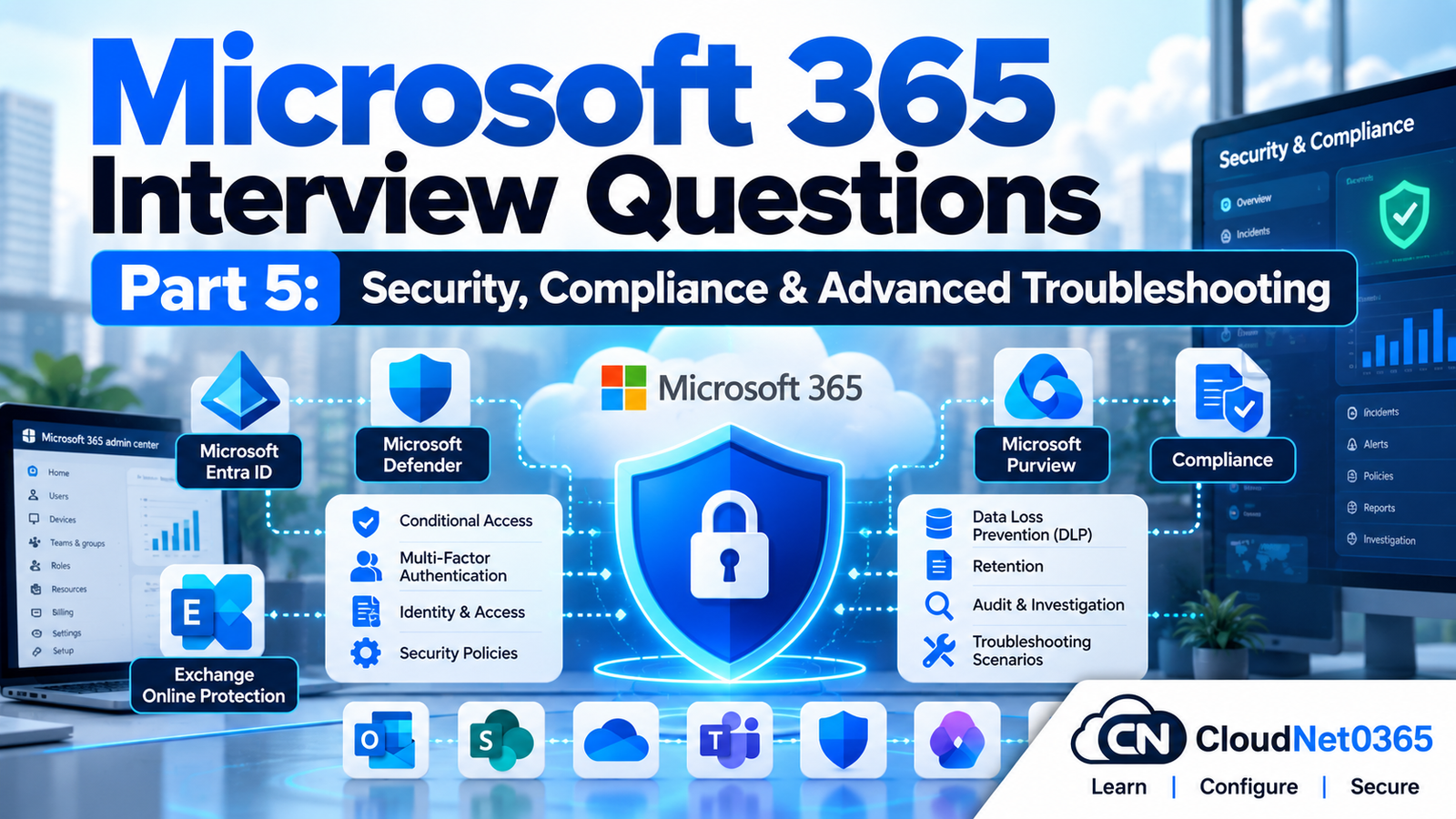
A senior Microsoft 365 administrator must understand more than users, mailboxes, SharePoint sites and Teams.
Modern Microsoft 365 administration also involves:
- Microsoft Purview
- Data Loss Prevention
- Sensitivity labels
- Retention policies
- Retention labels
- Audit
- eDiscovery
- Records management
- Compliance investigations
- Information protection
- Security-related troubleshooting
- Cross-service incidents
This part covers those areas.
The objective is not to turn a System Administrator into a legal/compliance specialist.
The objective is to understand what these services do, how they interact with Microsoft 365 workloads, and how a senior administrator should troubleshoot them.
Continue the Microsoft 365 Interview Series
← Previous Part: [Part 4: Microsoft Teams, Collaboration & Troubleshooting] | Complete Series: [Microsoft 365 Interview Questions & Answers – Complete Series]
1. Microsoft Purview
Q1. What is Microsoft Purview?
Microsoft Purview is Microsoft’s portfolio of data governance, data security and data compliance capabilities.
It includes solutions such as:
- Data Loss Prevention
- Information Protection
- Sensitivity Labels
- Data Lifecycle Management
- Records Management
- Audit
- eDiscovery
- Insider Risk Management
- Compliance Manager
- Information Barriers
A useful way to remember it is:
Microsoft Purview
       |
       +-- Know your data
       |
       +-- Classify/protect data
       |
       +-- Prevent data loss
       |
       +-- Retain/delete data
       |
       +-- Audit activity
       |
       +-- Investigate data
       |
       +-- Manage compliance
Q2. What is Microsoft Purview Information Protection?
Microsoft Purview Information Protection provides capabilities to discover, classify and protect sensitive information.
It includes capabilities such as:
- Sensitivity labels
- Encryption
- Classification
- Data Loss Prevention integration
The overall objective is:
Identify sensitive data and apply appropriate protection based on its sensitivity.
2. Sensitivity Labels
Q3. What is a sensitivity label?
A sensitivity label is a classification and protection mechanism used to identify the sensitivity of content.
For example:
Public
Internal
Confidential
Highly Confidential
A label can be configured to provide protection such as:
- Classification
- Encryption
- Access restrictions
- Content markings
- Watermarks
Sensitivity labels can be used across supported Microsoft 365 workloads.
Microsoft describes sensitivity labels as a way to classify and protect content, and they can be applied manually or automatically depending on configuration.
Q4. What is the difference between a sensitivity label and a retention label?
This is a very important interview question.
Sensitivity label
Primarily answers:
How sensitive is this content and how should access be protected?
Example:
Highly Confidential
It can provide protection such as encryption.
Retention label
Primarily answers:
How long should this content be retained, and what should happen at the end of the retention period?
Example:
Financial Records
Retain for 7 years
Therefore:
Sensitivity
     ↓
Protection / access

Retention
     ↓
Lifecycle / retention / deletion
They solve different problems.
Q5. Can a sensitivity label encrypt a document?
Yes.
A sensitivity label can be configured to apply encryption and access controls to supported content.
For example:
Highly Confidential
       ↓
Encryption
       ↓
Only authorized users can open
The exact protection behavior depends on the label configuration and supported workload.
Q6. What is label publishing?
Creating a sensitivity label does not automatically make it available to every user.
The label must be published through an appropriate label policy.
Conceptually:
Create Label
     ↓
Configure Label
     ↓
Publish Label
     ↓
Users/apps can apply it
This distinction is important during troubleshooting.
Q7. A user says a sensitivity label is missing from Word. What would you check?
I would check:
- Whether the label exists.
- Whether it is published to the user.
- Whether the user is in scope of the label policy.
- Office application version.
- User authentication.
- Licensing.
- Whether the label is supported for the content/workload.
- Policy propagation.
- Whether the Office client needs to refresh its policy.
I would not immediately recreate the label.
Q8. What is automatic sensitivity labeling?
Automatic labeling applies a sensitivity label when configured conditions identify content that matches the policy.
For example:
Document contains sensitive information
             ↓
Policy detects match
             ↓
Confidential label applied
Automatic labeling can reduce dependence on users manually classifying every document.
However, automatic labeling should be carefully tested before enforcing it broadly.
Q9. What is the difference between manual and automatic labeling?
Manual
The user selects a label.
User
 ↓
Select Confidential
 ↓
Content classified/protected
Automatic
The system identifies content according to configured conditions.
Sensitive information detected
          ↓
Policy evaluation
          ↓
Label applied automatically
Automatic labeling is particularly useful for large organizations where manual classification alone is insufficient.
3. Data Loss Prevention
Q10. What is Microsoft Purview Data Loss Prevention?
Microsoft Purview Data Loss Prevention, or DLP, helps identify, monitor and protect sensitive information to reduce inappropriate sharing or transfer.
DLP can apply to supported locations such as:
- Exchange Online
- SharePoint
- OneDrive
- Teams
- Office applications
- Endpoint devices
- Other supported data sources
Microsoft currently describes DLP as protecting sensitive data across data at rest, data in use and data in motion, depending on the workload and configuration.
Q11. What is a sensitive information type?
A Sensitive Information Type, or SIT, is a detection mechanism used by Microsoft Purview to identify sensitive information.
Examples include:
- Credit card numbers
- Bank account information
- National identification numbers
- Other regulated or organizationally sensitive patterns
SIT detection can use more than simple keyword matching.
Microsoft describes DLP as using content analysis including patterns, validation, proximity and machine-learning-based techniques.
Q12. Give an example of a DLP policy.
Requirement:
Prevent employees from emailing credit-card information to external recipients.
A possible policy design:
Location:
Exchange

Condition:
Sensitive information type = Credit Card Number

AND

Recipient:
Outside organization

Action:
Block or restrict the message
The exact action should be chosen according to the organization’s business and compliance requirements.
Q13. What is a DLP policy tip?
A policy tip is a notification shown to users when their action matches a DLP policy.
For example:
You are attempting to share sensitive information
outside the organization.
Policy tips can educate users and prevent accidental data leakage.
Depending on the policy, DLP can also take enforcement actions.
Q14. What is the difference between monitoring and blocking in DLP?
Monitoring
The system detects and records the activity but does not necessarily prevent it.
Useful during:
- Initial deployment
- Testing
- Policy tuning
- False-positive analysis
Blocking
The policy takes an enforcement action to prevent or restrict the activity.
A senior administrator should normally validate a DLP policy before introducing broad blocking actions.
Q15. Why should DLP policies be tested before enforcement?
Because poorly designed DLP policies can cause business disruption.
For example:
DLP rule
   ↓
False positive
   ↓
Legitimate email blocked
   ↓
Business disruption
A better deployment approach is:
Design
 ↓
Test
 ↓
Audit/monitor
 ↓
Tune
 ↓
Pilot
 ↓
Enforce
Microsoft recommends planning and testing DLP policies before activating blocking actions broadly.
Q16. Can DLP use a sensitivity label as a condition?
Yes.
A DLP policy can use sensitivity labels as a condition for supported workloads.
For example:
Sensitivity Label:
Highly Confidential

AND

External sharing detected
       ↓
DLP action
Microsoft currently supports sensitivity labels as DLP conditions across several locations including Exchange, SharePoint, OneDrive and supported device scenarios.
Q17. What is Endpoint DLP?
Endpoint DLP extends Microsoft Purview DLP protection to supported devices.
It can monitor and control activities involving sensitive files, such as:
- Copying
- Uploading
- Printing
- Clipboard-related actions
- Sharing
- Other supported data-transfer activities
Supported devices include supported Windows and macOS versions.
Microsoft describes Endpoint DLP as extending DLP monitoring and protection to onboarded endpoint devices.
Q18. A user can email sensitive information externally even though DLP is enabled. How would you troubleshoot it?
I would check:
- Whether the user is in policy scope.
- Whether Exchange is included in the policy.
- Whether the content actually matches the configured condition.
- Whether the sensitive information type detected the content.
- Policy mode.
- Rule priority.
- Exceptions.
- Policy tips/alerts.
- Enforcement action.
- Policy synchronization.
- Licensing.
- Audit/DLP incident information.
I would verify the actual policy match instead of assuming that “DLP is enabled” means every sensitive email will automatically be blocked.
Q19. A DLP policy is blocking legitimate business emails. What would you do?
I would not simply disable DLP.
I would:
- Identify the exact matched rule.
- Examine the matched content.
- Determine why it was classified as sensitive.
- Check for false positives.
- Review conditions.
- Review exceptions.
- Adjust confidence/thresholds where appropriate.
- Test again.
- Document the change.
This is called policy tuning.
4. Retention
Q20. What is Microsoft 365 retention?
Retention controls how long Microsoft 365 content should be retained and/or whether it should be deleted after a specified period.
Retention is part of Microsoft Purview Data Lifecycle Management.
It can apply to workloads such as:
- Exchange
- SharePoint
- OneDrive
- Teams
- Other supported Microsoft 365 locations
Q21. What is the difference between a retention policy and a retention label?
Retention policy
Typically applies retention settings broadly to a location such as:
- SharePoint site
- OneDrive
- Exchange mailbox
Example:
All content in Finance SharePoint site
       ↓
Retain for 7 years
Retention label
Applies retention settings at the item level.
Example:
Tax Return.pdf
       ↓
Retention Label:
Tax Records - 7 Years
Microsoft specifically distinguishes retention policies as location-level controls and retention labels as item-level controls.
Q22. When would you use a retention label instead of a retention policy?
Suppose a SharePoint site contains:
Normal Documents
Financial Records
Legal Records
Temporary Documents
A single site-wide retention period may not be appropriate.
Retention labels allow different content types to receive different retention requirements.
For example:
Financial Records → 7 years
Legal Records → 10 years
Temporary Documents → Delete after 1 year
Q23. Can a retention label travel with content when it is moved?
Within supported Microsoft 365 scenarios, retention labels can persist when content is moved to another location within the tenant.
This is an important difference from location-based retention policies.
Microsoft explicitly notes that retention settings from retention labels travel with content when it is moved within the Microsoft 365 tenant.
Q24. What happens when retention and eDiscovery hold both apply?
A legal/eDiscovery hold preserves content for the investigation.
Retention settings can coexist with eDiscovery holds, but preservation from an eDiscovery hold takes precedence over deletion.
Therefore, content under an eDiscovery hold should not simply be deleted because a retention period has expired.
Microsoft documents eDiscovery holds as preservation mechanisms that take precedence for preservation purposes.
Q25. What is a record in Microsoft Purview?
A record is content that is subject to formal records-management requirements.
A retention label can be configured to mark content as a record.
For example:
Legal Agreement
      ↓
Retention Label
      ↓
Declare as Record
Records management can impose additional restrictions on what users can do with the content.
Microsoft uses retention labels to declare documents and emails as records.
5. Audit
Q26. What is Microsoft Purview Audit?
Microsoft Purview Audit records user and administrator activities across Microsoft 365 services.
It can help investigate:
- File access
- File modification
- Email-related activities
- Administrative changes
- User activities
- Security/compliance events
Audit is extremely useful during incident investigation.
Microsoft currently documents Audit (Standard) and Audit (Premium) capabilities in Microsoft Purview.
Q27. What is the difference between Audit and DLP?
Audit
Answers:
What activity occurred?
Example:
Who accessed this file?
Who deleted this document?
Who changed this configuration?
DLP
Answers:
Did an activity involving sensitive information violate a protection policy, and should an action be taken?
Example:
User attempts to email sensitive information externally
        ↓
DLP policy matches
        ↓
Block / restrict / alert
They complement each other.
I would use Microsoft Purview Audit.
I would search for the relevant SharePoint file-deletion activity and identify:
- User
- Time
- Resource
- Activity
- Other relevant audit information
Then I would correlate the audit event with SharePoint and other available information.
Q29. How long are Microsoft 365 audit logs retained?
The exact retention depends on the audit solution, licensing and applicable audit-retention policies.
Microsoft currently documents a 180-day default retention for Audit (Standard), while appropriate Audit (Premium) scenarios can provide longer retention, including one-year retention for qualifying users and up to 10 years with the applicable add-on.
Therefore, in an interview, do not simply answer:
“Audit logs are always retained for one year.”
That is not universally correct.
Q30. Is auditing enabled automatically in Microsoft 365?
For most Microsoft 365 organizations, auditing is enabled by default, although Microsoft notes exceptions such as certain SMB subscriptions.
For a production environment, I would verify the actual audit status and licensing rather than assuming it.
Microsoft currently states that Audit is enabled by default for most Microsoft 365 organizations, with specific exceptions.
6. eDiscovery
Q31. What is eDiscovery?
eDiscovery is used to identify, collect, preserve, review and export electronically stored information for investigations and legal/compliance purposes.
Potential content can include:
- Exchange email
- SharePoint files
- OneDrive content
- Teams-related content
- Other supported Microsoft 365 data
Q32. What is the difference between eDiscovery and Audit?
Audit
Used primarily to investigate activity.
Example:
Who deleted the file?
eDiscovery
Used primarily to investigate and work with content.
Example:
Find all emails and documents related to a legal case.
Therefore:
Audit
 ↓
Activity investigation

eDiscovery
 ↓
Content investigation
They can be used together.
Q33. What is an eDiscovery case?
An eDiscovery case provides a workspace for a specific investigation.
For example:
Case:
Contract Dispute - 2026

Sources:
Employee A mailbox
Employee B mailbox
SharePoint site
OneDrive
Teams content
The case can then be used to manage searches, holds and other investigation activities according to the applicable eDiscovery capability.
Q34. What is an eDiscovery hold?
An eDiscovery hold is used to preserve relevant content for an investigation.
For example:
Legal Investigation
       ↓
Identify custodians
       ↓
Place relevant content on hold
       ↓
Prevent relevant content from being lost
It should not be confused with a normal retention policy.
Q35. What is the difference between retention and eDiscovery hold?
Retention
Business/compliance lifecycle requirement.
Example:
Keep financial records for seven years.
eDiscovery hold
Investigation/legal preservation requirement.
Example:
Preserve this employee’s relevant email because of an ongoing investigation.
Microsoft describes retention as broad, long-term lifecycle management and eDiscovery holds as more specific preservation for investigations.
Q36. What is the difference between eDiscovery Standard and Premium?
Both provide eDiscovery capabilities, but Premium provides more advanced investigation and review capabilities.
A senior administrator should not assume every Microsoft 365 license includes every eDiscovery feature.
The exact available functionality depends on licensing and the organization’s Purview configuration.
Microsoft currently manages the eDiscovery experience and premium capabilities through the Microsoft Purview portal.
7. Cross-Service Security Troubleshooting
Q37. A user can access a confidential document even though they are not supposed to. How would you investigate?
I would determine the access path.
Step 1
Identify the document.
Step 2
Check SharePoint/OneDrive permissions.
Step 3
Check group membership.
Step 4
Check direct sharing.
Step 5
Check the sensitivity label.
Step 6
Check whether encryption/access restrictions are configured.
Step 7
Check audit logs.
Step 8
Check whether the user accessed the document through Teams or another application.
The investigation should answer:
How did the user obtain access?
rather than simply removing the user’s access without identifying the root cause.
I would:
- Identify the file.
- Identify who shared it.
- Identify the external recipient.
- Determine the sharing method.
- Revoke inappropriate access.
- Check audit logs.
- Check the sensitivity label.
- Check DLP events.
- Determine whether the file was downloaded.
- Identify other users who accessed it.
- Preserve evidence if required.
- Notify the appropriate security/compliance stakeholders.
- Correct the policy/control that allowed the incident.
This combines:
SharePoint/OneDrive
+
Sensitivity Labels
+
DLP
+
Audit
+
eDiscovery where required
Q39. DLP is enabled but sensitive data is still being copied to USB. What would you investigate?
I would determine whether Endpoint DLP is configured and whether the affected device is onboarded.
I would check:
- Device onboarding
- Endpoint DLP policy
- User scope
- Sensitive-information detection
- Policy mode
- Device status
- USB/removable-media activity
- Policy synchronization
- DLP alerts/activity
- Licensing
Cloud DLP alone is not equivalent to endpoint enforcement.
Microsoft documents Endpoint DLP specifically for monitoring and protecting sensitive file activities on supported devices.
8. Senior Microsoft 365 Scenarios
I would not troubleshoot each application separately.
Because multiple Microsoft 365 workloads are affected, I would first check:
- Microsoft 365 Service Health.
- User authentication.
- Microsoft Entra ID.
- Conditional Access.
- Network connectivity.
- Internet/ISP.
- Organization-wide configuration changes.
If multiple unrelated workloads fail simultaneously, a common dependency is more likely than four independent application failures.
Q41. All Microsoft 365 services work except one user’s access. What does that suggest?
The issue is more likely user-specific.
I would compare the affected user with a working user:
License
   ↓
Group membership
   ↓
Conditional Access
   ↓
Authentication
   ↓
Device
   ↓
Policies
   ↓
Application
I would avoid changing tenant-wide configuration unless evidence points to an organization-wide problem.
Q42. A Microsoft 365 security policy was changed and users immediately started experiencing problems. What would you do?
I would establish:
- What changed?
- Who changed it?
- When?
- Which users are affected?
- Which services are affected?
- What was the previous configuration?
Then I would use:
- Audit
- Change history
- Service Health
- Policy configuration
- Application testing
If the change is confirmed as the cause, I would follow the organization’s rollback/change-management process.
I would not make multiple additional changes without establishing the cause.
Q43. How would you safely deploy a new DLP policy to 20,000 users?
I would use a staged approach.
Phase 1 — Design
Identify:
- Sensitive data
- Business requirements
- Stakeholders
- Locations
- Required actions
Phase 2 — Test
Use a limited scope.
Phase 3 — Audit/monitor
Observe matches and false positives.
Phase 4 — Tune
Adjust:
- Conditions
- Exceptions
- Thresholds
- Scope
Phase 5 — Pilot
Deploy to a controlled user group.
Phase 6 — Enforcement
Enable blocking/restrictive actions.
Phase 7 — Monitor
Review incidents and continue tuning.
This minimizes business disruption.
Q44. A company wants all confidential documents to be encrypted. Would you use DLP or sensitivity labels?
Sensitivity labels would normally be the primary mechanism for classification and protection such as encryption.
DLP can then complement the design by detecting and controlling inappropriate sharing or transfer.
For example:
Sensitivity Label
       ↓
Confidential
       ↓
Encryption

DLP
       ↓
Detect inappropriate external sharing
       ↓
Block / restrict / alert
This demonstrates why Purview capabilities should be designed together rather than treated as interchangeable tools.
Q45. A company wants to retain every email for seven years. Should you simply create an eDiscovery hold?
No.
An eDiscovery hold is designed for preservation related to an investigation and should not be used as a general long-term data-lifecycle strategy.
For a business requirement such as:
Retain email for seven years.
I would evaluate Microsoft Purview retention policies/labels and the applicable compliance requirements.
Microsoft specifically recommends retention policies and retention labels for data lifecycle management rather than using eDiscovery holds for long-term retention.
Q46. A user deleted an email that is subject to a retention requirement. What would you investigate?
I would check:
- Applicable retention policy.
- Retention label if applicable.
- Mailbox location.
- Whether the item is subject to a hold.
- eDiscovery case/hold if relevant.
- Audit records.
- Applicable recovery mechanisms.
I would not assume that pressing Delete immediately means the data has been permanently removed from all compliance-controlled locations.
Q47. A manager asks you to permanently delete an employee’s mailbox immediately after the employee leaves. What should you consider?
Before deletion, I would determine:
- Retention requirements
- Legal holds
- eDiscovery cases
- Regulatory requirements
- Organizational policies
- Data preservation requirements
- Business/legal approval
An administrator should not bypass retention or legal-preservation requirements simply because a manager requests deletion.
Q48. How would you investigate a suspected insider data leak?
I would use a controlled investigation.
Potential sources include:
Microsoft Purview Audit
        +
DLP alerts
        +
SharePoint/OneDrive activity
        +
Exchange activity
        +
Endpoint DLP
        +
eDiscovery where required
I would establish:
- What data was involved
- Who accessed it
- Who shared it
- Where it went
- When it happened
- Whether it was downloaded/copied
- Which policies triggered
- Whether additional users were affected
Evidence should be preserved according to organizational investigation procedures.
Q49. A DLP policy reports hundreds of alerts every day. Does that automatically mean the policy is working correctly?
No.
High alert volume can indicate:
- Genuine data-loss risk
- Poor policy design
- Excessive scope
- False positives
- Duplicate detections
- Normal business activity that wasn’t accounted for
I would analyze:
Alert volume
      ↓
True positives
      ↓
False positives
      ↓
Business impact
      ↓
Policy tuning
A mature DLP implementation focuses on meaningful protection rather than simply generating the largest number of alerts.
Q50. How would you handle a major Microsoft 365 security incident as a senior administrator?
I would follow a structured incident process.
1. Detect
Identify the initial alert/report.
2. Scope
Determine:
- Users affected
- Services affected
- Data affected
- Time period
- Geographic scope
3. Contain
Depending on the incident:
- Revoke sessions
- Restrict access
- Disable compromised accounts
- Remove inappropriate sharing
- Block risky activity
- Apply emergency controls
4. Investigate
Use appropriate sources:
Audit
DLP
Entra ID
Exchange
SharePoint
OneDrive
Teams
Endpoint
eDiscovery
5. Preserve evidence
If legal/compliance investigation is involved, preserve relevant data according to organizational procedures.
6. Eradicate
Remove the underlying cause.
7. Recover
Restore normal operations safely.
8. Validate
Confirm:
- Access
- Security controls
- Data integrity
- User functionality
9. Root Cause Analysis
Document:
- What happened
- Why it happened
- What failed
- What detected it
- What prevented/limited the impact
- What needs to change
10. Prevent recurrence
Implement:
- Policy changes
- Monitoring
- Training
- Access controls
- Automation
- Governance
This is the mindset expected from a senior Microsoft 365 administrator.
Microsoft 365 Security Troubleshooting Matrix
| Problem | Primary Area to Investigate |
|---|---|
| Sensitive email sent externally | DLP + Exchange |
| Confidential document shared externally | Sensitivity Label + SharePoint/OneDrive + DLP |
| User cannot see sensitivity label | Label publishing/policy |
| DLP blocks legitimate email | DLP rule/condition/exception |
| USB copy of sensitive file | Endpoint DLP |
| Who deleted a SharePoint file? | Audit |
| Who accessed a document? | Audit |
| Legal investigation | eDiscovery |
| Long-term retention | Retention policy/label |
| Item-specific retention | Retention label |
| Record declaration | Retention label/Records Management |
| Multiple Microsoft 365 services unavailable | Service Health/identity/network |
| One user affected | User/license/policy/device |
| One office affected | Network |
| Unauthorized file access | SharePoint permissions + Audit |
| Data leak investigation | DLP + Audit + eDiscovery where required |
Microsoft 365 Senior Troubleshooting Framework
For almost every production incident, use:
                    INCIDENT
                       |
                       v
                    DEFINE
                     SCOPE
                       |
          +------------+------------+
          |            |            |
        User        Location      Everyone
          |            |            |
          v            v            v
       Identity      Network      Service
       License       Firewall     Health
       Policy        Proxy        Tenant
       Device        VPN          Policy
          |            |            |
          +------------+------------+
                       |
                       v
                Identify Service
                       |
       +---------------+---------------+
       |               |               |
    Exchange       SharePoint       Teams
       |               |               |
    Mail flow      Permissions      Policies
       |               |               |
       +---------------+---------------+
                       |
                       v
                Check Purview
                       |
       +---------------+---------------+
       |               |               |
       DLP           Audit        Retention
       |               |               |
       +---------------+---------------+
                       |
                       v
                 Investigate
                       |
                       v
                    Resolve
                       |
                       v
                    Verify
                       |
                       v
                     RCA
Important PowerShell / Administration Tools
Microsoft 365 administration often requires several different management tools rather than one universal PowerShell module.
Exchange Online
Connect-ExchangeOnline
Microsoft Teams
Connect-MicrosoftTeams
SharePoint Online
Connect-SPOService -Url https://tenant-admin.sharepoint.com
Microsoft Graph PowerShell
For many Microsoft 365 and Entra-related administration tasks:
Connect-MgGraph
The exact Graph permissions/scopes required depend on the operation.
Quick Revision:
Microsoft Purview
Think:
Purview
   |
   +-- Information Protection
   +-- DLP
   +-- Retention
   +-- Audit
   +-- eDiscovery
   +-- Records Management
Sensitivity Label
Answers:
How sensitive is the content and how should it be protected?
Retention Label
Answers:
How long should the content be retained and what should happen at the end?
DLP
Answers:
Is sensitive information being used or shared in a way that violates policy?
Audit
Answers:
What activity occurred, and who performed it?
eDiscovery
Answers:
How do we identify, preserve, review and export relevant content for an investigation?
Exam Answer Summary
1. What is Microsoft Purview?
Microsoft Purview is Microsoft’s portfolio of data governance, data security and compliance solutions, including Information Protection, DLP, retention, Audit, eDiscovery and Records Management.
2. Sensitivity label vs retention label?
A sensitivity label primarily classifies and protects content, potentially including encryption and access controls. A retention label manages the content lifecycle by defining retention and deletion requirements.
3. What is DLP?
Data Loss Prevention identifies, monitors and protects sensitive information to reduce inappropriate sharing or transfer.
4. What is Audit?
Audit records user and administrator activities across Microsoft 365 and is used to investigate what happened and who performed an activity.
5. What is eDiscovery?
eDiscovery provides capabilities to identify, preserve, search, review and export relevant electronic content for investigations and legal/compliance requirements.
6. Retention policy vs eDiscovery hold?
Retention policies and labels are designed for long-term data lifecycle management. eDiscovery holds are designed to preserve relevant content for investigations.
7. How do you deploy DLP safely?
Design the policy, test it, run it in audit/monitoring mode, analyze false positives, tune it, pilot it with a limited scope, then enforce it gradually.
Senior Interview Tip
A senior Microsoft 365 administrator should never think:
“Which Microsoft 365 product fixes this?”
Instead, think:
“What data, identity, policy or service is actually responsible for this behavior?”
For example:
User cannot access file
        ↓
SharePoint permission?
        ↓
Entra group?
        ↓
Sensitivity protection?
        ↓
Conditional Access?
        ↓
DLP?
        ↓
Site sharing?
Or:
User cannot send email
        ↓
Exchange?
        ↓
Mailbox?
        ↓
Mail flow?
        ↓
Transport rule?
        ↓
DLP?
        ↓
Connector?
        ↓
Recipient?
Or:
User cannot use Teams feature
        ↓
Teams policy?
        ↓
Meeting policy?
        ↓
License?
        ↓
Entra authentication?
        ↓
SharePoint dependency?
        ↓
Service Health?
This cross-service troubleshooting approach is far more important for a senior administrator than memorizing isolated product features.
Next — Complete Microsoft 365 Interview Coverage
Continue the Microsoft 365 Interview Series
← Previous Part: [Part 4: Microsoft Teams, Collaboration & Troubleshooting] | Complete Series: [Microsoft 365 Interview Questions & Answers – Complete Series]
Part 1 — Microsoft 365 Administration & Core Concepts
Covered:
- Tenant architecture
- Domains
- Licensing
- Service plans
- Admin centers
- Administrative roles
- RBAC
- Users
- Groups
- Microsoft 365 Groups
- Distribution groups
- Service Health
- Message Center
- General administration
- PowerShell
Part 2 — Exchange Online
Covered:
- Mailboxes
- Shared mailboxes
- Delegation
- Send As
- Send on Behalf
- Accepted domains
- MX
- EOP
- Connectors
- Mail-flow rules
- Message Trace
- NDR troubleshooting
- Hybrid Exchange
- Exchange PowerShell
- Advanced mail-flow scenarios
Covered:
- Team sites
- Communication sites
- Hub sites
- Lists
- Libraries
- Permissions
- Permission inheritance
- Unique permissions
- External sharing
- Sharing links
- OneDrive
- Files On-Demand
- Synchronization
- Version history
- Recycle Bin
- Storage
- SharePoint troubleshooting
- OneDrive troubleshooting
Part 4 — Microsoft Teams
Covered:
- Teams architecture
- Teams and Microsoft 365 Groups
- Standard channels
- Private channels
- Shared channels
- Teams/SharePoint integration
- Teams policies
- Meeting policies
- Guest access
- External access
- Teams applications
- Governance
- Teams client troubleshooting
- Teams network troubleshooting
- Advanced Teams scenarios
Part 5 — Security, Compliance & Advanced Troubleshooting
Covered:
- Microsoft Purview
- Information Protection
- Sensitivity labels
- Label publishing
- Automatic labeling
- Data Loss Prevention
- Sensitive Information Types
- DLP policy tips
- DLP enforcement
- Endpoint DLP
- Retention policies
- Retention labels
- Records
- Audit
- Audit retention
- eDiscovery
- eDiscovery holds
- Cross-service security incidents
- Data-leak investigations
- Senior Microsoft 365 incident management
- Production troubleshooting methodology
Final Senior-Level Takeaway
For a senior Microsoft 365 interview, remember this architecture:
                         MICROSOFT 365
                              |
       +----------------------+----------------------+
       |                      |                      |
   IDENTITY               COLLABORATION           DATA
       |                      |                      |
   Entra ID                Teams                SharePoint
   Authentication          Meetings             OneDrive
   Policies                Chat                 Exchange
       |                      |                      |
       +----------------------+----------------------+
                              |
                         MICROSOFT PURVIEW
                              |
       +----------+-----------+-----------+-----------+
       |          |           |           |           |
      DLP    Sensitivity   Retention     Audit    eDiscovery
               Labels
When an incident occurs, identify the affected layer first.
That is the core senior Microsoft 365 troubleshooting skill.
Next Part — Microsoft Entra ID & Hybrid Identity
The next day will not recreate the existing 200 Microsoft Entra ID interview questions already published on CloudNet0365.com.
Instead, the series will cover the senior-level gaps that should complement that existing 200-question bank, particularly:
- Hybrid identity architecture
- Azure AD Connect / Microsoft Entra Connect
- Cloud Sync
- Synchronization troubleshooting
- Connectors
- Attribute flow
- Source anchor / Immutable ID concepts
- UPN and domain changes
- Password Hash Synchronization
- Pass-through Authentication
- Seamless SSO
- Authentication troubleshooting
- Hybrid identity incidents
- Identity-related Microsoft 365 integration scenarios
- Senior real-world Entra troubleshooting
No previously covered Entra question will be artificially repeated merely to increase the question count.
For official Microsoft 365 documentation and additional technical information, visit: Microsoft Learn