
Introduction
Operating System Deployment (OSD) is one of the most powerful capabilities of Microsoft Configuration Manager.
It allows administrators to automate operating-system deployment to enterprise computers, including:
- Bare-metal deployment
- Reimaging existing computers
- Windows installation
- Driver installation
- Application installation
- Configuration
- Domain joining
- BitLocker preparation
- Post-installation configuration
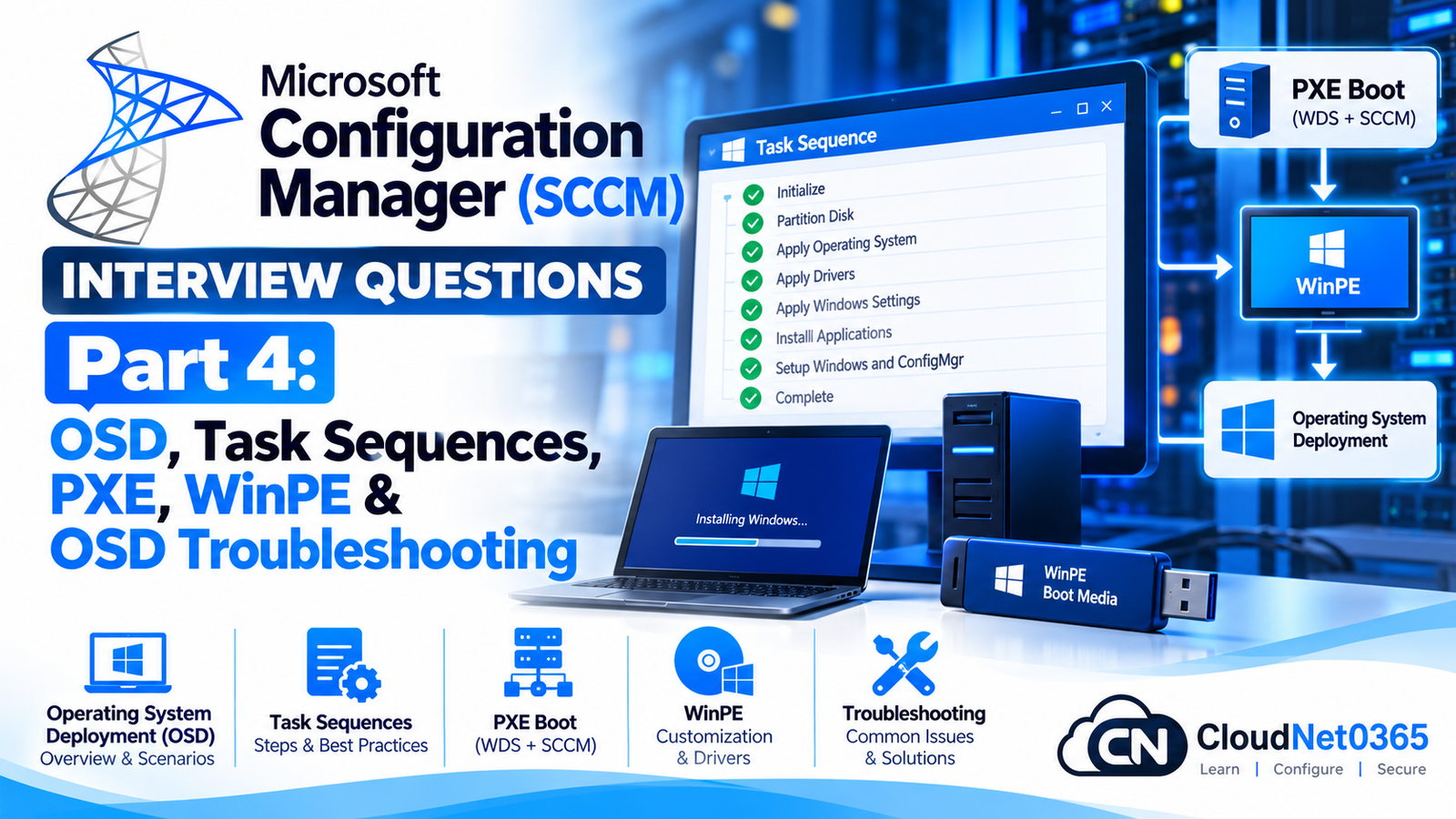
A typical Configuration Manager OSD workflow can look like:
PXE / Boot Media
       ↓
WinPE
       ↓
Task Sequence
       ↓
Disk Preparation
       ↓
Windows Image
       ↓
Drivers
       ↓
Windows Configuration
       ↓
Applications
       ↓
Domain Join
       ↓
Post-Deployment Configuration
For senior interviews, simply knowing how to create a Task Sequence is not enough.
You should understand how PXE works, what WinPE does, how boot images differ from OS images, how drivers are handled, how UEFI/GPT affects deployment, and how to troubleshoot a Task Sequence when deployment fails.
Microsoft Configuration Manager OSD Interview Questions
Q1. What is Operating System Deployment in Configuration Manager?
Operating System Deployment (OSD) is the Configuration Manager capability used to deploy Windows operating systems to managed computers.
It can automate:
- Disk partitioning
- Windows installation
- Drivers
- Domain join
- Applications
- Updates
- Configuration
- Security settings
- BitLocker preparation
A Task Sequence controls the overall process.
Q2. What is a Task Sequence?
A Task Sequence is an ordered collection of steps used to automate a deployment or administrative workflow.
For operating-system deployment, a Task Sequence can perform:
id="x8j7k1"
Boot into WinPE
      ↓
Partition disk
      ↓
Apply Windows image
      ↓
Apply drivers
      ↓
Configure Windows
      ↓
Install applications
      ↓
Join domain
      ↓
Enable BitLocker
Each step performs a specific operation.
Q3. What is WinPE?
Windows Preinstallation Environment (WinPE) is a lightweight Windows environment used for deployment and recovery tasks.
Configuration Manager uses WinPE as the temporary operating environment during OSD.
WinPE provides the environment needed to:
- Initialize hardware
- Connect to the network
- Communicate with Configuration Manager
- Access deployment content
- Partition disks
- Apply the operating-system image
- Start the Task Sequence
Q4. What is a Boot Image?
A Boot Image contains WinPE and the components required to start a Configuration Manager deployment environment.
The boot image is used to boot the computer into WinPE.
Think of it as:
The environment in which the Task Sequence begins.
Q5. What is an Operating System Image?
An Operating System Image contains the Windows operating system that will be installed on the target computer.
For example:
Windows 11 Enterprise
could be captured or otherwise provided as an OS image for deployment.
Therefore:
Boot Image
Starts the deployment environment.
OS Image
Provides the Windows operating system being deployed.
Q6. What is the difference between Boot Image and OS Image?
This is one of the most important OSD interview questions.
| Boot Image | OS Image |
|---|---|
| Contains WinPE | Contains Windows OS |
| Starts deployment | Installs Windows |
| Temporary environment | Target operating system |
| Used before Windows installation | Used during Windows installation |
Simple answer:
Boot Image boots the computer into WinPE; OS Image installs Windows onto the target disk.
Q7. What is PXE?
PXE (Preboot Execution Environment) allows a computer to boot from the network instead of local storage.
The basic process is:
Computer
   ↓
PXE request
   ↓
DHCP / Network boot infrastructure
   ↓
PXE-enabled Distribution Point
   ↓
Boot image
   ↓
WinPE
   ↓
Task Sequence
PXE is commonly used for bare-metal OS deployment.
Q8. What is a PXE-enabled Distribution Point?
A Distribution Point configured for PXE can respond to PXE boot requests and provide the appropriate boot environment.
It can provide:
- PXE boot information
- Boot image
- Configuration Manager deployment information
The DP must also have the required boot images distributed to it.
Q9. Does PXE require DHCP?
PXE relies on network-boot infrastructure, and DHCP is commonly involved in providing network configuration.
However, modern PXE deployments should not be designed around blindly setting DHCP options 66 and 67.
Depending on the network architecture, IP helpers are commonly preferred to forward DHCP/PXE-related traffic between VLANs and the PXE service.
Q10. What are IP Helpers and why are they important for PXE?
When the client and PXE server are on different VLANs/subnets, broadcast-based discovery does not normally cross routers.
Network infrastructure can use IP helper/UDP forwarding configuration to relay the relevant traffic.
Example:
Client VLAN
     |
     | Router / L3 Switch
     |
IP Helper
     |
     ↓
PXE / DHCP infrastructure
This is why PXE troubleshooting often requires both Configuration Manager and network-team involvement.
Q11. What is the difference between Legacy BIOS and UEFI?
Legacy BIOS
Traditional firmware boot mode.
UEFI
Modern firmware standard supporting features such as:
- Secure Boot
- GPT
- Modern boot architecture
For modern Windows deployments, UEFI with GPT is generally the expected architecture.
Q12. What is GPT?
GUID Partition Table (GPT) is the modern partitioning scheme commonly used with UEFI systems.
A typical UEFI Windows installation contains partitions such as:
EFI System Partition
MSR
Windows / OS partition
Recovery partition
Configuration Manager Task Sequences can create the required partition layout automatically.
Q13. What is MBR?
Master Boot Record (MBR) is an older partitioning scheme associated traditionally with Legacy BIOS systems.
Compared with GPT, MBR has limitations such as:
- Traditional partition-count limitations
- Boot-disk size limitations around 2 TB
- Less suitable for modern UEFI deployments
For current Windows enterprise deployment, UEFI/GPT is generally preferred.
Q14. What is Secure Boot?
Secure Boot is a UEFI security feature that helps ensure that trusted boot components are loaded during startup.
When deploying Windows through Configuration Manager, administrators must ensure that the selected boot environment and deployment architecture are compatible with the organization’s Secure Boot configuration.
If a machine fails to boot from PXE after Secure Boot changes, firmware and boot-image compatibility should be investigated.
Q15. What is an Operating System Installer in Configuration Manager?
An Operating System Installer represents Windows installation media/files imported into Configuration Manager.
It is different from a captured OS image.
For example, Configuration Manager can use Windows installation media containing:
install.wim
as the source for operating-system deployment.
Q16. What is a captured OS image?
A captured OS image is a customized Windows image captured from a reference computer.
It can contain:
- Windows
- Drivers
- Applications
- Configuration
However, modern enterprise deployment designs should carefully consider whether maintaining customized captured images is worthwhile versus using a more modular deployment approach.
A highly customized image can become difficult to maintain.
Q17. What is the Apply Operating System Image step?
The Apply Operating System Image step installs the selected Windows image onto the target computer.
The Task Sequence can:
- Partition the disk
- Apply the selected image
- Configure the target Windows installation
This is one of the central OSD steps.
Q18. What is the Apply Windows Settings step?
The Apply Windows Settings step configures Windows-specific settings during OSD.
Depending on configuration, it can define settings such as:
- Product key
- Administrator password
- Organization information
- User information
- Regional settings
Q19. What is the Apply Network Settings step?
This Task Sequence step configures network-related settings.
Depending on the deployment design, it can configure:
- Workgroup or domain membership
- Network settings
- Domain information
Domain joining can also be handled through a dedicated Task Sequence step.
Q20. What is the Join Domain or Workgroup step?
This Task Sequence step controls whether the newly deployed computer joins:
- An Active Directory domain
- A workgroup
For enterprise deployment, domain joining is commonly followed by:
Group Policy
Applications
Security Configuration
Management Agent
Drivers and OSD
Q21. How are drivers managed in Configuration Manager OSD?
Configuration Manager provides multiple ways to manage drivers.
Common approaches include:
Driver Packages
A package containing selected drivers.
Auto Apply Drivers
Allows Configuration Manager to dynamically select appropriate drivers from the driver catalog.
Vendor-specific packages
OEMs may provide driver packages designed for particular hardware models.
The appropriate method depends on the organization’s hardware standardization and deployment requirements.
Q22. What is a Driver Package?
A Driver Package contains a collection of drivers that can be used during deployment.
For example:
Dell Latitude 7450 Drivers
could contain:
- Network driver
- Storage driver
- Chipset driver
- Graphics driver
- Audio driver
The package can then be referenced by the Task Sequence.
Q23. What is the difference between Auto Apply Drivers and Apply Driver Package?
Auto Apply Drivers
Configuration Manager selects drivers based on the hardware and driver catalog conditions.
Apply Driver Package
The Task Sequence explicitly installs drivers from a defined Driver Package.
For standardized hardware environments, Driver Packages can provide greater predictability.
Q24. Why can storage and network drivers be especially important during OSD?
WinPE must be able to:
- See the storage device
- Access the network
If WinPE lacks the required storage driver:
Disk not visible
If WinPE lacks the required network driver:
Network unavailable
Both can prevent OSD from progressing.
This is why boot-image driver requirements differ from post-installation Windows driver requirements.
Q25. What is the recommended approach for adding drivers to a Boot Image?
Add only drivers that are actually required by WinPE.
Typical candidates include:
- Network drivers
- Storage/controller drivers
Do not indiscriminately add every driver in the organization to the boot image.
A large, unnecessarily populated boot image can increase complexity and maintenance overhead.
Task Sequence Advanced Questions
Q26. What are Task Sequence Variables?
Task Sequence Variables store information that controls Task Sequence behavior.
Examples include:
OSDComputerName
OSDJoinDomainName
OSDImageIndex
_SMSTSLogPath
_SMSTSMachineName
Variables can be:
- Built-in
- Collection-based
- Computer-specific
- Set within the Task Sequence
- Set dynamically by scripts or conditions
Q27. What is OSDComputerName?
OSDComputerName can be used to specify the computer name during operating-system deployment.
For example:
OSDComputerName = HQ-PC-001
The value can also be dynamically generated according to organizational naming rules.
Q28. What is a Task Sequence condition?
Conditions determine whether a Task Sequence step should execute.
Conditions can be based on:
- Task Sequence variables
- Operating system
- WMI queries
- File existence
- Registry
- Hardware information
Example:
If:
Manufacturer = Dell
then:
Install Dell Driver Package
Q29. How would you deploy different drivers based on computer model?
A common design is:
Task Sequence
     |
     +--> Dell Latitude
     |       ↓
     |   Dell Driver Package
     |
     +--> HP EliteBook
     |       ↓
     |   HP Driver Package
     |
     +--> Lenovo ThinkPad
             ↓
         Lenovo Driver Package
Conditions can use hardware information such as manufacturer/model.
This avoids installing irrelevant drivers on every computer.
Q30. What is Unknown Computer Support?
Unknown Computer Support allows Configuration Manager to deploy an operating system to a computer that is not already known to the Configuration Manager database.
This is particularly useful for bare-metal deployments.
Example:
New Computer
     ↓
No existing ConfigMgr record
     ↓
PXE
     ↓
Unknown Computer
     ↓
Task Sequence
The organization must enable the relevant Unknown Computer support and deployment configuration for this workflow.
OSD Troubleshooting
Q31. A computer does not PXE boot. What would you check?
Use a layered approach.
Firmware
Check:
- PXE enabled
- Correct boot mode
- UEFI/Legacy configuration
- Secure Boot compatibility
- Correct NIC selected
Network
Check:
- VLAN
- Switch port
- DHCP
- IP helper
- Routing
- Firewall
Configuration Manager
Check:
- PXE-enabled DP
- Boot image distribution
- PXE deployment availability
- Boundary/Boundary Group
- Unknown Computer Support
Logs
Check relevant PXE/DP logs and review the PXE response on the client.
Do not immediately rebuild the DP.
Q32. PXE works for one subnet but not another. What would you investigate?
Because the problem is subnet-specific, first investigate the network path.
Check:
Client VLAN
   ↓
DHCP
   ↓
IP Helper
   ↓
Routing
   ↓
PXE DP
Compare the working and failing VLAN configurations.
Also verify that the affected subnet maps to the correct Configuration Manager Boundary and Boundary Group.
Q33. PXE boots, but WinPE cannot connect to Configuration Manager. What could cause this?
Possible causes include:
- Missing network driver
- Incorrect VLAN/network configuration
- IP addressing failure
- DNS problem
- Management Point connectivity issue
- Certificate/HTTPS issue where applicable
- Boundary configuration
- Boot-image configuration
- Firewall/network ACL
First determine whether WinPE has a valid IP address.
If it does not, investigate the network/driver path before troubleshooting Configuration Manager policy.
Q34. WinPE starts but the disk is not visible. What would you check?
The most likely area is storage-controller support.
Check:
- Storage controller mode
- RAID/VMD configuration
- Required storage driver
- Boot-image driver support
- Firmware configuration
For example, a new hardware model may require a storage driver that is not present in the boot image.
Q35. The Task Sequence starts but fails during the Apply Operating System Image step. What would you check?
Investigate:
- Disk partitioning
- Disk visibility
- OS image availability
- Distribution Point content
- Image index
- Storage driver
- Disk space
- Task Sequence configuration
The primary Task Sequence log is:
SMSTS.log
Q36. Where is SMSTS.log located?
Its location depends on the stage of deployment.
During WinPE, it is commonly under:
X:\Windows\Temp\SMSTSLog\
After Windows is installed, locations can include:
C:\_SMSTaskSequence\Logs\Smstslog\
and later:
C:\Windows\CCM\Logs\SMSTSLog\
The exact location changes during the Task Sequence lifecycle, so an administrator should know how to locate the active copy rather than assuming one fixed path.
Q37. Why is SMSTS.log so important?
SMSTS.log is the primary Task Sequence troubleshooting log.
It can show:
- Task Sequence steps
- Conditions
- Variables
- Actions
- Errors
- Return codes
- Package/content access
- Installation failures
- Reboots
When an OSD deployment fails, SMSTS.log should usually be one of the first logs examined.
Q38. A Task Sequence fails after reboot. How would you troubleshoot it?
First determine whether the failure occurs:
Before reboot
or:
After reboot
Then inspect SMSTS.log from the appropriate location.
Check:
- Previous Task Sequence step
- Reboot behavior
- Task Sequence state
- Windows setup
- Driver installation
- Network connectivity
- Client installation
- Pending reboot state
The exact failure point is more useful than simply knowing that the Task Sequence “failed.”
Q39. The Task Sequence cannot download content. What would you check?
Check:
- Boundary Group
- Distribution Point
- Content distribution
- Network connectivity
- Boot-image network support
- Management Point connectivity
- Content availability
SMSTS.log
During WinPE, also verify that the machine actually has a valid network connection.
Q40. An application installs correctly after OSD on some models but fails on another model. What would you investigate?
Compare:
- Hardware model
- Driver package
- Operating system architecture
- Task Sequence conditions
- Application requirements
- Detection method
- Content availability
If the failure is model-specific, investigate model-specific Task Sequence conditions and drivers before changing the application globally.
Advanced OSD Scenarios
Q41. A new laptop model cannot boot into WinPE, while older models work. What is your troubleshooting approach?
Start with hardware compatibility.
Step 1
Confirm firmware mode:
UEFI
Step 2
Check Secure Boot.
Step 3
Check network adapter support.
Step 4
Check storage-controller support.
Step 5
Inject required WinPE drivers into the Boot Image if necessary.
Step 6
Update/distribute the modified Boot Image to the PXE-enabled DPs.
Step 7
Retest.
The key principle is:
WinPE needs the drivers required to access the deployment environment and target hardware.
Q42. A computer PXE boots but immediately receives “No Task Sequence available.” What would you investigate?
Check:
- Task Sequence deployment
- Target collection
- Unknown Computer Support
- Computer record
- Collection membership
- Deployment purpose
- PXE-enabled DP
- Boundary Group
- Boot image association
If the computer is unknown, verify that an appropriate Task Sequence has been deployed to the relevant Unknown Computer collection/configuration.
Q43. How would you deploy different Windows versions using one Task Sequence?
You can use conditions and variables.
Example:
Task Sequence
      |
      +--> Windows 11 23H2
      |
      +--> Windows 11 24H2
The Task Sequence can select the appropriate OS image based on:
- Variable
- Collection
- Hardware
- Deployment configuration
The design should remain maintainable rather than becoming a huge collection of hard-coded branches.
Q44. How would you design an enterprise OSD process for multiple hardware models?
A scalable design could use:
Common Task Sequence
        |
        +--> Hardware Detection
        |
        +--> Model-specific Driver Package
        |
        +--> Common Applications
        |
        +--> Department Applications
        |
        +--> Security Configuration
        |
        +--> Domain Join
        |
        +--> Post-Deployment
Keep common logic centralized and use conditions/variables for hardware-specific differences.
Avoid creating a completely separate Task Sequence for every model unless there is a genuine architectural reason.
Q45. What is the difference between Bare Metal and Refresh deployment?
Bare Metal
Deploys an OS to a computer without relying on an existing Windows installation.
Typical scenario:
New / wiped computer
→ PXE
→ WinPE
→ Windows
Refresh
Reinstalls or refreshes the operating system on an existing computer while preserving or restoring required data/settings according to the deployment design.
Q46. What is the role of the Management Point during OSD?
The Management Point provides Configuration Manager management information and policy to the client environment.
During OSD, the Task Sequence environment may need to communicate with the Management Point to obtain deployment information and other required configuration.
If WinPE cannot communicate with the MP, the Task Sequence may fail to obtain the information it needs.
Q47. What happens if the Distribution Point has the OS image but not the Boot Image?
The computer may be unable to start the required WinPE deployment environment from that DP.
Therefore, verify that the required:
- Boot Image
- OS Image
- Driver packages
- Application content
are distributed to the appropriate Distribution Points.
Content availability must be checked separately for each required object.
Q48. How would you troubleshoot an OSD failure affecting only one Distribution Point?
Compare the affected DP with a healthy DP.
Check:
- Boot image distribution
- OS image distribution
- Driver package distribution
- Content validation
- DP health
- Free disk space
- PXE configuration
- Boundary Group association
- Network connectivity
If clients using another DP deploy successfully, the evidence points toward a DP/content/PXE-specific problem rather than the Task Sequence itself.
Q49. What are common mistakes in Configuration Manager OSD design?
Common mistakes include:
- Adding unnecessary drivers to boot images
- Creating too many nearly identical Task Sequences
- Not testing new hardware models
- Ignoring UEFI/GPT architecture
- Poor Boundary Group design
- Not validating content distribution
- Using outdated driver packages
- Hard-coding credentials unnecessarily
- Not testing PXE across VLANs
- Not maintaining boot images
- Not monitoring
SMSTS.log - Making production-wide changes without pilot testing
Q50. How would you troubleshoot a production OSD failure as a senior administrator?
I would divide the deployment into layers:
Firmware
   ↓
Network / PXE
   ↓
WinPE
   ↓
Management Point
   ↓
Task Sequence
   ↓
Content / DP
   ↓
Disk / Storage
   ↓
OS Image
   ↓
Drivers
   ↓
Windows Setup
   ↓
Applications
   ↓
Domain Join
   ↓
Post-Deployment
Then I would identify the first failed layer.
For example:
If PXE succeeds but WinPE has no network connectivity, I would investigate the WinPE network driver and VLAN/network configuration rather than changing the Task Sequence.
If WinPE works but the OS image cannot be applied:
I would investigate storage visibility, disk partitioning, image content and
SMSTS.log.
If Windows installs but domain join fails:
I would investigate DNS, domain connectivity, credentials, OU configuration and the relevant Task Sequence step.
This layered approach prevents random changes and makes OSD troubleshooting much faster.
Important OSD Logs
| Log | Purpose |
|---|---|
SMSTS.log | Main Task Sequence troubleshooting |
smsts.log during WinPE | Task Sequence activity in WinPE |
ccmsetup.log | Configuration Manager client installation |
LocationServices.log | Locating Management Point/Distribution Point |
CAS.log | Content access |
ContentTransferManager.log | Content transfer |
DataTransferService.log | BITS/content transfer |
AppEnforce.log | Application installation during/after OSD |
WUAHandler.log | Windows Update interaction |
DISM.log | Windows image servicing |
CBS.log | Windows component servicing |
Useful OSD Troubleshooting Commands
Check Network Configuration in WinPE
ipconfig /all
Check routing:
route print
Test DNS:
nslookup <server-name>
Test basic connectivity:
ping <server-name>
A successful ping is not proof that the required Configuration Manager service is reachable; use it only as a basic network test.
Check Disk Visibility
diskpart
Then:
list disk
If the expected disk does not appear, investigate:
- Storage controller
- RAID/VMD mode
- Storage driver
- Firmware configuration
View Task Sequence Logs
In WinPE:
cmtrace.exe X:\Windows\Temp\SMSTSLog\SMSTS.log
The exact path can vary depending on the deployment stage.
Real-World Scenario 1: PXE Fails on One VLAN
Problem
PXE works in headquarters but not in a branch VLAN.
Investigation
Compare the working and failing VLANs.
Check:
DHCP
↓
IP Helper
↓
Routing
↓
Firewall/ACL
↓
PXE DP
Then verify:
- Boundary
- Boundary Group
- PXE-enabled DP
- Boot image availability
Senior approach
Because the failure is VLAN-specific, investigate the network path before rebuilding Configuration Manager components.
Real-World Scenario 2: WinPE Has No Network
Problem
The computer successfully PXE boots but WinPE cannot obtain an IP address.
Investigation
Check:
- NIC driver in Boot Image
- VLAN
- DHCP
- Switch port
- IP helper
- Network adapter firmware/configuration
If the NIC driver is missing, add the appropriate WinPE-compatible driver to the Boot Image and redistribute the updated image.
Real-World Scenario 3: Disk Not Visible During OSD
Problem
WinPE starts successfully, but:
diskpart
list disk
does not show the internal SSD.
Investigation
Check:
- UEFI settings
- VMD/RAID configuration
- Storage controller
- Required WinPE storage driver
Likely solution
Add the appropriate storage driver to the Boot Image or correct the supported firmware/controller configuration.
Real-World Scenario 4: Task Sequence Fails During Application Installation
Problem
Windows installs correctly, but the Task Sequence fails when installing an application.
Investigation
Check:
SMSTS.log
AppEnforce.log
Then determine:
- Installation command
- Return code
- Detection method
- Content availability
- Execution context
- Application requirements
Because the OS deployment itself succeeded, do not immediately troubleshoot PXE or WinPE.
Real-World Scenario 5: New Hardware Model Fails OSD
Problem
All existing models deploy successfully.
A newly purchased model fails.
Investigation
Compare:
Working Model
vs
New Model
Check:
- UEFI settings
- Secure Boot
- NIC
- Storage controller
- Boot Image drivers
- Windows drivers
- Task Sequence model conditions
Senior conclusion
Hardware-specific failure usually warrants checking driver and firmware compatibility before redesigning the entire OSD process.
OSD Troubleshooting Decision Tree
PXE fails?
   |
   +--> Firmware
   +--> VLAN
   +--> DHCP
   +--> IP Helper
   +--> PXE DP
   +--> Network ACL


PXE works but WinPE fails?
   |
   +--> Boot Image
   +--> NIC Driver
   +--> Storage Driver
   +--> Secure Boot
   +--> Firmware


WinPE works but Task Sequence unavailable?
   |
   +--> Deployment
   +--> Collection
   +--> Unknown Computer
   +--> Boundary Group
   +--> MP


Task Sequence starts but content fails?
   |
   +--> DP
   +--> Boundary Group
   +--> Content Distribution
   +--> Network
   +--> SMSTS.log


OS image fails?
   |
   +--> Disk
   +--> Storage Driver
   +--> Image
   +--> Partitioning
   +--> SMSTS.log


Windows installs but application fails?
   |
   +--> Application
   +--> Content
   +--> Install Command
   +--> Return Code
   +--> Detection
Quick Revision
OSD
Configuration Manager’s operating-system deployment capability.
Task Sequence
Ordered workflow controlling deployment.
WinPE
Temporary Windows environment used during deployment.
Boot Image
Provides WinPE.
OS Image
Contains the Windows operating system being deployed.
PXE
Allows network boot.
PXE DP
Distribution Point configured to support PXE boot.
GPT
Modern partitioning scheme used with UEFI.
UEFI
Modern firmware architecture.
Driver Package
Collection of drivers used during deployment.
Auto Apply Drivers
Dynamically selects appropriate drivers.
Unknown Computer Support
Allows deployment to computers not already known to Configuration Manager.
SMSTS.log
Primary Task Sequence troubleshooting log.
Exam Answer Summary
Q: Boot Image vs OS Image?
Boot Image contains WinPE and starts the deployment environment. OS Image contains the Windows operating system that is installed on the target computer.
Q: What is PXE?
PXE allows a computer to boot from the network and obtain a Configuration Manager boot environment.
Q: What is WinPE?
WinPE is the lightweight Windows environment used by Configuration Manager to perform deployment operations before the full Windows OS is running.
Q: What is a Task Sequence?
A Task Sequence is an ordered set of deployment steps used to automate operating-system and other Configuration Manager workflows.
Q: What is SMSTS.log?
It is the primary log used to troubleshoot Task Sequence execution.
Q: PXE works but WinPE has no network. What do you check?
Check the WinPE network driver, VLAN, DHCP, IP helper, switch/network configuration and Boot Image.
Q: Disk is not visible in WinPE?
Check storage-controller configuration, firmware settings and required storage drivers in the Boot Image.
Check deployment, collection membership, Unknown Computer Support, Boundary Groups, Management Point and PXE configuration.
Q: New hardware model fails OSD?
Compare firmware, Secure Boot, NIC/storage drivers, Boot Image support and model-specific Task Sequence conditions with a working model.
Senior Interview Tip
For OSD interviews, avoid saying:
“I will check PXE.”
Instead, demonstrate layered troubleshooting:
Firmware
→ Network
→ PXE
→ WinPE
→ MP
→ Task Sequence
→ DP/Content
→ Disk
→ OS Image
→ Drivers
→ Applications
→ Domain Join
The key senior-level skill is identifying the first point of failure.
If PXE succeeds, stop troubleshooting PXE.
If WinPE has no network, investigate the WinPE network layer.
If the OS image applies successfully, stop investigating disk imaging and move to the next failed Task Sequence step.
This approach minimizes downtime and prevents unnecessary changes to a production Configuration Manager environment.
Day 9 Progress
Completed
Part 1: Architecture, Site Components, Clients & Core Administration
Part 2: Application Deployment, Content Distribution & Software Center Troubleshooting
Part 3: Software Updates, WSUS, SUP, ADRs & Patch Management
Part 4: Operating System Deployment, Task Sequences, PXE, WinPE & OSD Troubleshooting
Next Part
Microsoft Configuration Manager Interview Questions – Day 9 Part 5: Advanced Troubleshooting, Inventory, Compliance, Co-Management, Cloud Attach & Production Scenarios
The final part of Day 9 will cover:
- Hardware Inventory
- Software Inventory
- Asset Intelligence concepts
- Discovery Data Records
- DDR processing
- Hardware inventory troubleshooting
- Compliance Settings
- Configuration Items
- Configuration Baselines
- Desired Configuration Management concepts
- Client Health
- Co-management
- Cloud Attach
- Tenant Attach
- CMG
- Internet-based client management
- Boundary and client-location troubleshooting
- SQL/reporting troubleshooting concepts
- Production incident scenarios
- Senior Configuration Manager architecture
- End-to-end troubleshooting methodology
No repeated application, patching, or OSD questions.