
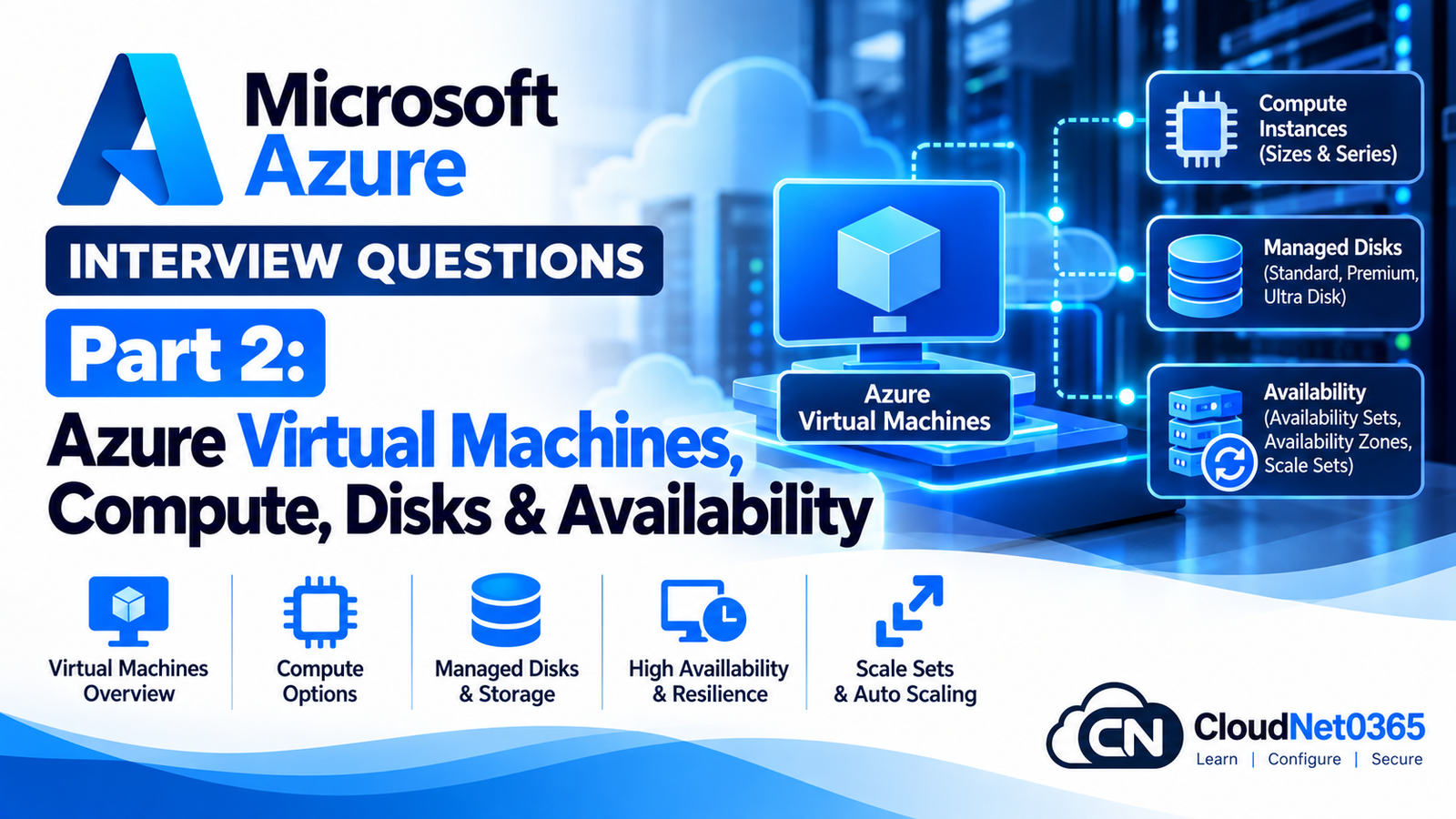
Azure Virtual Machines are one of the most important Azure IaaS services for a System Administrator or Azure Administrator.
In a real production environment, managing an Azure VM involves much more than creating a Windows or Linux server. You need to understand:
- VM sizes and families
- vCPU and memory
- OS and data disks
- Managed Disk types
- Disk IOPS and throughput
- Disk caching
- Temporary disks
- Ephemeral OS disks
- VM Agent and extensions
- Boot Diagnostics
- Run Command
- VM availability
- Availability Sets
- Availability Zones
- Virtual Machine Scale Sets
- VM performance troubleshooting
- VM recovery
- High-availability architecture
This part focuses specifically on Azure Virtual Machines, Compute, Storage and Availability.
Networking concepts such as VNets, NSGs, routing, Load Balancer, Application Gateway, VPN Gateway and Private Endpoints were covered in Part 1 in Microsoft Azure Interview Questions & Answers – Complete Series , so they are not unnecessarily repeated here.
Continue the Microsoft Azure Interview Series
← Previous Part: [Part 1: Azure Networking Fundamentals, VNets, Subnets, NSGs & Connectivity] | Complete Series: [Microsoft Azure Interview Questions & Answers – Complete Series] | Next Part →: [Part 3: Azure Storage, Blob Storage, Azure Files, Redundancy & Troubleshooting]
Azure Virtual Machines – Interview Questions & Answers
1. What is an Azure Virtual Machine?
An Azure Virtual Machine is an IaaS compute resource that provides a virtualized server running Windows or Linux in Microsoft Azure.
A VM gives you control over:
- Operating system
- Applications
- Installed software
- Disks
- Network interfaces
- Security configuration
- VM size
- Extensions
- Monitoring and management
Azure manages the underlying physical infrastructure, while you manage the guest operating system and workload according to the service model.
Example
You can deploy:
- Windows Server 2022
- Windows Server 2025
- Ubuntu
- Red Hat Enterprise Linux
- SUSE Linux
- Other supported Marketplace or custom images
2. What are the main components of an Azure VM?
An Azure VM normally consists of:
- VM compute resource
- OS disk
- Optional data disks
- Network Interface Card (NIC)
- Virtual Network and subnet
- Public IP, if required
- Network Security Group, if configured
- VM Agent
- VM extensions, if used
- Monitoring and diagnostics components
The VM itself is the compute resource, while storage and networking are separate Azure resources that can be associated with it.
3. What is an Azure VM size?
A VM size determines the compute capabilities allocated to the VM.
Depending on the VM family and SKU, it determines characteristics such as:
- Number of vCPUs
- Memory
- Maximum data disks
- Maximum network interfaces
- Network bandwidth
- Temporary storage
- Supported disk capabilities
- Specialized hardware capabilities
Example
A general-purpose VM might have:
4 vCPUs
16 GiB RAM
Multiple data disks
Premium SSD support
The exact capabilities depend on the selected VM SKU.
4. What are Azure VM size families?
Azure provides different VM families optimized for different workloads.
Examples include:
General purpose
Examples:
- D-series
- B-series
Suitable for:
- Application servers
- Domain controllers
- Web servers
- Development environments
- Small-to-medium workloads
Compute optimized
Examples:
- F-series
Suitable for workloads requiring more CPU relative to memory.
Memory optimized
Examples:
- E-series
- M-series
Suitable for:
- Large databases
- In-memory workloads
- Analytics
Storage optimized
Examples:
- L-series
Designed for workloads requiring high local storage performance.
GPU optimized
Examples include GPU-enabled VM families for:
- AI
- Machine learning
- Rendering
- Visualization
- High-performance computing
Always verify the exact SKU capabilities for the target Azure region before deployment.
5. What is the difference between vCPU and physical CPU?
A vCPU is a virtual CPU presented to the guest operating system.
Azure abstracts the underlying physical processor infrastructure.
For example:
Physical Azure Host
       |
       +--- VM 1 → 4 vCPU
       |
       +--- VM 2 → 8 vCPU
       |
       +--- VM 3 → 2 vCPU
The number of vCPUs available to a VM depends on its selected VM size.
6. How do you select the right Azure VM size?
Do not select a VM based only on CPU or RAM.
Evaluate:
- CPU utilization
- Memory utilization
- Disk IOPS
- Disk throughput
- Network requirements
- Number of data disks
- Application architecture
- Availability requirements
- Region/SKU availability
- Cost
- Licensing requirements
Example
For a database server:
CPU → workload dependent
Memory → potentially high
Disk → high IOPS/throughput
Network → potentially high
Availability → multiple instances/zones where appropriate
The correct VM size is determined by the workload’s actual resource requirements.
7. What is the difference between VM size and managed disk size?
They are completely different.
VM size
Determines compute resources such as:
- vCPU
- Memory
- Network capability
- Maximum disks
Managed disk size
Determines storage capacity and, depending on disk type and configuration, storage performance characteristics.
For example:
VM:
Standard_D4s_v5
4 vCPU
16 GiB RAM

OS Disk:
Premium SSD
128 GiB
Changing the VM size does not automatically change the disk type.
8. What is a Generation 1 and Generation 2 Azure VM?
Azure supports different VM generations.
Generation 1
Uses the traditional BIOS-based boot architecture.
Generation 2
Uses modern UEFI-based boot architecture.
Generation 2 supports features such as:
- UEFI
- Secure Boot when supported/configured
- vTPM
- Trusted Launch
Gen2 also supports larger OS disks beyond the traditional MBR 2-TiB partition limitation when the operating system and configuration use GPT appropriately.
Generation compatibility depends on the image and VM size.
9. What is Trusted Launch for Azure VMs?
Trusted Launch is a security configuration for supported Generation 2 VMs.
It provides security features including:
- Secure Boot
- vTPM
- Measured boot capabilities
The purpose is to help protect the VM against boot-level threats and unauthorized boot components.
Trusted Launch should be considered when security requirements justify it and the selected OS/image and VM configuration support it.
10. What is Secure Boot?
Secure Boot is a UEFI security feature that allows the system firmware to verify that boot components are trusted before executing them.
It helps prevent unauthorized or malicious boot software from loading.
Secure Boot is associated with Generation 2 VMs and Trusted Launch configurations.
11. What is vTPM in Azure?
vTPM stands for virtual Trusted Platform Module.
It provides a virtualized TPM for the VM and can be used by supported operating systems and security features.
It is one of the security capabilities associated with Trusted Launch.
12. What is an Azure managed disk?
An Azure managed disk is a block-level storage volume managed by Azure and used with Azure VMs.
You specify characteristics such as:
- Disk type
- Disk size
- Performance configuration
Azure manages the underlying storage infrastructure.
Current Azure managed disk types include:
- Ultra Disk
- Premium SSD v2
- Premium SSD
- Standard SSD
- Standard HDD
13. What is the difference between an OS disk and a data disk?
OS disk
Contains the operating system and boot volume.
For a Windows VM, this is normally the C: drive.
Data disk
Used for:
- Application data
- Databases
- Logs
- File shares
- Other persistent workload data
Recommended architecture
OS Disk
   ↓
Operating System

Data Disk 1
   ↓
Application

Data Disk 2
   ↓
Database

Data Disk 3
   ↓
Logs
Separating workload data from the OS can improve manageability, backup design and performance isolation.
14. What is the temporary disk in an Azure VM?
Most Azure VM sizes provide a temporary disk.
It is intended for temporary or short-lived data such as:
- Page files
- Swap
- Temporary files
- SQL Server TempDB
- Application cache
It should not be used for important persistent application data.
Data on the temporary disk can be lost during events such as VM maintenance, redeployment or stopping the VM.
A normal restart can preserve temporary-disk data, but applications should never depend on that behavior for durable storage.
15. Where is the temporary disk located on Windows and Linux?
Common examples are:
Windows
D:
Linux
Often exposed through a device such as:
/dev/disk/azure/resource
The exact device/path can vary with the VM size and operating system configuration.
16. What is an ephemeral OS disk?
An ephemeral OS disk stores the VM’s operating system on local VM storage rather than using a conventional persistent managed OS disk.
It is designed primarily for workloads where the VM can be reprovisioned or reimaged and the OS state does not need to be permanently retained.
Advantages can include:
- Faster VM deployment
- Faster reimage
- Lower OS-disk latency
- Reduced dependency on remote OS-disk storage
It is particularly useful for stateless workloads.
17. What is the difference between a temporary disk and an ephemeral OS disk?
They are different concepts.
| Feature | Temporary Disk | Ephemeral OS Disk |
|---|---|---|
| Purpose | Temporary workload storage | Operating system |
| Persistent | No | No |
| Managed disk | No | No |
| Used for OS | No | Yes |
| Suitable for permanent data | No | No |
| Typical use | Cache, pagefile, TempDB | Stateless VM OS |
| Data survives all VM lifecycle events | No | No |
Do not confuse:
Temporary disk ≠ Ephemeral OS disk
18. When should you use an ephemeral OS disk?
Consider it when:
- The VM is stateless.
- The OS can be reprovisioned.
- Application state is stored elsewhere.
- Fast reimage is valuable.
- Local storage performance is beneficial.
Avoid using it when the VM requires the OS disk itself to retain important state across lifecycle operations that can reprovision the OS.
19. What is Premium SSD?
Premium SSD is a high-performance managed disk option designed for workloads requiring lower latency and higher IOPS/throughput than Standard SSD or Standard HDD.
Typical workloads include:
- Production application servers
- Databases
- Transactional applications
- Enterprise workloads
The exact performance depends on disk size, VM limits and supported performance features.
20. What is Standard SSD?
Standard SSD provides SSD-based storage at a lower cost than Premium SSD.
It is suitable for workloads with moderate performance requirements where Premium SSD is not necessary.
Examples:
- General application servers
- Development/test environments
- Moderate I/O workloads
- File/application workloads with moderate performance requirements
21. What is Standard HDD?
Standard HDD is a lower-cost disk option based on HDD technology.
It is generally suitable for workloads where:
- Cost is more important than performance.
- I/O requirements are relatively low.
- High latency is acceptable.
For new production workloads requiring better performance, SSD-based options should be evaluated.
22. What is Premium SSD v2?
Premium SSD v2 is a newer premium managed disk offering designed for high-performance workloads.
One of its important characteristics is that performance can be configured independently of capacity within supported limits.
This can be useful when an application needs high IOPS or throughput without simply increasing disk capacity.
23. What is Ultra Disk?
Ultra Disk is designed for extremely demanding I/O workloads.
It is appropriate for workloads such as:
- High-performance databases
- Transaction-heavy applications
- High IOPS workloads
- High-throughput workloads
Ultra Disk allows independent configuration of performance characteristics within supported limits.
Always verify that both the VM SKU and target region support Ultra Disk.
24. What are IOPS and throughput?
IOPS
IOPS means:
Input/Output Operations Per Second
It measures the number of I/O operations a storage system can process per second.
Throughput
Throughput measures the amount of data transferred per second.
Usually expressed as:
MB/s
GB/s
Example
A database may require:
High IOPS
High throughput
Low latency
Increasing disk capacity alone does not necessarily solve every performance problem.
25. What limits Azure VM disk performance?
Disk performance can be constrained by multiple layers.
For example:
Application
    ↓
Operating System
    ↓
Disk
    ↓
VM disk limits
    ↓
Azure storage
You need to consider both:
- Disk limits
- VM limits
A very high-performance disk attached to a VM that cannot provide the required aggregate I/O may still be bottlenecked by the VM.
26. What is disk caching in Azure?
Azure VM disk caching uses host-side caching technology to improve storage performance for supported disk types and VM configurations.
Common cache modes include:
- None
- ReadOnly
- ReadWrite
For supported configurations, the default cache setting is commonly:
OS disk → ReadWrite
Data disk → ReadOnly
However, caching should be selected based on the workload rather than blindly accepting defaults.
27. When would you use ReadOnly caching?
ReadOnly caching can be useful when the workload benefits significantly from repeated reads.
For example:
Database/application
      ↓
Frequently read data
      ↓
ReadOnly host cache
The cache can reduce read latency for cached data.
However, workload behavior must be evaluated before changing disk cache settings.
28. When would you use None caching?
None can be appropriate for workloads where host caching is undesirable, including certain write-heavy or write-sensitive workloads.
For example:
Heavy write workload
       ↓
Data disk
       ↓
Host caching = None
The correct setting depends on the application and workload.
29. Can disk caching be changed on a running Azure VM?
Changing disk caching can cause the disk to be detached and reattached.
For an OS disk, changing the cache setting can restart the VM.
Therefore, treat cache changes as an operational change and plan accordingly.
30. What is the Azure VM Agent?
The Azure VM Agent is a lightweight process running inside the guest operating system that enables interaction between Azure and the VM.
One of its major responsibilities is enabling VM extensions.
Without a functioning VM Agent, VM extensions cannot operate correctly.
31. What are Azure VM extensions?
VM extensions are small components that perform post-deployment configuration or management tasks inside a VM.
Examples include extensions for:
- Running scripts
- Monitoring
- Configuration management
- Security
- Password reset
- Custom software installation
Example
You deploy 100 Windows VMs and need to install a monitoring agent.
Instead of manually logging into each VM, you can use a VM extension or another supported automation mechanism.
32. What happens if the Azure VM Agent is not ready?
Several management functions may fail.
For example:
- VM extensions may fail.
- Run Command may not work.
- Guest-level management operations may fail.
The first step is to check the VM Agent status.
For Windows, verify the Azure VM Agent services inside the guest and also check the Azure portal’s VM agent status.
33. What is Run Command in Azure?
Azure Run Command allows you to execute scripts inside a VM through Azure management infrastructure.
For Windows VMs, it can execute PowerShell scripts.
It is particularly useful when:
- RDP is unavailable.
- You need to make a quick configuration change.
- A firewall rule is blocking remote access.
- A service must be restarted.
- You need to collect diagnostic information.
Run Command relies on the VM Agent.
34. What is Boot Diagnostics?
Boot Diagnostics helps troubleshoot VM startup and boot problems.
It can provide information such as:
- Console output
- Screenshot of the VM console
This is useful when the VM does not successfully reach the normal operating-system login screen.
Do not immediately restart the VM.
Follow a structured process:
Step 1 – Check Azure VM status
Verify:
- VM is running.
- No platform health issue is reported.
Step 2 – Check Boot Diagnostics
Look for:
- Boot errors
- Login screen
- OS-level errors
Step 3 – Check networking
Verify:
- NIC
- NSG
- Route
- Public/private connectivity
- RDP port
- VPN/Bastion path
Step 4 – Use Run Command
If the VM Agent is healthy, use Run Command to check:
Get-Service TermService
Get-NetTCPConnection -LocalPort 3389
Step 5 – Check Windows Firewall
Verify that RDP is allowed.
Step 6 – Check Event Viewer
Investigate:
- System
- TerminalServices
- Remote Desktop Services
36. What is Azure Serial Console?
Azure Serial Console provides a text-based console connection to supported Azure VMs.
It can be useful when normal network access such as RDP or SSH is unavailable.
For example:
VM running
   ↓
RDP unavailable
   ↓
SSH unavailable
   ↓
Serial Console
   ↓
Guest-level troubleshooting
It is particularly useful for certain boot, network and OS-level troubleshooting scenarios.
37. What is the difference between Restart, Stop and Deallocate?
This is a very common interview question.
Restart
The VM reboots.
The compute allocation remains.
Stop
The VM is stopped, but compute resources may remain allocated depending on the operation/state.
Deallocate
Azure releases the VM’s compute allocation.
For normal managed VMs, deallocation generally stops compute billing, although attached resources such as disks and certain networking resources can continue to incur charges.
Interview summary
Restart     → Reboot VM
Stop        → Stop VM
Deallocate  → Stop + release compute allocation
38. Why is Deallocate important for cost management?
Consider a development VM:
Monday-Friday → Required
Saturday-Sunday → Not required
If the VM remains allocated while not being used, compute charges can continue.
Deallocating it when appropriate can reduce compute costs.
However, disks, snapshots, public IPs and other associated resources can still incur charges.
39. What is Azure VM Redeploy?
Redeploy moves the VM to another Azure host within the Azure infrastructure.
It can be useful when troubleshooting suspected underlying host issues.
A redeploy can help when:
- VM host appears unhealthy.
- VM is experiencing persistent platform-related problems.
- Azure support recommends it.
- Guest/network behavior suggests an underlying host issue.
Important:
Data on the temporary disk can be lost during redeployment.
40. What happens when you resize an Azure VM?
Resizing changes the VM’s compute SKU.
For example:
Standard_D2s_v5
       ↓
Standard_D4s_v5
This can increase:
- vCPU
- Memory
- Network capacity
- Disk attachment limits
depending on the target SKU.
The target size must be available and compatible with the VM’s configuration and region.
Some resize operations require the VM to restart or be deallocated.
41. Why might a desired VM size not appear in Azure?
Possible reasons include:
- SKU unavailable in the region.
- SKU unavailable in the current availability zone.
- VM generation incompatibility.
- Disk compatibility limitations.
- Capacity constraints.
- VM size is not supported for the current configuration.
- Subscription/SKU restrictions.
A senior administrator should verify the available SKUs rather than assuming the portal is malfunctioning.
42. How do you check available VM sizes using Azure CLI?
az vm list-sizes -l eastus -o table
For a real deployment, replace eastus with the target region.
43. How do you check VM sizes using Azure PowerShell?
Get-AzVMSize -Location "EastUS"
You can use this to review available VM sizes in a region.
44. How do you check the current Azure VM size?
Azure CLI:
az vm show \
  --resource-group <ResourceGroupName> \
  --name <VMName> \
  --query hardwareProfile.vmSize \
  -o tsv
PowerShell:
Get-AzVM `
  -ResourceGroupName "<ResourceGroupName>" `
  -Name "<VMName>" |
Select-Object -ExpandProperty HardwareProfile
45. How do you resize an Azure VM using Azure CLI?
Example:
az vm resize \
  --resource-group <ResourceGroupName> \
  --name <VMName> \
  --size Standard_D4s_v5
Before changing production infrastructure, verify:
- SKU availability
- Application compatibility
- Disk compatibility
- Maintenance impact
- Cost
46. What is Accelerated Networking?
Accelerated Networking uses Azure-supported hardware acceleration capabilities to provide higher network performance and lower latency by reducing part of the networking overhead in the host/guest path.
It is supported only on compatible VM sizes and operating systems.
For demanding workloads, it can improve network performance significantly.
Do not assume every VM size supports it.
47. What is an Availability Set?
An Availability Set is a logical grouping of Azure VMs designed to reduce the probability that related VMs fail simultaneously.
Azure distributes VMs across:
- Fault domains
- Update domains
Availability Sets are still relevant, particularly for architectures and regions where Availability Zones are unavailable or where their characteristics fit the workload.
48. What is a fault domain?
A fault domain represents a group of infrastructure that shares a common potential point of failure.
Examples can include shared:
- Power
- Network
- Physical infrastructure
By distributing VMs across fault domains, Azure reduces the probability that a single infrastructure failure affects every VM.
49. What is an update domain?
An update domain groups VMs that can be restarted together during planned platform maintenance.
The purpose is to prevent all VMs in an availability set from being restarted simultaneously.
Important current terminology:
Update domains are still relevant to Availability Sets, but Flexible VM Scale Sets use fault-domain-based maintenance behavior rather than traditional update domains.
50. What is an Availability Zone?
An Availability Zone is a physically separate location within an Azure region.
Supported Azure regions have multiple zones with independent infrastructure such as:
- Power
- Cooling
- Networking
Deploying application instances across multiple zones can protect against a failure affecting one zone.
51. What is the difference between Availability Set and Availability Zone?
| Feature | Availability Set | Availability Zone |
|---|---|---|
| Scope | Fault/update domains | Physically separate zones |
| Primary protection | Host/infrastructure failures | Zone/datacenter-level failures |
| Physical separation | Lower | Higher |
| Network latency | Generally lower between VMs | Generally higher than same-host/fault-domain placement |
| Zone-level failure protection | No | Yes |
| Typical modern design | Useful where zones aren’t available | Preferred when zone resilience is required |
Availability Zones provide stronger isolation than Availability Sets, while Availability Sets can still be useful where zones are unavailable or where their lower VM-to-VM latency is valuable.
52. What is an Azure Virtual Machine Scale Set?
Azure Virtual Machine Scale Sets allow you to manage a group of VM instances as a scalable application platform.
They provide capabilities such as:
- Multiple VM instances
- Centralized management
- Autoscaling
- Load balancing
- Availability across fault domains
- Availability Zone deployment
- Automated VM configuration and updates
53. What is Flexible orchestration mode in VM Scale Sets?
Flexible orchestration provides a more unified VM management model and is the currently recommended Scale Set orchestration mode for many scenarios.
It allows Scale Sets to manage standard Azure VM resources while supporting:
- High availability
- Fault-domain spreading
- Availability Zones
- Autoscaling
- Different VM configurations
- Stateful and stateless workloads
Current Microsoft guidance recommends Flexible orchestration when deploying Scale Sets.
54. What is Uniform orchestration in VM Scale Sets?
Uniform orchestration is designed around a common VM profile where instances are substantially identical.
It is useful for workloads where you need:
Same VM configuration
       +
Large number of instances
       +
Centralized scale management
Flexible and Uniform orchestration have different management and capability characteristics, so the correct choice depends on the workload.
55. What is the difference between Availability Set and VM Scale Set?
Availability Set
Used to distribute individual VMs across fault and update domains.
VM Scale Set
Used to manage a group of VM instances with capabilities such as:
- Scaling
- Centralized management
- Automated deployment
- Health management
- Load balancing
Modern Azure architectures should evaluate Flexible orchestration Scale Sets when both high availability and scalability are required.
56. How does VM Scale Set autoscaling work?
Autoscaling changes the number of VM instances based on defined conditions.
Example:
CPU > 70%
     ↓
Scale out
     ↓
2 VMs → 4 VMs
When demand decreases:
CPU < 30%
     ↓
Scale in
     ↓
4 VMs → 2 VMs
Autoscaling should be based on meaningful workload metrics rather than simply increasing VM count without understanding the bottleneck.
57. What is zone-spanning VM Scale Set deployment?
A zone-spanning Scale Set distributes VM instances across multiple Availability Zones.
Example:
Azure Region
│
├── Zone 1 → VM 1
│           VM 2
│
├── Zone 2 → VM 3
│           VM 4
│
└── Zone 3 → VM 5
            VM 6
If one zone experiences a failure, instances in other zones can continue serving the application, assuming the application is designed for this architecture.
58. How would you design a highly available web application using Azure VMs?
A basic architecture could be:
                Internet
                   |
            Azure Load Balancer
                   |
        +----------+----------+
        |                     |
     Zone 1                Zone 2
        |                     |
      VM 1                  VM 2
        |                     |
        +----------+----------+
                   |
             Application Data
For higher resilience, the design should also consider:
- Multiple Availability Zones
- Managed disks
- Load balancing
- Autoscaling
- Application health checks
- Backup
- Disaster recovery
- Database redundancy
The application itself must also be designed so that one VM or zone failure does not destroy service availability.
59. A production VM has very high CPU. How do you troubleshoot it?
Do not immediately resize the VM.
First determine what is consuming CPU.
Windows
Check:
Get-Counter '\Processor(_Total)\% Processor Time'
Then investigate:
- Task Manager
- Resource Monitor
- Application logs
- Windows Event Viewer
- Azure Monitor
Linux
Use:
top
or:
htop
Then determine whether the issue is:
- Application process
- Malware/security scan
- Database workload
- Scheduled job
- Backup
- OS process
- Traffic spike
Only after identifying the bottleneck should you decide whether to optimize or resize.
60. A VM has high memory usage. What would you check?
Check:
- Which process consumes memory?
- Is memory usage increasing continuously?
- Is there a memory leak?
- Is the application designed for the current memory size?
- Is paging occurring?
- Is the VM size appropriate?
Windows
Get-Process |
Sort-Object WorkingSet -Descending |
Select-Object -First 10 Name,Id,WorkingSet
Linux
free -h
top
Do not assume high memory utilization is automatically a problem. Some applications intentionally use available memory for caching.
61. A VM has poor disk performance. What would you check?
Investigate the complete storage path:
Application
    ↓
OS
    ↓
Disk
    ↓
VM SKU
    ↓
Azure Managed Disk
Check:
- Disk IOPS
- Disk throughput
- Latency
- Disk type
- Disk size
- VM disk limits
- Disk caching
- Application I/O pattern
- Read/write ratio
- Azure Monitor metrics
A common mistake is upgrading the disk without checking whether the VM itself is the bottleneck.
62. A database VM has high disk latency. What is your approach?
Check:
Step 1
Determine whether the workload is read-heavy or write-heavy.
Step 2
Check disk IOPS and throughput.
Step 3
Check VM-level storage limits.
Step 4
Review disk caching.
Step 5
Check whether the disk type is appropriate.
Step 6
Review database configuration.
Step 7
Check Azure Monitor metrics.
Possible remediation:
Standard HDD
    ↓
Standard SSD
    ↓
Premium SSD
Or, for very demanding workloads:
Premium SSD v2 / Ultra Disk
The final choice should be based on measured requirements.
63. A VM’s disk is full. What would you do?
For Windows:
Get-Volume
For Linux:
df -h
Then identify the consuming files/directories.
For example:
C:\Logs
C:\Windows\Temp
Application logs
Database files
or Linux:
/var/log
/tmp
/var/lib
/application
After confirming the data is safe to modify:
- Clean unnecessary files.
- Rotate logs.
- Move application data.
- Expand the disk if necessary.
- Extend the partition/filesystem inside the guest OS.
Remember:
Increasing Azure disk capacity does not automatically mean the guest OS filesystem is already expanded.
64. Can you increase the size of an Azure managed disk?
Yes, supported managed disks can generally be expanded.
However, after increasing the Azure disk size, you may still need to extend:
- Windows partition/volume
- Linux partition
- Linux filesystem
Example:
Azure disk:
256 GiB → 512 GiB

Guest OS:
Partition/filesystem may still show 256 GiB
The guest OS must be checked after the Azure-side resize.
65. A VM extension is stuck in provisioning. What would you check?
Check:
- VM Agent status.
- Extension status.
- Extension configuration.
- Guest OS compatibility.
- Network connectivity to required Azure endpoints.
- Extension logs.
- Whether another extension operation is currently running.
- Whether the extension configuration is valid.
Remember:
VM Agent
    ↓
VM Extension
    ↓
Extension operation
If the VM Agent is unhealthy, extensions can also fail.
66. A VM Agent is not ready. What would you investigate?
Inside the VM, check:
- Azure VM Agent service/process
- Guest OS health
- Disk space
- System resources
- Network connectivity
- Agent logs
- Recent OS changes
Also check the Azure portal for:
- VM Agent status
- VM health
- Extension status
Do not repeatedly reinstall extensions without first confirming that the underlying VM Agent is healthy.
67. A VM does not boot. What is your troubleshooting process?
Use a layered approach.
Step 1 – Azure platform
Check:
- VM status
- Azure Resource Health
- Activity Log
Step 2 – Boot Diagnostics
Check:
- Screenshot
- Console output
Step 3 – Identify failure stage
For example:
Azure infrastructure
       ↓
Bootloader
       ↓
Operating System
       ↓
Services
       ↓
Login
Step 4
Determine whether the issue is caused by:
- OS corruption
- Boot configuration
- Driver
- Disk problem
- Recent patch
- Security software
- Filesystem problem
Step 5
Use appropriate recovery methods.
68. A Windows VM shows a blue screen after a recent change. What would you do?
First identify the change:
- Driver
- Windows Update
- Security software
- Application
- Registry
- Startup configuration
Use:
- Boot Diagnostics
- Azure Serial Console where applicable
- Recovery options
- Azure support documentation
- Windows crash/event information
If the problem started immediately after a known change, investigate that change before randomly modifying unrelated components.
69. A Linux VM cannot be reached over SSH. What should you check?
Follow the same layered methodology.
Azure side
Check:
- VM running state
- NIC
- NSG
- Route
- Public/private connectivity
- Azure platform health
Guest OS
Use available management methods such as Run Command or Serial Console where supported.
Check:
systemctl status ssh
or on distributions using the service name:
systemctl status sshd
Then check:
ss -lntp
Verify that SSH is listening on the expected port.
Use this sequence:
1. Azure Resource Health
        ↓
2. VM status
        ↓
3. Activity Log
        ↓
4. Boot Diagnostics
        ↓
5. Network path
        ↓
6. Guest OS
        ↓
7. Application
Do not start by rebooting the VM blindly.
A reboot may remove valuable diagnostic evidence.
71. How do you check the current VM status using Azure CLI?
az vm get-instance-view \
  --resource-group <ResourceGroupName> \
  --name <VMName> \
  -o table
You can also use:
az vm show \
  --resource-group <ResourceGroupName> \
  --name <VMName> \
  --show-details
72. How do you list Azure VMs?
az vm list -o table
For a specific resource group:
az vm list \
  --resource-group <ResourceGroupName> \
  -o table
73. How do you check Azure VMs using PowerShell?
Get-AzVM
For status:
Get-AzVM -Status
For a specific VM:
Get-AzVM `
  -ResourceGroupName "<ResourceGroupName>" `
  -Name "<VMName>" `
  -Status
74. How do you list managed disks using Azure PowerShell?
Get-AzDisk
For a particular resource group:
Get-AzDisk -ResourceGroupName "<ResourceGroupName>"
75. How do you check VM extensions?
Azure CLI:
az vm extension list \
  --resource-group <ResourceGroupName> \
  --vm-name <VMName> \
  -o table
PowerShell:
Get-AzVMExtension `
  -ResourceGroupName "<ResourceGroupName>" `
  -VMName "<VMName>"
76. What is Azure Backup for VMs?
Azure Backup provides backup capabilities for supported Azure VMs.
It can protect:
- OS disks
- Data disks
- VM configuration/state required for recovery
A common architecture is:
Azure VM
   ↓
Recovery Services Vault
   ↓
Recovery Points
Backup should be designed according to:
- Recovery Point Objective (RPO)
- Recovery Time Objective (RTO)
- Retention requirements
- Application consistency requirements
- Disaster recovery requirements
77. Is an Azure VM snapshot the same as Azure Backup?
No.
A snapshot is a point-in-time copy of a managed disk.
Azure Backup is a broader backup service designed for backup and recovery operations with policy and retention capabilities.
Interview answer
Snapshot → point-in-time disk copy

Azure Backup → managed backup/recovery service
Do not treat a snapshot as a complete enterprise backup strategy.
78. What is the difference between backup and disaster recovery?
Backup
Designed primarily to recover data or systems from a previous recovery point.
Disaster Recovery
Designed to maintain or restore service after a major failure.
Example:
Backup:
Recover yesterday's VM

DR:
Recover application after region-level disaster
Azure Site Recovery is commonly used for VM disaster recovery scenarios.
79. How would you design a highly available two-tier Azure application?
Example:
                  Internet
                     |
              Azure Load Balancer
                     |
          +----------+----------+
          |                     |
       Zone 1                Zone 2
          |                     |
       Web VM                 Web VM
          |                     |
          +----------+----------+
                     |
              Application Tier
                     |
             Database Tier
The database layer requires its own HA strategy.
Simply placing two web VMs in different zones does not automatically make the entire application highly available.
80. What is your approach to an Azure VM production incident?
Use a structured incident process:
1. Determine scope
Is it:
One VM?
Multiple VMs?
One application?
One region?
Multiple services?
2. Check Azure health
Review:
- Resource Health
- Service Health
- Activity Log
3. Check VM state
Determine:
- Running
- Stopped
- Deallocated
- Failed
- Unresponsive
4. Check boot and guest OS
Use:
- Boot Diagnostics
- Serial Console where appropriate
- Run Command
- Guest logs
5. Check networking
Review:
- NIC
- NSG
- Routes
- Connectivity
- Load balancer health
6. Check compute and storage
Review:
- CPU
- Memory
- Disk latency
- IOPS
- Throughput
- VM limits
7. Mitigate
Depending on the issue:
- Restart service
- Correct configuration
- Resize VM
- Change disk configuration
- Redeploy VM
- Fail over application
- Restore from backup
8. Document
Record:
- Root cause
- Timeline
- Actions
- Impact
- Resolution
- Preventive actions
This is the difference between simply administering Azure and performing senior-level infrastructure operations.
Azure VM Commands – Quick Reference
Azure CLI
List VMs
az vm list -o table
Show VM
az vm show \

--resource-group <ResourceGroupName> \

--name <VMName>
Show VM instance status
az vm get-instance-view \

--resource-group <ResourceGroupName> \

--name <VMName>
Start VM
az vm start \

--resource-group <ResourceGroupName> \

--name <VMName>
Restart VM
az vm restart \

--resource-group <ResourceGroupName> \

--name <VMName>
Stop VM
az vm stop \

--resource-group <ResourceGroupName> \

--name <VMName>
Deallocate VM
az vm deallocate \

--resource-group <ResourceGroupName> \

--name <VMName>
Resize VM
az vm resize \

--resource-group <ResourceGroupName> \

--name <VMName> \

--size Standard_D4s_v5
List VM sizes
az vm list-sizes \
  --location eastus \
  -o table
List VM extensions
az vm extension list \
  --resource-group <ResourceGroupName> \
  --vm-name <VMName> \
  -o table
Azure PowerShell – Quick Reference
List VMs
Get-AzVM
Get VM status
Get-AzVM -Status
Get specific VM
Get-AzVM `

-ResourceGroupName "<ResourceGroupName>" `

-Name "<VMName>"
Get VM sizes
Get-AzVMSize -Location "EastUS"
List managed disks
Get-AzDisk
List VM extensions
Get-AzVMExtension `

-ResourceGroupName "<ResourceGroupName>" `

-VMName "<VMName>"
Real-World Azure VM Scenarios
Scenario 1 – Production VM is not reachable
Check:
Resource Health
      ↓
VM status
      ↓
Boot Diagnostics
      ↓
Network
      ↓
Guest OS
Do not immediately resize or restart.
Scenario 2 – RDP fails but VM is running
Use:
- Azure network checks
- Boot Diagnostics
- Run Command
- Windows service checks
- Firewall checks
- Serial Console where applicable
Scenario 3 – VM CPU reaches 100%
Identify the process first.
Do not immediately increase the VM size.
Scenario 4 – Database has high disk latency
Check:
Disk type
IOPS
Throughput
Latency
Caching
VM storage limits
Database workload
Then select the appropriate remediation.
Scenario 5 – VM needs protection from a datacenter-level failure
Evaluate:
Availability Zones
rather than relying only on an Availability Set.
Scenario 6 – Application requires automatic scale-out
Evaluate:
Virtual Machine Scale Sets
+
Autoscaling
+
Load balancing
Scenario 7 – VM Agent is not ready
Investigate:
Guest OS
   ↓
Azure VM Agent
   ↓
Network connectivity
   ↓
VM Extensions
Do not troubleshoot the extension alone if the underlying Agent is unhealthy.
Scenario 8 – VM has a huge temporary disk
Do not assume it is persistent.
Remember:
Temporary disk = temporary
Important application data must be stored on appropriate persistent storage.
Scenario 9 – VM needs very high storage performance
Compare:
Premium SSD
Premium SSD v2
Ultra Disk
Then verify:
- IOPS
- Throughput
- Latency
- VM limits
- Region availability
- Application requirements
Scenario 10 – VM OS can be recreated easily
Consider:
Ephemeral OS Disk
if the workload is stateless and the VM SKU/configuration supports it.
Quick Revision
Remember these Azure VM concepts:
VM Size
→ CPU + Memory + VM capabilities

OS Disk
→ Operating system

Data Disk
→ Persistent application/data storage

Temporary Disk
→ Temporary local storage

Ephemeral OS Disk
→ Stateless/local OS storage

Managed Disk
→ Azure-managed block storage

Premium SSD
→ High-performance general production storage

Premium SSD v2
→ High-performance configurable performance

Ultra Disk
→ Extremely demanding I/O workloads

Availability Set
→ Fault + update domain based availability

Availability Zone
→ Physically separated zone-level resilience

VM Scale Set
→ Group of scalable VMs

Flexible Orchestration
→ Modern recommended Scale Set orchestration

VM Agent
→ Enables guest management and extensions

VM Extension
→ Post-deployment guest configuration

Boot Diagnostics
→ Boot troubleshooting

Run Command
→ Remote guest script execution

Deallocate
→ Release compute allocation

Redeploy
→ Move VM to another Azure host
Exam Answer Summary
1. What is Azure VM?
An Azure VM is an IaaS compute resource that provides a virtualized Windows or Linux server.
2. What is a managed disk?
An Azure-managed block storage volume used by Azure VMs.
3. What are the current managed disk types?
- Ultra Disk
- Premium SSD v2
- Premium SSD
- Standard SSD
- Standard HDD
4. What is the temporary disk?
Non-persistent local storage intended for temporary workloads.
5. What is an ephemeral OS disk?
An OS disk stored on local VM storage, designed primarily for stateless workloads and fast reprovisioning.
6. Availability Set vs Availability Zone?
Availability Sets distribute VMs across fault and update domains, while Availability Zones provide physically separate zone-level isolation within a region.
What is VM Scale Set?
A service for managing groups of VMs with scaling, centralized management and availability capabilities.
What is VM Agent?
The guest agent that enables Azure VM extensions and guest management functionality.
What is Boot Diagnostics?
A troubleshooting capability providing VM console information such as screenshots and console output.
What is Run Command?
A mechanism for executing scripts inside supported Azure VMs through Azure management infrastructure.
Senior Interview Tip
When an interviewer asks:
“How would you troubleshoot a production Azure VM issue?”
Do not answer:
“I will restart the VM.”
A senior answer should be structured:
First determine the scope and impact.

Then check:
Azure Service Health
Resource Health
Activity Log
VM state
Boot Diagnostics
VM Agent
Networking
CPU
Memory
Disk IOPS
Disk latency
Guest OS
Application

Then identify the root cause.

Apply the least disruptive remediation.

Finally document the incident and preventive action.
That answer demonstrates structured infrastructure troubleshooting, rather than simply knowing Azure portal options.
Progress
Completed:
- Part 1 – Azure Networking Fundamentals, VNets, Subnets, NSGs & Connectivity
- Part 2 – Azure Virtual Machines, Compute, Disks & Availability
The next section should move into Azure Storage, Azure Files, Blob Storage, Storage Accounts, Redundancy, SAS, Access Keys, Private Endpoints and Storage Troubleshooting without repeating the VM storage concepts already covered here.
Next Part
Continue the Microsoft Azure Interview Series
← Previous Part: [Part 1: Azure Networking Fundamentals, VNets, Subnets, NSGs & Connectivity] | Complete Series: [Microsoft Azure Interview Questions & Answers – Complete Series] | Next Part →: [Part 3: Azure Storage, Blob Storage, Azure Files, Redundancy & Troubleshooting]
Part 3 – Azure Storage Interview Questions: Storage Accounts, Blob Storage, Azure Files, Redundancy, SAS & Troubleshooting
For official Microsoft 365 documentation and additional technical information, visit: Microsoft Learn