
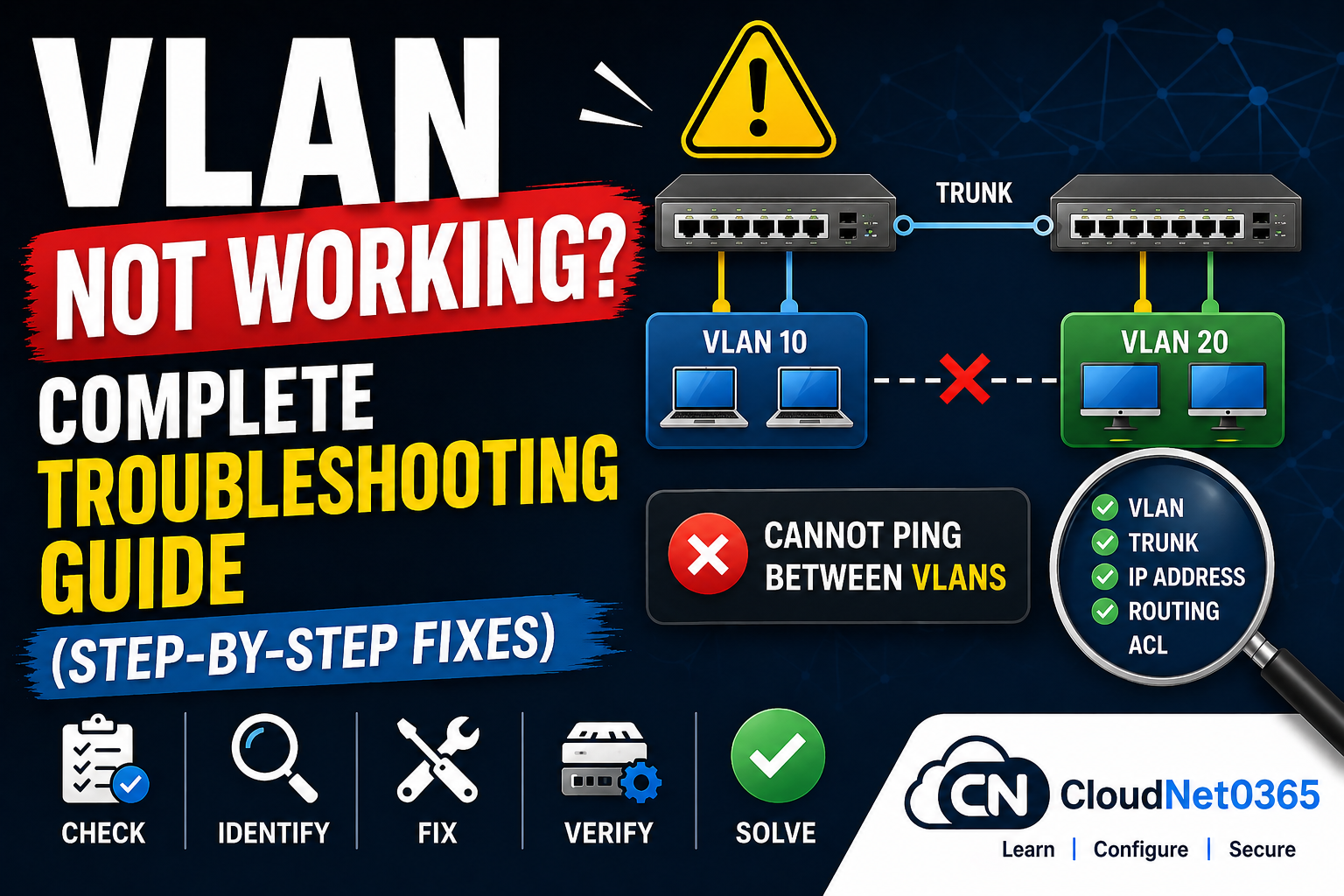
🔥 VLAN Not Working? Complete Troubleshooting Guide (Step-by-Step Fixes)
⚡ Quick Answer (Featured Snippet Optimized)
VLAN not working issues are usually caused by misconfiguration in VLAN assignment, trunk ports, IP addressing, or missing inter-VLAN routing.
To fix it, check VLAN existence, port configuration, trunk settings, IP/subnet, and routing step-by-step.
🚨 Introduction (Real Problem)
You created VLANs… configured ports… maybe even set trunk links…
But still:
- ❌ Devices in same VLAN cannot communicate
- ❌ Cannot ping between VLANs
- ❌ Internet not working for specific VLAN
- ❌ Random connectivity drops
👉 This is one of the most common real-world networking problems.
👉 In real networks, VLAN issues can cause:
- Network downtime
- Application failures
- User complaints
The good news?
✔️ 90% of VLAN issues are caused by small misconfigurations. — and are fixable in minutes (if you follow the right process).
🔍 What is VLAN Troubleshooting?
VLAN troubleshooting is the process of identifying and fixing issues or configuration errors that prevents proper communication within or between VLANs.
🔑 Common Issues
- Devices in same VLAN cannot ping
- Inter-VLAN communication fails
- Wrong IP/subnet issues
- VLAN traffic not passing through trunk
👉 💡 Key Insight:
Most VLAN issues occur due to incorrect port or trunk configuration.
⚡ VLAN Troubleshooting (Quick Checklist)
Before deep debugging, check:
- VLAN created ✔
- Port assigned ✔
- Trunk configured ✔
- VLAN allowed ✔
- IP addressing correct ✔
👉 Fix these first — they solve 90% of issues
🎯 Step-by-Step Troubleshooting Flow
Follow this order:
- Check VLAN
- Check port assignment
- Check trunk
- Check routing
- Check IP configuration
👉 💡 Pro Tip:
Always troubleshoot from Layer 2 → Layer 3
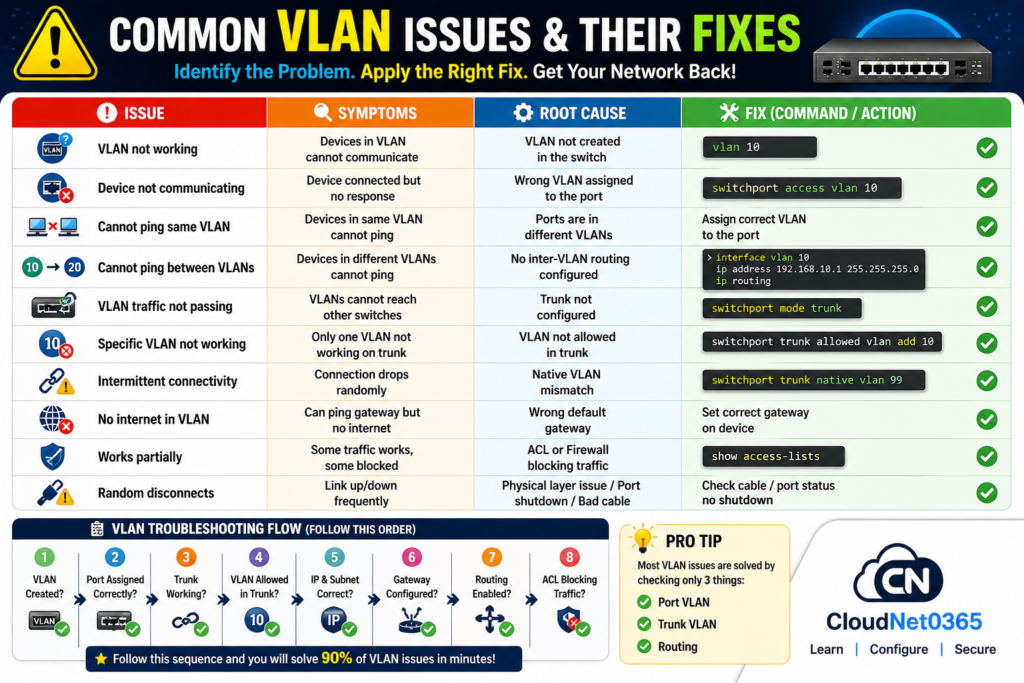
🚨 Some common problems that often comes in live network environments
Here below are some common issues and their solutions.
🔹 Problem 1: Devices in Same VLAN Cannot Communicate
🔍 Possible Causes:
- VLAN not assigned to port
- Interface down
- Wrong physical connection
🛠️ Fix:
show vlan brief
👉 Verify port VLAN assignment
show ip interface brief
👉 Check interface status
🔹 Problem 2: Cannot Ping Between VLANs
🔍 Possible Causes:
- Inter-VLAN routing not configured
- Wrong default gateway
- Missing IP configuration
🛠️ Fix:
show ip route
👉 Verify routing
👉 Ensure:
- Router or Layer 3 switch configured
- Correct gateway assigned
👉 Learn setup:
➡️ Inter-VLAN Routing Guide
🔹 Problem 3: VLAN Not Passing Through Switch
🔍 Possible Causes:
- Trunk not configured
- VLAN not allowed on trunk
🛠️ Fix:
show interfaces trunk
👉 Check allowed VLANs
👉 If missing:
switchport trunk allowed vlan 10,20
🔹 Problem 4: Native VLAN Mismatch
🔍 Symptoms:
- Connectivity issues
- Error messages
🛠️ Fix:
switchport trunk native vlan 10
👉 Ensure same native VLAN on both switches
🔹 Problem 5: Device Not Getting IP Address
🔍 Possible Causes:
- DHCP issue
- VLAN not reaching DHCP server
🛠️ Fix:
👉 Check:
- DHCP configuration
- Routing
👉 💡 Pro Tip:
Ensure DHCP server is reachable via routing.
🔹 Problem 6: Port Not Working in VLAN
🔍 Possible Causes:
- Port in wrong mode
- Shutdown state
🛠️ Fix:
interface fastEthernet 0/1
no shutdown
👉 Ensure:
- Port is in access mode
- Correct VLAN assigned
🧰 Step-by-Step VLAN Troubleshooting (Real Fixes)
Here below are some of the common VLAN troubleshooting steps that helps in real time to solve VLAN issues.
✅ Step 1: Check VLAN Exists
show vlan brief
✔️ Ensure:
- VLAN ID exists
- Ports are assigned
👉 Fix:
configure terminal
vlan 10
name SALES
✅ Step 2: Verify Port Assignment
show running-config interface fa0/1
✔️ Look for:
switchport access vlan 10
👉 Fix:
interface fa0/1
switchport mode access
switchport access vlan 10
✅ Step 3: Check Trunk Configuration
show interfaces trunk
✔️ Ensure:
- Trunk is active
- VLAN allowed
👉 Fix:
interface g0/1
switchport mode trunk
switchport trunk allowed vlan 10,20,30
⚠️ Common Mistake
Forgetting to allow VLAN in trunk = VLAN not working
✅ Step 4: Check Native VLAN Mismatch
show interfaces trunk
✔️ Both sides must match:
switchport trunk native vlan 99
✅ Step 5: Verify IP Address & Subnet
✔️ Same VLAN → Same subnet
Example:
- VLAN 10 → 192.168.10.0/24
- VLAN 20 → 192.168.20.0/24
Check:
ipconfig
✅ Step 6: Fix “Cannot Ping Between VLANs”
👉 This is a Layer 3 issue
✔️ Configure inter-VLAN routing:
interface vlan 10
ip address 192.168.10.1 255.255.255.0

interface vlan 20
ip address 192.168.20.1 255.255.255.0
Enable routing:
ip routing
💡 Pro Tip
If routing is not enabled, VLANs behave like completely separate networks.
✅ Step 7: Check Default Gateway
Each device must use correct gateway:
- VLAN 10 → 192.168.10.1
- VLAN 20 → 192.168.20.1
✅ Step 8: Check ACL / Firewall
show access-lists
✔️ Look for blocked traffic between VLANs
✅ Step 9: Physical Layer Check
Never skip this:
show interfaces status
✔️ Check:
- Cable
- Port status
- Interface shutdown
📊 VLAN Issues vs Fixes (Quick Comparison)
Here below are some of the common VLAN problems that comes in real network environment, their root cause and some possible fix.
| 🚨 Issue | 🔍 Root Cause | 🛠 Fix | 💡 Pro Tip |
|---|---|---|---|
| VLAN not working | VLAN not created | vlan 10 | Verify using show vlan brief |
| Device not communicating | Wrong VLAN assigned | switchport access vlan 10 | Check port config |
| Cannot ping same VLAN | Different VLANs | Assign correct VLAN | Check both endpoints |
| Cannot ping between VLANs | No routing | interface vlan 10ip routing | Layer 3 required |
| VLAN traffic not passing | Trunk not configured | switchport mode trunk | Check trunk |
| Specific VLAN not working | Not allowed in trunk | switchport trunk allowed vlan add 10 | Allow VLAN |
| Intermittent issue | Native VLAN mismatch | switchport trunk native vlan 99 | Match both sides |
| No internet in VLAN | Wrong gateway | Set correct gateway | Check IP |
| Works partially | ACL blocking | show access-lists | Check firewall |
| Random disconnects | Physical issue | Check cable / no shutdown | Check Layer 1 |
✅ Quick VLAN Troubleshooting Checklist (Bookmark This)
- ✔ VLAN created?
- ✔ Port assigned correctly?
- ✔ Trunk working?
- ✔ VLAN allowed in trunk?
- ✔ IP/subnet correct?
- ✔ Gateway configured?
- ✔ Routing enabled?
- ✔ ACL blocking?
👉 This checklist alone can solve most VLAN issues in under 10 minutes
🌍 Real-World Scenarios
1. 🏢 Office Network
👉 In an office network:
- Users cannot access server
- VLAN configured correctly
- Ping fails
👉 Root cause:
- Trunk port not configured
✔ After fixing trunk → issue resolved
2. 🏫 Lab Environment
- Problem: Same VLAN devices cannot ping
- Cause: Wrong port assignment
- Fix: Correct VLAN assigned
3. 🏬 Enterprise Network
- Problem: Inter-VLAN routing not working
- Cause:
ip routingdisabled - Fix: Enabled routing
🧰 Recommended Tools for Practice
- 🖥️ Packet Tracer (Beginner-friendly)
- 🔬 GNS3 (Advanced labs)
- 🧠 EVE-NG (Enterprise simulation)
- 🔌 Cisco Switches (Hands-on practice)
👉 Perfect for:
- Students
- Network engineers
- Lab testing
🔗 Related Topics (Boost Your Knowledge)
👉You can also refer to Vlan Not Working – Discussed in Cisco Forums
👉 These help you build complete troubleshooting skills
🎯 Interview Questions
- How do you troubleshoot VLAN issues?
- Why VLAN is not working?
- What is native VLAN mismatch?
❓ FAQs
Q1. Why is my VLAN not working?
Because of:
- Incorrect VLAN assignment
- Trunk misconfiguration
- Missing routing
Q2. Why cannot ping between VLANs?
Because inter-VLAN routing is not configured
✔ Fix:
- Configure SVI
- Enable routing
Q3. How to check VLAN configuration?
show vlan brief
show interfaces trunk
show running-config
Q4. What is fastest way to troubleshoot VLAN?
👉 Follow this order:
VLAN → Port → Trunk → IP → Routing
Q5. What is first step in troubleshooting VLAN?
👉 Check VLAN assignment
Q6. How to fix VLAN quickly?
👉 Follow step-by-step troubleshooting flow
🧠 Conclusion
VLAN troubleshooting is one of the most important skills in networking.
👉 Most issues are simple but require:
- Proper verification
- Structured approach
VLAN problems are not complex — they are layered mistakes.
✔ Key Takeaways:
- Always follow structured troubleshooting
- Start from Layer 2 → move to Layer 3
- Most issues are in:
- VLAN assignment
- Trunk config
- Routing
👉 If you follow a systematic process, VLAN issues can be solved quickly and efficiently.
📢 Call-To-Action (Important)
👉 Still facing VLAN issues?
- Comment your problem
- Or explore our full VLAN series on CloudNet0365.com