
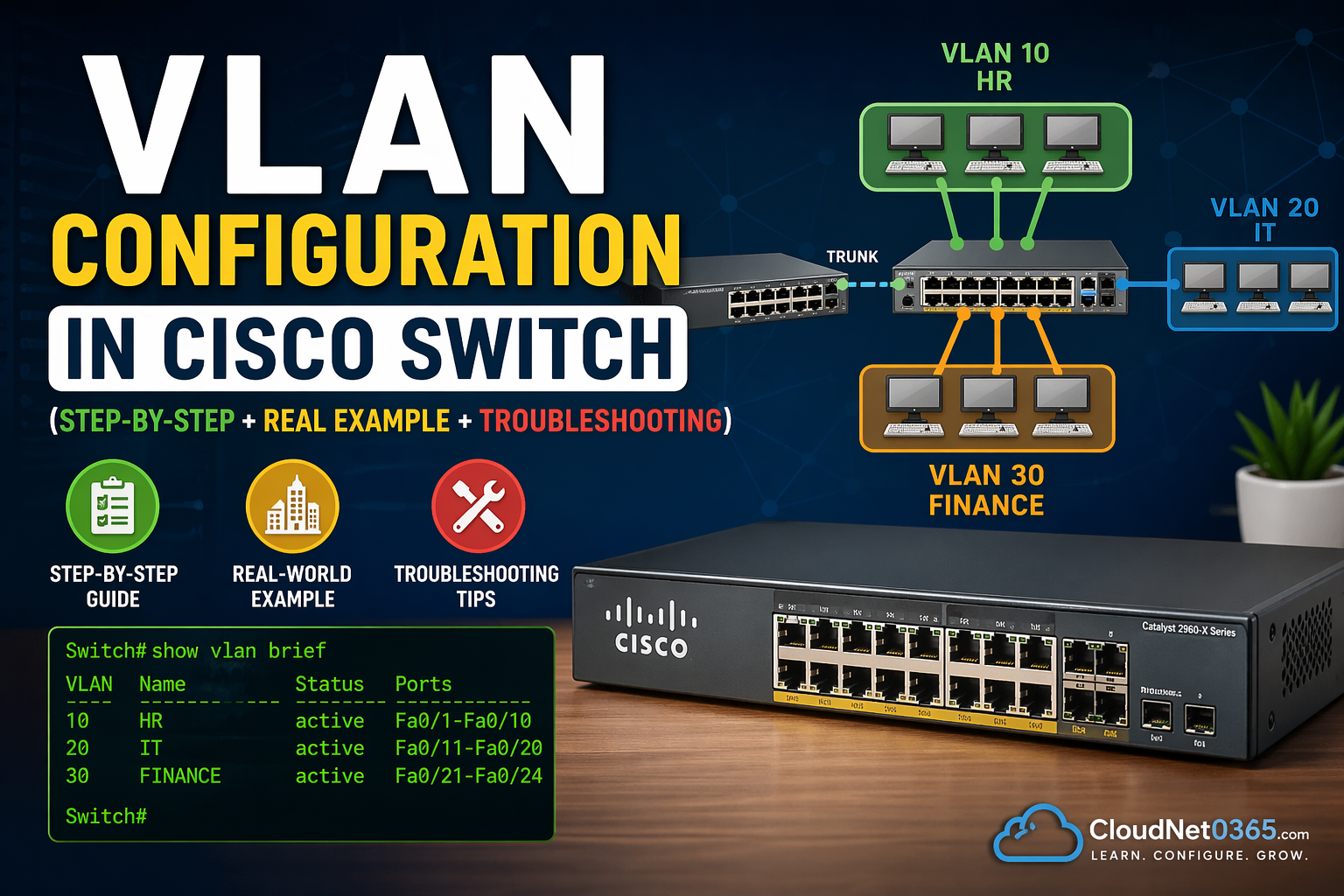
🖧 VLAN Configuration in Cisco Switch (Step-by-Step + Real Example +
Troubleshooting)
🚀 Introduction (Real Problem Scenario)
In many real-world networks, you may face issues like:
- All users accessing each other’s systems
- Slow network due to broadcast traffic
- No proper separation between departments
👉 These problems usually occur when VLAN is not configured correctly.
Managing a flat network is a nightmare:
- ❌ Everyone is in the same broadcast domain
- ❌ Network becomes slow as users increase
- ❌ No isolation → security risk
- ❌ Troubleshooting becomes painful
👉 This is exactly why VLAN configuration in Cisco switches becomes critical.
👉 In enterprise environments, a small VLAN misconfiguration can break connectivity across the entire network.
With VLANs, you can:
- ✅ Separate departments logically
- ✅ Reduce broadcast traffic
- ✅ Improve performance
- ✅ Increase network security
In this guide, you will learn:
- VLAN configuration step-by-step
- Real Cisco commands
- Trunk configuration
- Troubleshooting techniques
📘 What is VLAN? (Simple + Practical)
VLAN (Virtual Local Area Network) allows you to split one physical switch into multiple logical networks.
💡 Example:
- VLAN 10 → HR
- VLAN 20 → IT
- VLAN 30 → Finance
👉 Even if devices are on the same switch, VLAN keeps them isolated.
🔹 What is VLAN Configuration?
VLAN configuration is the process of:
- Creating VLANs
- Assigning switch ports
- Controlling traffic between networks
👉 It helps in network segmentation, security, and performance improvement
⚡ VLAN Configuration (Quick Steps)
- Enter configuration mode
- Create VLAN
- Assign VLAN to port
- Configure trunk (if needed)
- Verify configuration
So here below is the step by step vlan configuration commands in detail.
👉 💡 Key Insight:
Always verify VLAN configuration before moving to troubleshooting.
🧱 Step-by-Step: VLAN Configuration in Cisco Switch
Here below is a scenario on the basis of which we will do vlan configurations.
🏢 Scenario:
| Department | VLAN | Ports |
|---|---|---|
| HR | 10 | Fa0/1–10 |
| IT | 20 | Fa0/11–20 |
| Finance | 30 | Fa0/21–24 |
🔹 Step 1: Create VLANs in a Switch
Login to switch and enter into configuration mode by using the bellow command.
Switch> enable
Switch# configure terminal
🔹 Step 2: Create VLANs in a Switch
Now enter the below vlan configuration commands to create HR,IT and FINANCE Vlans.
Switch(config)# vlan 10
Switch(config-vlan)# name HR
Switch(config-vlan)# exit

Switch(config)# vlan 20
Switch(config-vlan)# name IT
Switch(config-vlan)# exit

Switch(config)# vlan 30
Switch(config-vlan)# name FINANCE
Switch(config-vlan)# exit
💡 Pro Tip:
Always name VLANs — helps during troubleshooting.
🔹 Step 3: Assign VLAN to Ports
After creating the required Vlans, we now need to assign the ports to the respective vlans.
Switch(config)# interface fastEthernet 0/1 Switch(config-if)# switchport mode access Switch(config-if)# switchport access vlan 10 Switch(config)# interface fastEthernet 0/11 Switch(config-if)# switchport mode access Switch(config-if)# switchport access vlan 20Switch(config)# interface range fastEthernet 0/21-24 Switch(config-if-range)# switchport mode access Switch(config-if-range)# switchport access vlan 30
👉 Now:
- Fa0/1 → VLAN 10 (HR)
- Fa0/11 → VLAN 20 (IT)
- Fa0/21-24 → VLAN 30 (FINANCE)
🎯 Result:
- Departments are isolated
- Broadcast traffic reduced
- Network becomes scalable
🔹 Step 4: VLAN Trunk Configurations
We now need to configure a port as a trunk port so that it can carry multiple vlan traffics.
Switch(config)# interface gigabitEthernet 0/1
Switch(config-if)# switchport mode trunk
Switch(config-if)# switchport trunk allowed vlan 10,20,30
💡 Pro Tip:
Always restrict allowed VLANs for security.
🔹 Step 5: Verify VLAN Configurations
After creating vlans and assigning ports to the vlans, we can now check the current vlan configurations. with the help of below commands.
Switch# show vlan brief
Switch# show running-config
Switch# show mac address-table
💡 These commands help you validate everything quickly.
🧠 VLAN Flow (How Traffic Moves)
Here from the below image, we can easily learn the concept as how Vlan traffic flows inside the switch.
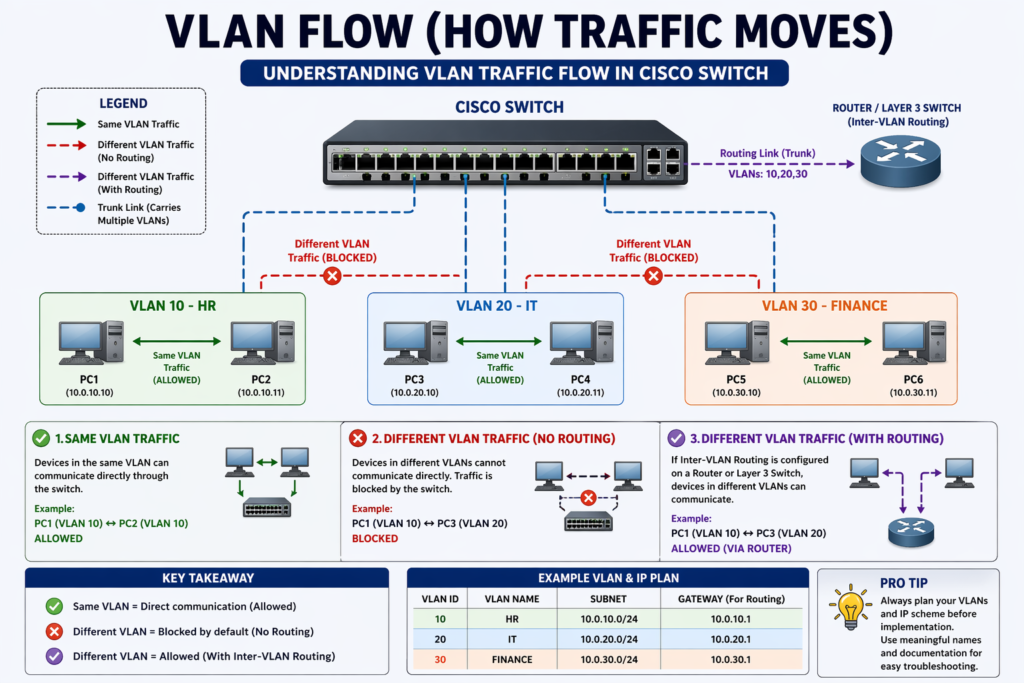
👉 Understanding this makes troubleshooting 10x easier:
- Same VLAN → Direct communication
- Different VLAN → Needs routing
⚠️ Common VLAN Issues + Fixes (Real Troubleshooting)
❌ Issue 1: VLAN Not Working
✔ Check:
show vlan brief
✔ Fix:
- VLAN not created → create it
- Port not assigned → assign correctly
❌ Issue 2: No Communication Between PCs
👉 Reason:
- Devices in different VLANs
✔ Fix:
- Configure Inter-VLAN Routing (Router or Layer 3 switch)
❌ Issue 3: Trunk Not Passing VLAN
✔ Check:
show interfaces trunk
✔ Fix:
switchport trunk allowed vlan 10,20,30
❌ Issue 4: Wrong Port Mode
✔ Fix:
switchport mode access
❌ Issue 5: MAC Not Learning
✔ Check:
show mac address-table
✔ Fix:
- Check cable / NIC
- Ensure port is active
⚠️ Common Mistakes (Avoid These)
- ❌ Forgetting
switchport mode access - ❌ Assigning VLAN without creating it
- ❌ Not verifying configuration
- ❌ Allowing all VLANs on trunk (security risk)
- ❌ Ignoring inter-VLAN routing
- ❌ VLAN created but not assigned – Device stays in default VLAN
- ❌ Trunk not configured – VLANs won’t communicate across switches
- ❌ Native VLAN mismatch – Causes connectivity issues
- ❌ Using trunk mode for end devices
- ✔ Always use access mode for PCs
📊 Difference between Access vs Trunk Port (Quick Comparison)
Here below is the difference between Access Port vs Trunk Port in detail.
| Feature | Access Port 🟢 | Trunk Port 🔵 |
|---|---|---|
| Purpose | Connect end devices | Connect switches / routers |
| VLAN Support | Single VLAN | Multiple VLANs |
| Used For | PC, Laptop, Printer | Switch-to-switch |
| VLAN Tagging | ❌ No | ✅ 802.1Q tagging |
| Configuration | Simple | Moderate |
| Traffic Handling | One VLAN traffic | Multiple VLAN traffic |
| Security | More secure | Needs proper config |
| Cisco Command | switchport mode access | switchport mode trunk |
| Example | Fa0/1 → VLAN 10 | Gi0/1 → VLAN 10,20,30 |
💡 Pro Tip
👉 Use Access Ports for:
- End devices (PCs, printers)
👉 Use Trunk Ports for:
- Switch-to-switch communication
- Carrying multiple VLANs
💼 Real-World Example
Use Cases
- 🏢 Offices → Department separation
- 🏫 Schools → Staff vs Students
- 🏨 Hotels → Guest isolation
- 🏭 Data Centers → Server segmentation
In an office network:
- VLAN 10 → HR (Ports Fa0/1–Fa0/5)
- VLAN 20 → IT (Ports Fa0/6–Fa0/10)
👉 Result:
- 🔐 Departments are isolated
- ⚡ Network performance improves
- 🧠 Traffic is well organized
🔄 Access Port vs Trunk Port (Quick Comparison)
| Feature | Access Port | Trunk Port |
|---|---|---|
| VLAN Support | Single VLAN | Multiple VLANs |
| Used for | End devices | Switch-to-switch |
| Tagging | Untagged | Tagged (802.1Q) |
🛠️ VLAN Troubleshooting (Step-by-Step)
1. 🔍 Check VLAN assignment
show vlan brief
2. 🔍 Check trunk configuration
show interfaces trunk
3. 🔍 Check interface status
show ip interface brief
👉 💡 Pro Tip:
Always check VLAN and trunk before troubleshooting deeper network problems.
🎯 Interview Questions
- How to configure VLAN in Cisco switch?
- Difference between access and trunk port?
- What is native VLAN?
🔗 Related Topics (Recommended Reading)
- ➡️ What is VLAN (Complete Guide)
- ➡️ How VLAN Works
- ➡️ VLAN Tagging (802.1Q Explained)
- ➡️ VLAN Troubleshooting Guide
👉 These will help you build complete networking expertise
❓ FAQs
Q1. How to create VLAN in switch?
Here is the command :
Under the config mode , type the below command.
vlan 10
name HR
Your Vlan 10 with name HR will get created.
Q2. How to assign VLAN to port?
interface fa0/1
switchport access vlan 10
Q3. Why VLAN is not working?
Some possible reasons are :
- VLAN not created
- Port not assigned
- Trunk misconfigured
- Check Vlan configuration
Q4. What is trunk port?
A port that carries multiple VLANs between switches.
Q5. Can different VLANs communicate?
❌ No (default)
✔ Yes (with Inter-VLAN Routing)
🎯 Conclusion (Action-Oriented)
VLAN configuration in Cisco switches is a must-have skill for any network admin.
👉 If you apply what you learned:
- Your network becomes faster
- Your setup becomes secure
- Your troubleshooting becomes easy
👉 Mastering VLAN configuration makes troubleshooting and network design much easier.