
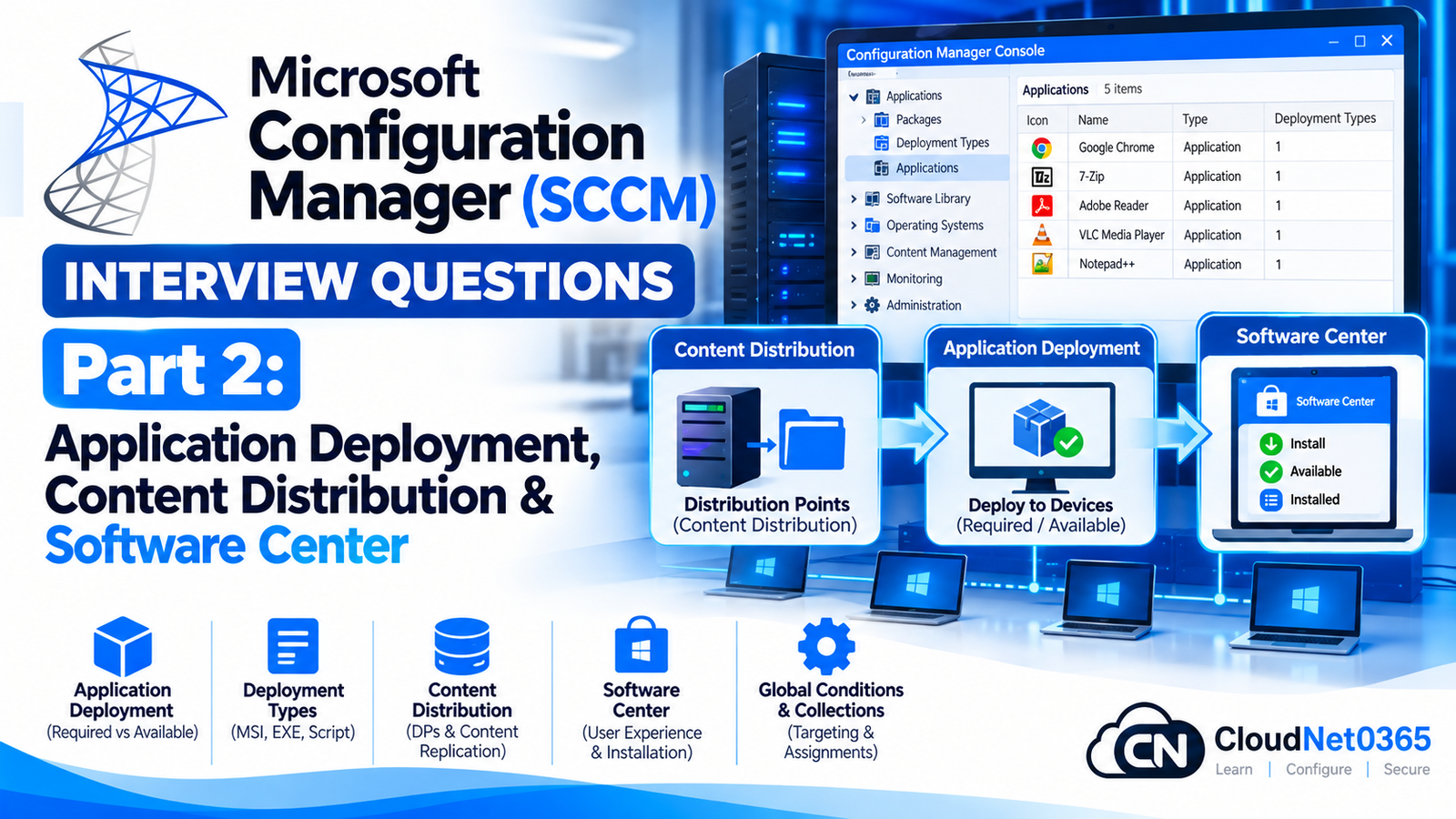
Microsoft Configuration Manager, formerly known as SCCM and later branded Microsoft Endpoint Configuration Manager (MECM), is widely used for enterprise application deployment and software distribution.
For a System Administrator or Endpoint Administrator, knowing how to create an application is not enough. Senior-level interviews commonly focus on why an application deployment fails, how Configuration Manager evaluates an application, how content reaches a Distribution Point, how detection methods determine installation state, and how to troubleshoot Software Center.
This article focuses specifically on Configuration Manager application deployment and content distribution.
It covers:
- Applications and Deployment Types
- Detection Methods
- Requirements
- Dependencies
- Supersedence
- User and Device deployments
- Required and Available deployments
- Distribution Points
- Distribution Point Groups
- Pull Distribution Points
- Content validation
- Application evaluation
- Software Center
- Application deployment troubleshooting
- Important Configuration Manager logs
- Real-world production scenarios
Important: Intune application management and Configuration Manager application management have different architectures and troubleshooting workflows. This article focuses on Configuration Manager-specific concepts.
Microsoft Configuration Manager Application Deployment Interview Questions
Q1. What is an Application in Microsoft Configuration Manager?
An Application is a Configuration Manager object used to define and deploy software to users or devices.
An application can contain one or more Deployment Types.
For example:
Application:
Google Chrome
Deployment Type:
Chrome Enterprise MSI
The application can contain information such as:
- Installation command
- Uninstallation command
- Detection method
- Requirements
- Dependencies
- Return codes
- Content location
- User experience settings
Q2. What is a Deployment Type?
A Deployment Type defines how a particular version or installation technology of an application is installed.
For example, an application could have:
Application:
Microsoft Visual C++ Runtime

Deployment Type 1:
x64 MSI

Deployment Type 2:
x86 MSI
A deployment type contains settings such as:
- Content location
- Installation program
- Uninstall program
- Detection method
- Requirements
- Dependencies
- User experience
- Return codes
The application itself is the logical software object, while the deployment type defines how it is installed.
Q3. What is the difference between an Application and a Package?
This is a common interview question.
Application
Applications provide a richer application-management model.
They support:
- Detection methods
- Requirements
- Dependencies
- Supersedence
- Multiple deployment types
- User/device targeting
- Application state evaluation
Package
Packages are the older software-distribution model.
A package generally contains:
- Source files
- Program
- Distribution settings
Packages do not provide the same application-management model as modern Configuration Manager Applications.
Interview answer
Applications provide intelligent application lifecycle management through detection, requirements, dependencies and supersedence, while Packages are primarily designed for straightforward program distribution.
Q4. What is an Application Deployment?
An application deployment tells Configuration Manager who should receive an application and how it should be installed.
A deployment specifies:
- Collection
- Deployment purpose
- Deployment settings
- Schedule
- User experience
- Alerts
- Distribution/content behavior
For example:
Application:
Microsoft 7-Zip

Collection:
IT-Department-Computers

Purpose:
Required
Configuration Manager then evaluates the deployment on applicable clients.
Q5. What is the difference between Required and Available deployment?
Required
The application is required on the targeted device or user.
Configuration Manager attempts to install it according to the deployment configuration.
Available
The application is offered to the user through Software Center.
The user can choose whether to install it.
Example:
VPN Client
→ Required for company laptops

Notepad++
→ Available through Software Center
Q6. Can an Application be deployed to a User Collection?
Yes.
Applications can be deployed to:
- User collections
- Device collections
For example:
User Collection:
Finance Users
could receive:
Microsoft Excel Add-in
while:
Device Collection:
Finance Computers
could receive:
Finance Workstation Software
The correct targeting model depends on whether the requirement follows the user or the device.
Q7. What is the difference between User and Device application deployment?
User deployment
The deployment targets users.
It is useful when software should follow the user regardless of which managed device they use.
Device deployment
The deployment targets devices.
It is useful when software must exist on specific computers.
Example:
User-based:
Sales users should have a CRM application.

Device-based:
Every computer in the production lab requires engineering software.
Q8. What is an application Detection Method?
The detection method tells Configuration Manager whether the application is already installed.
This is extremely important.
Configuration Manager does not simply assume:
Installation command executed successfully = application installed.
It evaluates the configured detection rule.
Common detection methods include:
- MSI product code
- File or folder
- Registry
- Custom script
Q9. Why is the Detection Method important?
Suppose an application installer returns exit code 0, but the software installation actually failed or installed incorrectly.
If the detection rule is poorly designed, Configuration Manager may incorrectly report the application as installed.
Therefore, a good detection method should verify the actual installed state.
For example:
Registry:
HKLM\Software\Vendor\Product

Value:
Version

Expected:
5.2.1
Q10. How does MSI-based detection work?
For MSI applications, Configuration Manager can use the MSI product code to detect whether the product is installed.
The MSI product code identifies the installed product.
This is generally preferable to manually checking arbitrary files when the application is properly packaged as an MSI.
Q11. What is file-based detection?
File-based detection checks whether a specified file or folder exists and optionally evaluates properties such as:
- File existence
- File version
- File date
- File size
Example:
C:\Program Files\ExampleApp\Example.exe
Expected version:
5.4.2.0
This can be useful when the application’s installed version is reliably represented by the executable version.
Q12. What is registry-based detection?
Registry-based detection checks a registry key/value to determine whether the application is installed.
Example:
HKLM\Software\Microsoft\Windows\CurrentVersion\Uninstall\ExampleApp
The detection could verify:
DisplayVersion = 5.4.2
For 64-bit applications on 64-bit Windows, administrators must also understand 32-bit vs 64-bit registry views when designing detection logic.
Q13. What is script-based detection?
A script-based detection method uses a script to determine whether the application is installed.
The script should return the expected result according to Configuration Manager’s detection-method behavior.
PowerShell is commonly used.
Example concept:
$version = (Get-Item "C:\Program Files\ExampleApp\Example.exe").VersionInfo.ProductVersion

if ($version -eq "5.4.2") {
    Write-Output "Installed"
}
The exact detection script should be designed carefully and tested under the same context in which Configuration Manager evaluates it.
Q14. What is a Requirement in an Application?
Requirements determine whether a deployment type is applicable to a client.
Examples include:
- Operating system
- Architecture
- Free disk space
- Memory
- Registry condition
- Installed software
- Custom global conditions
Example:
Deployment Type:
64-bit application

Requirement:
Operating System = Windows 11 x64
A Windows 10 x64 device could therefore be excluded from that deployment type if the requirement specifically requires Windows 11.
Q15. What is a Global Condition?
A Global Condition is a reusable condition that can be used to determine whether an application deployment type applies to a client.
It can evaluate information such as:
- Registry
- File system
- WMI
- Operating system
- Device properties
Global Conditions can be reused across multiple applications.
Q16. What is an Application Dependency?
A dependency defines another application that must be installed before the dependent application can be installed.
Example:
Application:
Accounting Software

Dependency:
.NET Runtime
Configuration Manager can evaluate the dependency and install the required application first, according to the configured deployment behavior.
Q17. What is the difference between Dependencies and Requirements?
They solve different problems.
Requirement
Determines:
“Is this deployment type applicable to this device?”
Dependency
Determines:
“What other application must be installed before this application?”
Example:
Requirement:
Windows 11 x64

Dependency:
Microsoft .NET Runtime
Q18. What is Application Supersedence?
Supersedence allows a newer application or deployment type to replace an older one.
Example:
Application v1
     ↓
Application v2
     ↓
Application v3
The newer application can be configured to supersede the older version.
Depending on configuration, Configuration Manager can also uninstall the superseded application when appropriate.
Q19. What is the difference between Supersedence and Dependency?
Dependency
One application requires another application.
App A
 ↓
App B
Supersedence
A newer application replaces an older application.
Old App
   ↓
New App
This distinction is frequently asked in senior interviews.
Q20. What is a Distribution Point?
A Distribution Point (DP) stores application content and makes it available to Configuration Manager clients.
The Management Point and Distribution Point have different responsibilities.
Management Point
Provides:
- Policy
- Client communication
- Management information
Distribution Point
Provides:
- Application content
- Package content
- Software update content
- Operating system deployment content
Q21. What happens when an application is distributed to a Distribution Point?
The basic process is:
Application Source
       ↓
Configuration Manager Site
       ↓
Content Library
       ↓
Distribution Point
       ↓
Client
The content must be successfully distributed before clients can download it from that Distribution Point.
Q22. What is the Content Library?
The Content Library is Configuration Manager’s content storage mechanism.
It stores content in a deduplicated structure rather than simply maintaining one traditional folder per application.
Important locations include:
SMSPKGx$
ContentLib
SCCMContentLib
Administrators should avoid manually modifying or deleting content-library files.
Q23. What is a Distribution Point Group?
A Distribution Point Group (DP Group) is a logical collection of Distribution Points.
Instead of distributing content separately to many DPs, an administrator can distribute the content to a DP Group.
Example:
DP Group:
India-DPs

Members:
DP-Mumbai
DP-Delhi
DP-Bangalore
DP-Hyderabad
Content can then be distributed to the group.
Q24. What is a Pull Distribution Point?
A Pull Distribution Point obtains content from another Distribution Point instead of receiving the content directly from the site server.
This can reduce the load on the primary site server when distributing large amounts of content to remote locations.
Example:
Primary Site
     ↓
Source DP
     ↓
Pull DP
     ↓
Branch Clients
Q25. When would you use a Pull DP?
A Pull DP can be useful in environments with:
- Many remote DPs
- Limited WAN bandwidth
- Large application packages
- High content-distribution volume
The pull DP obtains content from configured source DPs.
Q26. What is Content Validation?
Content validation checks whether the content stored on Distribution Points matches the expected content.
This can help identify:
- Corrupted content
- Missing files
- Content mismatch
Validation can be scheduled or initiated for content.
If an application works on one DP but fails on another, content validation is one of the checks to consider.
Q27. What happens if the application content is not distributed to the DP?
The client may receive the deployment policy but fail when trying to obtain the application content.
The result can look like:
Policy received
       ↓
Application appears in Software Center
       ↓
Install starts
       ↓
Content download fails
This is an important troubleshooting distinction.
The application policy can be healthy while the content distribution is not.
Q28. What is Content Location?
Content location tells Configuration Manager where the client should obtain application content.
The client evaluates its:
- Boundaries
- Boundary Groups
- Distribution Points
- Content availability
The client then selects an appropriate content source.
Q29. How does Boundary Group configuration affect application deployment?
Boundary Groups help clients locate appropriate:
- Distribution Points
- Management Points
- Site systems
For application deployment, incorrect Boundary Group configuration can result in:
- No suitable DP
- Slow content download
- Download from a remote site
- Unexpected WAN traffic
Example:
Branch Client
     ↓
Branch Boundary
     ↓
Branch Boundary Group
     ↓
Branch DP
Q30. What happens if a client cannot find a Distribution Point?
The client attempts to locate a suitable content source based on its boundary and boundary-group configuration.
If no suitable content source is available, the application may fail with content-location or download-related errors.
Troubleshooting should include:
- Client boundary
- Boundary Group
- DP association
- Content distribution status
- DP availability
- Client logs
Software Center Interview Questions
Q31. What is Software Center?
Software Center is the Configuration Manager client application that allows users to interact with deployed software.
Users can see applications that are made available to them.
Depending on deployment configuration, Software Center can allow users to:
- Install applications
- View installation status
- View available software
- View required software
- Restart when required
- Review application information
Q32. An application deployment is visible in Software Center but installation fails. What would you check?
Do not immediately recreate the application.
Follow a structured workflow.
Step 1 — Check application evaluation
Review:
AppIntentEval.log
Step 2 — Check discovery
AppDiscovery.log
Step 3 — Check enforcement
AppEnforce.log
Step 4 — Check content
ContentTransferManager.log

CAS.log

DataTransferService.log
Step 5 — Check location
LocationServices.log
Step 6 — Check server-side status
Verify:
- Deployment
- Collection membership
- Content distribution
- DP status
- Deployment type
- Detection method
- Requirements
Q33. Which log is important for application enforcement?
The primary log is:
AppEnforce.log
It records application installation and enforcement activity.
For example, it can help determine:
- Which command executed
- Installation result
- Return code
- Execution context
- Enforcement result
Q34. Which log helps determine application discovery?
Use:
AppDiscovery.log
It helps determine whether Configuration Manager believes the application is installed.
This is particularly important when you see:
Installation completed
but Configuration Manager continues to show:
Required
In that situation, investigate the detection method and AppDiscovery.log.
Q35. Which log helps with application evaluation?
Use:
AppIntentEval.log
It helps determine how Configuration Manager evaluates the application’s desired state and applicability.
For example:
Application required
        ↓
Evaluation
        ↓
Applicable?
        ↓
Install required?
Q36. An application installs successfully but Software Center still shows it as required. Why?
One of the most common causes is an incorrect detection method.
Example:
Application installs:
ExampleApp 5.0
But detection expects:
ExampleApp 4.0
Configuration Manager does not detect the expected state.
Therefore it may continue trying to enforce the application.
Check:
AppDiscovery.log
and verify the detection rule manually on the client.
Q37. The application does not appear in Software Center. What would you check?
Check the following in order:
1. Deployment
Confirm the application was deployed.
2. Collection membership
Verify the user/device belongs to the target collection.
3. Deployment purpose
Determine whether it is:
Available
or:
Required
4. Client policy
Confirm the client received policy.
5. Application applicability
Check requirements and deployment type.
6. Software Center
Refresh policy/evaluation and review logs.
Useful logs include:
PolicyAgent.log
PolicyEvaluator.log
AppIntentEval.log
Q38. The application is shown as “Available” but the user cannot install it. What would you check?
Check:
- Application deployment
- Deployment type
- Requirements
- Dependencies
- Content availability
- Distribution Point
- Client policy
- Application evaluation
- Software Center logs/UI
- Application enforcement logs
The fact that an application is visible does not prove that its content and deployment type are fully functional.
Q39. What is AppEnforce.log used for?
AppEnforce.log is primarily used to troubleshoot application installation and enforcement.
Example:
Application:
7-Zip

Install command:
msiexec /i 7zip.msi /qn
If the installation fails, AppEnforce.log can show:
- Command execution
- Process execution
- Return code
- Installation result
Q40. What is the difference between AppDiscovery.log and AppEnforce.log?
AppDiscovery.log
Answers:
“Is the application detected as installed?”
AppEnforce.log
Answers:
“What happened when Configuration Manager attempted to install or uninstall it?”
This distinction is extremely useful during troubleshooting.
Advanced Application Deployment Scenarios
Q41. A required application repeatedly reinstalls on a computer. What is the likely cause?
A common cause is a detection method problem.
Example:
Installation:
Successful

Detection:
Failed
Configuration Manager then concludes:
Application not installed
and attempts enforcement again.
Investigate:
AppDiscovery.log
and validate the detection rule manually.
Other possibilities include:
- Application state changes
- Incorrect supersedence
- Multiple deployments
- Broken installation
- Conflicting deployment types
Q42. An application works from one Distribution Point but fails from another. What would you investigate?
Compare the DPs.
Check:
- Content distribution status
- Content validation
- DP availability
- Free disk space
- Boundary Group association
- IIS/DP health where relevant
- Content Library health
- Client download logs
Important logs:
LocationServices.log
ContentTransferManager.log
DataTransferService.log
CAS.log
If only one DP fails, suspect a DP/content-path problem before changing the application itself.
Q43. The application appears in Software Center, but downloading remains stuck at 0%. What would you check?
Start with content-location and content-transfer troubleshooting.
Check:
LocationServices.log
ContentTransferManager.log
DataTransferService.log
CAS.log
Then verify:
- Client boundary
- Boundary Group
- DP availability
- Content distribution
- Content validation
- Network connectivity
- BITS/content-transfer health
- Free disk space
Do not immediately recreate the deployment.
Q44. What is the difference between application policy and application content?
This is an important senior-level distinction.
Policy
Tells the client:
“You need this application.”
Content
Provides the actual installation files.
Therefore:
Policy received
≠
Content available
A client can successfully receive policy while still being unable to install the application because content cannot be located or downloaded.
Q45. A client receives the deployment but does not install the application. What is your troubleshooting sequence?
Use this sequence:
Deployment
   ↓
Collection membership
   ↓
Client policy
   ↓
Application evaluation
   ↓
Requirements
   ↓
Dependencies
   ↓
Content location
   ↓
Content download
   ↓
Installation
   ↓
Detection
Corresponding logs:
PolicyAgent.log
PolicyEvaluator.log
AppIntentEval.log
AppDiscovery.log
LocationServices.log
ContentTransferManager.log
CAS.log
DataTransferService.log
AppEnforce.log
This approach avoids randomly changing configuration.
Q46. An MSI application returns exit code 3010. Is the installation successful?
Generally, 3010 indicates:
The operation completed successfully, but a restart is required.
However, the administrator must ensure the return code is correctly configured for the deployment type.
A restart-required result should not automatically be treated as a generic installation failure.
Configuration Manager allows administrators to configure return codes appropriately.
Q47. What is the importance of return codes in application deployment?
Installers return exit codes to indicate the result of the installation.
Examples include:
0
Usually successful.
3010
Successful, restart required.
1603
Common Windows Installer fatal installation error.
The actual meaning depends on the installer technology, so administrators should verify the vendor’s documentation rather than blindly assuming every code has the same meaning.
Q48. How would you deploy an application safely to 5,000 computers?
Do not immediately deploy it as Required to all 5,000 devices.
A controlled rollout is preferable.
Example:
Pilot - IT
     ↓
Pilot - Power Users
     ↓
5% Production
     ↓
25% Production
     ↓
50% Production
     ↓
100% Production
Monitor:
- Installation success
- Detection
- Failures
- Restart behavior
- Helpdesk incidents
- Application functionality
Use appropriately designed collections and phased deployment controls.
Q49. An application has different installers for Windows 10 and Windows 11. How would you design it?
One approach is to create:
Application:
Corporate Application

Deployment Type 1:
Windows 10 Installer

Requirement:
Windows 10

Deployment Type 2:
Windows 11 Installer

Requirement:
Windows 11
Configuration Manager evaluates the deployment types and requirements to determine which deployment type applies.
This avoids creating unnecessary duplicate application objects.
Q50. You are asked to troubleshoot a production application deployment failure affecting hundreds of users. What is your approach?
Use a structured approach rather than changing multiple settings simultaneously.
Step 1 — Establish scope
Determine:
- Number of affected clients
- Locations
- Operating systems
- Application version
- User/device collections
- Whether all DPs are affected
Step 2 — Determine the failure stage
Identify whether the failure occurs during:
Policy
↓
Evaluation
↓
Content location
↓
Download
↓
Installation
↓
Detection
Step 3 — Check server-side configuration
Verify:
- Deployment
- Collection
- Deployment Type
- Requirements
- Dependencies
- Supersedence
- Content distribution
- DP health
Step 4 — Check representative clients
Collect logs from:
AppIntentEval.log
AppDiscovery.log
AppEnforce.log
LocationServices.log
ContentTransferManager.log
DataTransferService.log
CAS.log
Step 5 — Compare successful and failed clients
This is often one of the fastest ways to identify the difference.
Compare:
- Boundary
- DP
- OS
- Application version
- Detection state
- Client version
- Network connectivity
- Local disk space
- Installer behavior
Step 6 — Correct the root cause
Do not simply recreate the application or deployment unless the evidence indicates that the configuration itself is corrupted or incorrect.
Step 7 — Validate
Test with:
- Pilot clients
- Previously failed clients
- Different locations
- Different DPs
Senior interview answer
“I would first identify which stage of the deployment pipeline is failing—policy, evaluation, content location, download, installation, or detection. I would then correlate server-side deployment/content status with client-side logs, compare successful and failed clients, correct the root cause, and validate the fix through a controlled rollout.”
Important Configuration Manager Application Troubleshooting Logs
| Log | Purpose |
|---|---|
PolicyAgent.log | Policy retrieval |
PolicyEvaluator.log | Policy evaluation |
AppIntentEval.log | Application intent/evaluation |
AppDiscovery.log | Application detection |
AppEnforce.log | Application installation/enforcement |
LocationServices.log | Management Point/Distribution Point location |
ContentTransferManager.log | Content transfer job management |
DataTransferService.log | BITS/content transfer activity |
CAS.log | Content Access Service/cache activity |
ExecMgr.log | Older Package/Program execution scenarios |
SCNotify.log | Software Center notification-related activity |
CcmExec.log | Client service activity |
Typical client log location:
C:\Windows\CCM\Logs
Useful Configuration Manager Client Commands
Check Configuration Manager Client Service
Get-Service CcmExec
Start it if necessary:
Start-Service CcmExec
Repair the Configuration Manager Client
From an elevated command prompt:
C:\Windows\CCM\ccmrepair.exe
Check Configuration Manager Client WMI
Get-CimInstance -Namespace "root\ccm" -ClassName SMS_Client
Trigger Configuration Manager Client Actions
Configuration Manager client actions can be triggered through the client WMI provider.
Example:
Invoke-CimMethod `
-Namespace "root\ccm" `
-ClassName SMS_Client `
-MethodName TriggerSchedule `
-Arguments @{sScheduleID="{00000000-0000-0000-0000-000000000021}"}
The schedule ID represents a specific client action. Do not blindly reuse GUIDs from random scripts; verify the action and GUID for the Configuration Manager version/environment being administered.
Real-World Scenario 1: Application Not Visible in Software Center
Problem
A user reports:
“The application was deployed to me, but I cannot see it in Software Center.”
Investigation
Check:
Collection membership
        ↓
Deployment
        ↓
Deployment purpose
        ↓
Client policy
        ↓
Application evaluation
        ↓
Requirements
Review:
PolicyAgent.log
PolicyEvaluator.log
AppIntentEval.log
Possible causes
- User/device not in collection
- Policy not received
- Deployment targeted the wrong collection
- Requirement not satisfied
- Deployment type not applicable
- Client issue
Real-World Scenario 2: Application Visible but Download Fails
Problem
Software Center shows:
Install
but the download never completes.
Investigation
Check:
LocationServices.log
ContentTransferManager.log
DataTransferService.log
CAS.log
Then verify:
- Boundary
- Boundary Group
- DP
- Content distribution
- DP health
- Network connectivity
Root cause example
The branch computer was assigned to the wrong Boundary Group and therefore attempted to obtain content from a remote DP.
Corrective action
Fix the Boundary Group/DP association and validate content availability.
Real-World Scenario 3: Application Installs but Remains “Required”
Problem
The installer completes successfully.
Software Center still reports:
Required
Investigation
Check:
AppDiscovery.log
Then inspect the detection method.
Example:
Installer creates:
HKLM\Software\Vendor\Product
Version = 10.2
but the detection method checks:
Version = 10.1
Configuration Manager therefore believes the application is not installed.
Solution
Correct the detection method and test again.
Real-World Scenario 4: Only One Branch Has Application Failures
Problem
Head-office clients install successfully.
Branch clients fail.
Investigation
Compare:
Successful client
vs
Failed client
Check:
- Boundary
- Boundary Group
- DP
- Network path
- Content availability
- DP health
- Firewall
- Proxy
- Content validation
Likely investigation path
Because the failure is location-specific, prioritize:
Boundary
→ Boundary Group
→ DP
→ Content
→ Network
before changing the application installer.
Real-World Scenario 5: 5,000-Device Application Upgrade
Requirement
Upgrade an enterprise application from:
Version 5
to:
Version 6
Recommended deployment design
Create:
Application:
Product Version 6

Deployment Type:
Version 6 Installer

Supersedence:
Version 5
Pilot the deployment first.
Then progressively expand the deployment.
Monitor:
- Installation success
- Detection
- Restart requirements
- Failed clients
- Application functionality
- Helpdesk impact
This provides controlled application lifecycle management instead of an uncontrolled enterprise-wide deployment.
Quick Revision
Application
Logical software object.
Deployment Type
Defines how the application is installed.
Detection Method
Determines whether the application is installed.
Requirement
Determines whether a deployment type applies.
Dependency
Defines another application that must be installed first.
Supersedence
Allows a newer application to replace an older one.
Required Deployment
Configuration Manager enforces the application according to deployment settings.
Available Deployment
The user can install the application from Software Center.
Distribution Point
Provides application content to clients.
Boundary Group
Helps clients locate appropriate site systems and content sources.
Pull DP
Obtains content from another Distribution Point.
Content Library
Stores Configuration Manager content.
Software Center
Client interface for application deployment.
Application Deployment Troubleshooting Decision Tree
Use this decision tree during interviews:
Application missing?
        |
        +-- YES
        |
        +--> Check deployment
             |
             +--> Collection membership
             |
             +--> Client policy
             |
             +--> Requirements
             |
             +--> AppIntentEval.log


Application visible but cannot download?
        |
        +--> Check Boundary
             |
             +--> Boundary Group
             |
             +--> DP
             |
             +--> Content distribution
             |
             +--> LocationServices.log
             |
             +--> ContentTransferManager.log
             |
             +--> DataTransferService.log
             |
             +--> CAS.log


Content downloaded but installation fails?
        |
        +--> AppEnforce.log
             |
             +--> Install command
             |
             +--> Return code
             |
             +--> Installer logs
             |
             +--> Execution context


Installation succeeds but application remains required?
        |
        +--> AppDiscovery.log
             |
             +--> Detection method
             |
             +--> Installed version
             |
             +--> Registry/File/MSI state
Exam Answer Summary
1. Application vs Package?
Applications provide advanced application-management capabilities such as detection, requirements, dependencies and supersedence. Packages provide the older program-distribution model.
2. Required vs Available?
Required deployments are enforced according to deployment configuration, while Available deployments are presented to users through Software Center for optional installation.
3. What does a Detection Method do?
It determines whether Configuration Manager considers the application installed.
4. What is a Dependency?
A dependency specifies another application that must be installed before the dependent application.
5. What is Supersedence?
Supersedence allows a newer application or deployment type to replace an older one.
6. What does a Distribution Point do?
It stores and delivers Configuration Manager content to clients.
7. Application visible but download fails?
Check Boundary Groups, Distribution Points, content distribution and client content-transfer logs.
8. Application installs but remains required?
Check the detection method and AppDiscovery.log.
9. Which log shows application installation?
AppEnforce.log.
10. Which log shows application detection?
AppDiscovery.log.
11. Which log shows application evaluation?
AppIntentEval.log.
12. Which logs help troubleshoot content download?
LocationServices.log,ContentTransferManager.log,DataTransferService.logandCAS.log.
Senior Interview Tip
For senior Configuration Manager interviews, do not answer application-deployment questions only with:
“Check Software Center.”
Instead, explain the complete deployment pipeline:
Deployment
   ↓
Collection
   ↓
Client Policy
   ↓
Application Evaluation
   ↓
Requirements
   ↓
Dependencies
   ↓
Content Location
   ↓
Distribution Point
   ↓
Content Download
   ↓
Installation
   ↓
Detection
Then identify the appropriate log for the failed stage.
A strong senior-level answer demonstrates that you understand why an application failed, rather than simply knowing where the Software Center button is.
Progress
Part 1: Architecture, Site Components, Clients & Core Administration
Part 2: Application Deployment, Content Distribution & Software Center
Next Part
Microsoft Configuration Manager (SCCM) Interview Questions – Part 3: Software Updates, WSUS, SUP, ADRs & Patch Management
The next part will focus specifically on:
- WSUS and SUP architecture
- Software Update Point
- Software Update Groups
- ADRs
- Deployment Packages
- Automatic Deployment Rules
- Update synchronization
- Classifications and Products
- Scan failures
- Windows Update Agent
- Update compliance
- Missing updates
- Superseded/expired updates
- Patch deployment troubleshooting
- Maintenance Windows
- Restart behavior
- Production patching scenarios