
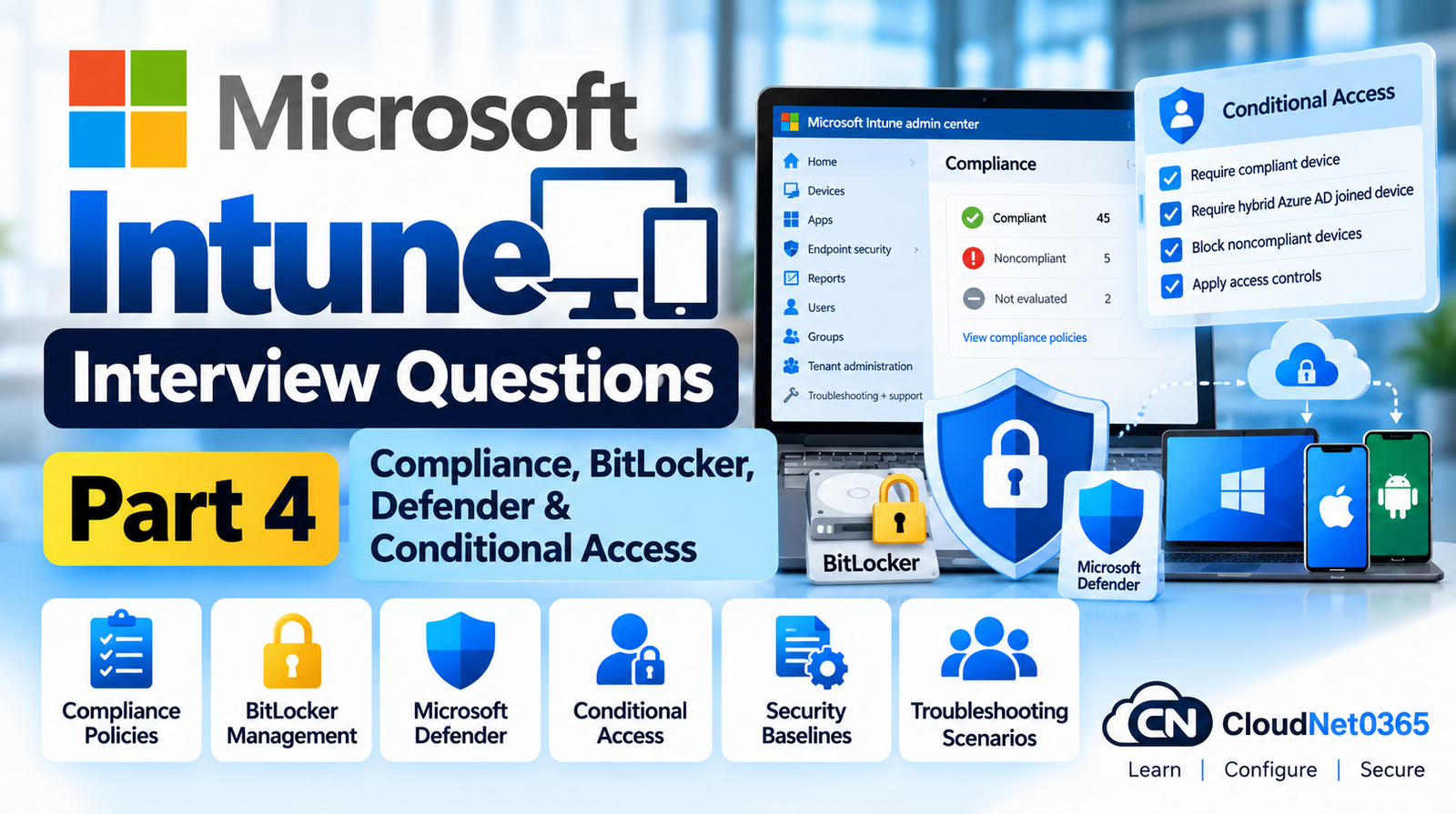
Microsoft Intune is not only a device-management platform. In an enterprise environment, Intune also plays an important role in endpoint security, device compliance and Zero Trust access control.
A senior Intune administrator should understand how to:
- Evaluate device compliance
- Configure actions for noncompliant devices
- Manage BitLocker
- Manage Microsoft Defender Antivirus
- Configure Windows Firewall
- Deploy Attack Surface Reduction rules
- Integrate Microsoft Defender for Endpoint
- Use device-risk information
- Integrate Intune compliance with Microsoft Entra Conditional Access
- Troubleshoot security-policy conflicts
- Investigate devices that appear compliant but are still blocked
- Design endpoint security for thousands of devices
- Handle production security incidents
Microsoft Intune compliance policies evaluate whether managed devices meet defined requirements. Microsoft Entra Conditional Access can then use the compliance result when making access decisions.
This part focuses on the security and compliance layer of Microsoft Intune, with particular emphasis on senior-level troubleshooting and real-world scenarios.
Continue Microsoft Intune interview preparation series.
← Previous Part: [Part 3: App Management, Win32 Apps & Troubleshooting] | Complete Series: [Microsoft Intune Interview Questions & Answers – Complete Series] | Next Part →: [Part 5: Windows Autopilot, Deployment, Co-Management & Advanced Scenarios]
Microsoft Intune Compliance Interview Questions
Q1. What is an Intune compliance policy?
An Intune compliance policy defines requirements that a managed device must satisfy to be considered compliant.
Examples include:
- Minimum operating-system version
- Maximum operating-system version
- Password requirements
- BitLocker encryption
- Firewall status
- Antivirus status
- TPM requirements
- Device threat level
- Other platform-specific security requirements
The purpose of a compliance policy is primarily to evaluate the state of a device.
Q2. What is the difference between a compliance policy and a configuration policy?
The simplest distinction is:
| Policy | Purpose |
|---|---|
| Configuration policy | Configures the device |
| Compliance policy | Evaluates whether the device meets requirements |
| Conditional Access | Uses signals to control access |
| Endpoint Security policy | Manages security-focused controls |
For example:
A configuration policy can configure Windows Firewall.
A compliance policy can require Windows Firewall to be enabled.
Conditional Access can then require the device to be compliant before allowing access to protected resources.
Q3. What is the difference between a configuration setting and a compliance setting?
A configuration setting tells the device:
“Configure yourself this way.”
A compliance setting tells Intune:
“Check whether the device is in this state.”
Example:
Configuration:
Enable BitLocker.
Compliance:
Require BitLocker.
These two functions should not be confused during troubleshooting.
Q4. What happens when a device fails a compliance requirement?
When Intune determines that a device doesn’t satisfy a compliance requirement, the device can be marked noncompliant.
The compliance policy can also have additional actions configured, such as:
- Sending an email
- Sending a push notification on supported platforms
- Remotely locking the device on supported platforms
- Adding the device to the retire list
Microsoft documents Mark device noncompliant as the built-in default action in every compliance policy. Its schedule can be configured to provide a remediation period before the device is marked noncompliant.
Q5. What are actions for noncompliance?
Actions for noncompliance determine what Intune should do when a device remains noncompliant.
Examples include:
- Mark device noncompliant
- Send email to the end user
- Send push notification
- Remotely lock the device
- Add device to the retire list
Not every action is supported on every platform.
Actions can also be scheduled at different intervals.
For example:
Device becomes noncompliant
        ↓
Day 0 – Mark noncompliant
        ↓
Day 1 – Email user
        ↓
Day 3 – Send another notification
        ↓
Conditional Access can restrict access
Microsoft currently documents these actions and schedules in Intune.
Q6. What is the purpose of a grace period for compliance?
A grace period gives the user time to correct a compliance problem before a particular action occurs.
For example:
A laptop becomes noncompliant because BitLocker is not enabled.
The organization may configure an email notification after one day, giving the user time to remediate the issue.
The important distinction is:
A grace period delays a configured action; it does not mean the underlying device requirement has been satisfied.
Q7. What happens if a device has no compliance policy assigned?
Intune provides a tenant-level setting that determines how devices without an assigned compliance policy are treated.
An organization can configure devices with no compliance policy assigned to be treated as:
- Compliant
- Not compliant
This setting should be carefully designed when Conditional Access depends on device compliance.
Q8. What is the compliance status validity period?
The compliance status validity period controls how long Intune can continue to use a device’s last reported compliance state when the device does not successfully report its current status.
This is important because an organization should not trust an old compliance result indefinitely.
For example:
Device stops checking in
        ↓
Last known compliance state
        ↓
Validity period expires
        ↓
Device can become noncompliant
        ↓
Conditional Access can restrict access
Q9. Can multiple compliance policies apply to the same device?
Yes.
A device can receive multiple compliance policies.
For example:
- Corporate Windows compliance
- Security compliance
- Defender device-risk compliance
Each policy can evaluate different requirements.
When designing multiple policies, avoid unnecessary duplication and ensure administrators understand how overlapping compliance requirements are evaluated.
Q10. How does Intune handle conflicting compliance requirements?
When multiple compliance policies evaluate the same compliance setting, Intune uses the more restrictive requirement.
This is important because compliance-policy behavior should not be confused with configuration-policy conflict handling.
For example, if one compliance policy permits a lower security requirement while another requires a stronger requirement, the stronger requirement can determine the compliance result.
Device Risk and Microsoft Defender
Q11. What is device risk in Intune?
Device risk is a security signal that can be provided by an integrated security product such as Microsoft Defender for Endpoint.
For example, Defender for Endpoint can identify a device as having a particular threat level.
Intune can use that risk information as part of compliance evaluation.
Microsoft documents the Defender for Endpoint integration as a way to assess device risk and automatically mark risky devices noncompliant when the configured compliance threshold is exceeded.
Q12. What is the difference between device compliance and device risk?
They are related but different.
Device compliance
Answers:
Does the device satisfy the organization’s defined compliance requirements?
Device risk
Answers:
What security-risk level is being reported for this device?
For example, a device can have:
- BitLocker enabled
- Firewall enabled
- Antivirus enabled
and still have a high Defender risk because malicious activity has been detected.
Therefore:
A compliant device should not automatically be interpreted as a completely risk-free device.
Q13. How does Microsoft Defender for Endpoint integrate with Intune compliance?
The high-level workflow is:
Windows Device
      ↓
Microsoft Defender for Endpoint
      ↓
Security/Risk Assessment
      ↓
Intune Compliance Policy
      ↓
Compliant / Noncompliant
      ↓
Microsoft Entra Conditional Access
      ↓
Access Decision
Microsoft documents the integration workflow as:
- Establish the Intune–Defender service connection.
- Onboard devices.
- Create a compliance policy with an acceptable risk threshold.
- Configure Conditional Access to block noncompliant devices.
Q14. What device-risk levels can be used in Windows compliance?
For Windows compliance, Intune can evaluate the machine-risk assessment supplied by the integrated threat service.
The documented threshold options include:
- Clear
- Low
- Medium
For example:
Medium threshold:
The device can remain compliant when the detected threat level is Low or Medium, while a High threat level causes the device to be evaluated as noncompliant.
The exact options should always be checked against the current Intune platform settings because Microsoft can change supported capabilities.
Q15. A device has high Defender risk but is still showing as compliant. What would you investigate?
I would check the complete integration path:
- Is Defender for Endpoint connected to Intune?
- Is the device onboarded to Defender?
- Is the correct compliance policy assigned?
- Does the compliance policy contain the device-risk requirement?
- What risk threshold is configured?
- Is the device receiving the policy?
- Is the Defender risk signal reaching Intune?
- What does the compliance report show?
- Is Conditional Access configured correctly?
- Are the timestamps current?
I would not simply reassign the compliance policy.
Microsoft Entra Conditional Access
Q16. What is Microsoft Entra Conditional Access?
Conditional Access is Microsoft’s access-control mechanism that evaluates conditions and signals before granting or blocking access to protected resources.
Signals can include:
- User
- Group
- Application
- Device
- Device platform
- Location
- Sign-in risk
- User risk
- Device compliance
One common Intune integration is:
Require device to be marked as compliant.
Q17. Does Intune compliance itself block access to Microsoft 365?
Not by itself.
Intune determines and reports the device’s compliance state.
Microsoft Entra Conditional Access can then use that compliance state to make an access decision.
Therefore:
Intune
  ↓
Compliance evaluation
  ↓
Compliant / Noncompliant
  ↓
Microsoft Entra
Conditional Access
  ↓
Allow / Block / Require controls
Microsoft explicitly documents Conditional Access as a separate access-control mechanism that can consume Intune compliance results.
Q18. What does “Require device to be marked as compliant” mean?
It means the Conditional Access policy requires the device to have a compliant state according to the organization’s device-compliance system.
For example:
User signs in
      ↓
Conditional Access evaluates policy
      ↓
Is device compliant?
      ↓
Yes ─────────► Continue access
No ──────────► Access blocked
The actual outcome can depend on all applicable Conditional Access policies and other conditions.
Q19. A device is compliant in Intune but Conditional Access still blocks the user. What do you check?
I would not assume that Intune is the problem.
I would check:
- Microsoft Entra sign-in logs.
- Conditional Access evaluation.
- Which Conditional Access policy caused the block.
- User/group scope.
- Target resource.
- Client application.
- Device identity.
- Device compliance state.
- Sign-in risk or user risk.
- Location or other conditions.
- Whether another Conditional Access policy is blocking access.
The key principle is:
Intune compliance is only one signal in the Conditional Access evaluation.
Q20. A Conditional Access policy is blocking only one user. How would you troubleshoot it?
I would compare the affected user with a working user.
| Area | Check |
|---|---|
| User | Correct account? |
| Group | Same policy scope? |
| Device | Same device state? |
| Compliance | Same compliance result? |
| Application | Same client/application? |
| Location | Same location? |
| Authentication | Same authentication path? |
| Risk | Different risk? |
| Conditional Access | Same policies evaluated? |
The goal is to identify the first meaningful difference.
Q21. A Conditional Access change suddenly blocks hundreds of users. What is your approach?
I would immediately establish the timeline.
Check:
- Was a Conditional Access policy changed?
- Was a compliance policy changed?
- Did an Intune security policy change?
- Did Defender report increased device risk?
- Did device registration change?
- Is there a Microsoft service issue?
- Which Conditional Access policy is producing the block?
I would use the organization’s emergency/change-management process.
I would not blindly disable every security policy.
Q22. Why should Conditional Access policies be deployed gradually?
Because a configuration error can affect a large population simultaneously.
A safer deployment model is:
Test users
    ↓
Pilot group
    ↓
IT / administrators
    ↓
Small production group
    ↓
Larger production group
    ↓
Organization-wide
Microsoft recommends using Report-only mode to evaluate Conditional Access impact before enabling the policy broadly.
Q23. What are emergency access or break-glass accounts?
Emergency access accounts are highly protected accounts intended for situations where normal administrative access is unavailable.
Possible scenarios include:
- Conditional Access misconfiguration
- Authentication problems
- MFA problems
- Administrator lockout
- Identity-service issues
They should be:
- Strongly protected
- Closely monitored
- Tested periodically
- Used only when required
Microsoft specifically recommends excluding emergency-access/break-glass accounts from appropriate Conditional Access policies to reduce the risk of administrator lockout.
BitLocker and Disk Encryption
Q24. What is BitLocker?
BitLocker is Microsoft’s Windows volume-encryption technology.
It protects data stored on supported Windows volumes, particularly if a device is:
- Lost
- Stolen
- Decommissioned improperly
BitLocker can use TPM-based protection to protect encryption keys and help establish trust during startup.
Q25. How should BitLocker be managed through Intune?
Use:
Intune → Endpoint security → Disk encryption
For Windows, the Disk Encryption policy provides focused BitLocker management.
Microsoft specifically recommends the Endpoint Security Disk Encryption area for managing device encryption rather than having encryption settings scattered among unrelated device configuration policies.
Q26. What is the relationship between TPM and BitLocker?
TPM stands for Trusted Platform Module.
A compatible TPM can be used to protect BitLocker keys and support trusted startup.
For enterprise BitLocker deployment, TPM availability and readiness should be assessed before broad deployment.
Intune’s BitLocker settings include options related to requiring a compatible TPM.
Q27. How do you check BitLocker status using PowerShell?
Use:
Get-BitLockerVolume
For the operating-system drive:
Get-BitLockerVolume -MountPoint "C:"
Useful properties include:
- VolumeStatus
- ProtectionStatus
- EncryptionPercentage
- EncryptionMethod
- KeyProtector
You can also use:
manage-bde -status
Q28. What is the difference between BitLocker encryption percentage and protection status?
They represent different things.
Encryption percentage:
Shows how much of the volume has been encrypted.
Protection status:
Shows whether BitLocker protection is currently active.
For example:
EncryptionPercentage = 100%
ProtectionStatus = Off
The drive can therefore be fully encrypted while active protection is currently suspended.
This distinction is important when troubleshooting BitLocker.
Q29. A device should be encrypted but BitLocker is not enabled. How would you troubleshoot it?
I would check:
- Is the device targeted by the BitLocker policy?
- Is the policy successfully applied?
- Is the Windows edition supported?
- Is TPM available and usable?
- Is another BitLocker configuration present?
- Is Group Policy configuring BitLocker?
- Is Configuration Manager involved?
- Is another Intune policy overlapping?
- What does
Get-BitLockerVolumereport? - What does Intune report for the device?
I would identify the cause before repeatedly redeploying the policy.
Q30. A device is encrypted, but the BitLocker recovery key is missing from Microsoft Entra ID. What would you do?
I would verify:
- BitLocker protection state.
- Recovery protectors.
- Device join/registration state.
- Recovery-key escrow status.
- Device identity.
- Whether another approved recovery-key storage mechanism exists.
On the device:
Get-BitLockerVolume -MountPoint "C:"
or:
manage-bde -protectors -get C:
The objective is to ensure that encryption does not leave the organization without a recoverable key.
Q31. BitLocker suddenly requests a recovery key after a BIOS update. What would you do?
I would not immediately assume the disk is damaged.
Changes to the boot environment can cause BitLocker recovery.
I would:
- Obtain the recovery key using the approved process.
- Verify the device identity.
- Confirm the user/device relationship.
- Confirm the BIOS/firmware change.
- Complete recovery.
- Verify BitLocker protection.
- Confirm compliance.
- Document the incident if required.
For enterprise firmware deployments, BitLocker recovery behavior should be considered during change planning.
Microsoft Defender Antivirus
Q32. What is Microsoft Defender Antivirus?
Microsoft Defender Antivirus is the built-in Windows antimalware component.
It provides capabilities including:
- Real-time protection
- Malware detection
- Threat remediation
- Security intelligence updates
- Cloud-delivered protection
Intune can centrally manage Defender Antivirus settings through Endpoint Security policies.
Q33. How do you check Microsoft Defender Antivirus status using PowerShell?
Use:
Get-MpComputerStatus
For a focused result:
Get-MpComputerStatus |
Select-Object AMServiceEnabled,
              AntivirusEnabled,
              RealTimeProtectionEnabled,
              AntivirusSignatureLastUpdated
To inspect Defender preferences:
Get-MpPreference
To review detected threats:
Get-MpThreatDetection
Q34. Defender is disabled on one device even though Intune shows the policy as successful. What would you investigate?
I would investigate the effective configuration rather than looking only at the Intune assignment status.
Check:
- Group Policy
- Configuration Manager
- Defender for Endpoint security settings management
- Other Intune policies
- Local configuration
- Third-party antivirus/security products
- Defender service state
Useful commands:
Get-MpComputerStatus
Get-MpPreference
Get-Service WinDefend
The key question is:
Which management authority is actually determining the effective setting?
Q35. Why should an enterprise avoid managing the same Defender setting from multiple systems?
Because overlapping management can create unexpected results.
Possible management sources include:
- Intune
- Group Policy
- Configuration Manager
- Defender for Endpoint security settings management
- Local configuration
A mature enterprise should define clear ownership for important security settings.
Windows Firewall
Q36. What is Windows Firewall in Intune?
Windows Firewall is the host-based firewall built into Windows.
Intune Endpoint Security policies can centrally manage firewall settings.
Typical enterprise requirements include:
- Firewall enabled
- Appropriate inbound restrictions
- Required application rules
- Correct domain/private/public profile configuration
- Controlled exceptions
Q37. A compliance policy requires Firewall to be enabled, but a device is noncompliant. What would you check?
Check:
- Actual Windows Firewall state.
- Domain/private/public profiles.
- Intune Firewall policy.
- Compliance policy.
- Group Policy.
- Configuration Manager.
- Other security products.
- Device check-in.
- Effective settings.
- Recent changes.
A common issue in co-managed or hybrid environments is that another management mechanism is configuring the same security setting.
Attack Surface Reduction
Q38. What are Attack Surface Reduction rules?
Attack Surface Reduction, or ASR, is a collection of security controls designed to reduce behaviors commonly abused by malware and attackers.
Examples include rules targeting suspicious behaviors involving:
- Office applications
- Scripts
- Web content
- Executables
- Credential-related attack techniques
Intune provides Endpoint Security policies for managing ASR settings.
Q39. What are the common ASR rule modes?
Depending on the rule, ASR can support modes such as:
- Off
- Audit
- Block
- Warn
- Not configured
For enterprise deployments, Audit mode can be useful during testing before stronger enforcement is introduced.
The exact supported modes can vary by rule, so administrators should verify the specific rule being deployed.
Q40. Why should ASR rules be tested before broad enforcement?
Because an ASR rule can interfere with legitimate business behavior.
For example, it could affect:
- Legacy applications
- Office macro workflows
- Internal scripts
- Software deployment processes
A safer rollout is:
Pilot
  ↓
Audit
  ↓
Review events
  ↓
Identify legitimate activity
  ↓
Tune
  ↓
Block/Warn
  ↓
Monitor
Q41. An ASR rule blocks a legitimate business application. What would you do?
I would not immediately disable the entire ASR policy.
I would:
- Identify the exact ASR rule.
- Identify the executable/process.
- Review Defender/security telemetry.
- Confirm the application is legitimate.
- Reproduce the issue if necessary.
- Determine whether a narrowly scoped exclusion is appropriate.
- Test the exception.
- Document the business justification.
- Monitor after deployment.
Microsoft provides specific ASR troubleshooting guidance for unexpected blocking and exclusions.
Production Security Scenarios
Q42. A device is compliant in Intune but malware is detected immediately afterward. Is this a contradiction?
No.
Compliance and threat detection are related but different.
For example:
10:00 AM
Device = Compliant

10:15 AM
Defender detects malware

10:16 AM
Device risk increases

10:17 AM
Intune receives risk information

10:18 AM
Device becomes noncompliant
This is why continuous security monitoring and Defender integration are important.
Q43. One percent of 5,000 corporate devices are not encrypted. How would you troubleshoot this?
I would not manually troubleshoot all devices individually.
I would:
Step 1 — Report
Generate the Intune encryption/compliance report.
Step 2 — Group
Group failures by reason:
- TPM
- Policy assignment
- Windows version/edition
- Existing encryption
- Policy conflict
- Device not checking in
Step 3 — Compare
Compare failed devices with working devices.
Step 4 — Identify
Find the common cause.
Step 5 — Remediate
Correct the policy or device condition.
Step 6 — Monitor
Track the compliance trend.
This is more scalable than manually troubleshooting every affected device.
Q44. You inherit an environment where Intune, Group Policy, Configuration Manager and Defender all configure Windows security. What would you do?
I would not immediately delete policies.
I would first perform a management-authority assessment.
Step 1 — Inventory
Document:
- Intune policies
- Endpoint Security policies
- Security Baselines
- Group Policies
- Configuration Manager policies
- Defender policies
- Exceptions
Step 2 — Establish ownership
For each security setting, determine which platform should be authoritative.
For example:
| Security Control | Intended Authority |
|---|---|
| BitLocker | Intune Endpoint Security |
| Defender Antivirus | Defined enterprise security authority |
| Firewall | Defined enterprise security authority |
| ASR | Intune/Defender security architecture |
| Compliance | Intune |
| Access enforcement | Conditional Access |
Step 3 — Remove unnecessary overlap
Avoid configuring the same setting from multiple management systems unless there is a deliberate reason.
Step 4 — Pilot
Test the desired architecture with a controlled group.
Step 5 — Migrate
Move production devices gradually.
Q45. How would you safely deploy a new BitLocker policy to 5,000 laptops?
I would use staged deployment.
Phase 1 — Assessment
Check:
- Windows versions
- TPM availability
- Existing encryption
- Existing Group Policy
- Configuration Manager
- Recovery-key escrow
Phase 2 — Pilot
Deploy to a small group.
Verify:
- Encryption
- Recovery-key escrow
- User experience
- Compliance
Phase 3 — Production
Expand gradually.
Phase 4 — Monitoring
Monitor:
- Encryption percentage
- Failed devices
- TPM problems
- Policy conflicts
- Recovery-key status
- Compliance
This avoids turning a security deployment into a mass production incident.
Q46. How would you investigate a Defender policy that works on 99% of devices but fails on 1%?
I would compare failed devices with successful devices.
Check:
- Windows version/edition
- Intune enrollment
- Policy assignment
- Group membership
- Defender state
- Group Policy
- Configuration Manager
- Third-party security software
- Defender service
- Recent Windows updates
Useful commands:
Get-MpComputerStatus
Get-MpPreference
Get-Service WinDefend
The goal is to identify the common characteristic among the failed devices.
Q47. A user says, “My laptop was compliant yesterday but is blocked from Microsoft 365 today.” What is your troubleshooting sequence?
I would establish the timeline.
Intune
Check:
- Current compliance
- Last check-in
- Failed settings
- Compliance policy assignment
Defender
Check:
- Device risk
- Recent detections
- Onboarding state
Entra
Check:
- Sign-in logs
- Conditional Access evaluation
- Device identity
- User identity
Change history
Check:
- Recent Intune policy changes
- Recent Conditional Access changes
- Recent security-policy changes
This helps isolate whether the problem is compliance, device identity, Defender risk or Conditional Access.
Q48. A major security incident affects hundreds of Intune-managed laptops. What is your approach?
I would use a structured incident process.
Phase 1 — Identify
Determine:
- Number of affected devices
- Threat type
- Users involved
- Device risk
- Scope
- Timeline
Phase 2 — Contain
Use appropriate security controls to reduce exposure.
Potentially:
- Restrict access through Conditional Access
- Use Defender containment capabilities
- Mark risky devices noncompliant
- Prevent compromised devices from accessing sensitive resources
Phase 3 — Investigate
Correlate:
- Defender alerts
- Intune compliance
- Device inventory
- Entra sign-in logs
- Conditional Access results
- Recent policy changes
Phase 4 — Remediate
Depending on the incident:
- Remove malware
- Rebuild devices
- Rotate credentials where required
- Remove malicious software
- Correct vulnerable configurations
Phase 5 — Prevent recurrence
Review:
- Defender
- ASR
- Firewall
- BitLocker
- Compliance
- Conditional Access
- Application-control strategy
A senior administrator should treat this as an enterprise security incident, not merely an Intune policy issue.
Q49. What is the difference between a security exception and a policy failure?
A policy failure means the intended configuration did not apply correctly.
Example:
BitLocker should have been enabled, but the policy failed because the device could not satisfy the requirements.
A security exception is a deliberate, approved deviation from the standard.
Example:
A legacy device cannot currently satisfy a security requirement and has an approved temporary exception.
A mature organization should document:
- Business justification
- Owner
- Scope
- Approval
- Expiration
- Compensating controls
- Review date
Q50. What is your overall approach to securing 5,000 Windows devices with Intune?
I would build a layered architecture rather than relying on a single Intune feature.
                  Microsoft Entra ID
                         │
                         ▼
               Conditional Access
                         │
                         ▼
                  Access Decision
                         ▲
                         │
                  Device Compliance
                         ▲
                         │
              Microsoft Intune
                         │
          ┌──────────────┼──────────────┐
          │              │              │
          ▼              ▼              ▼
      BitLocker       Defender          ASR
          │          Antivirus
          │              │              │
          └──────────────┼──────────────┘
                         │
                         ▼
               Windows Endpoint
                         │
                         ▼
             Defender for Endpoint
                         │
                         ▼
                   Device Risk
                         │
                         └──────► Compliance
My approach would be:
- Establish clear management ownership.
- Configure BitLocker through Endpoint Security.
- Configure Defender security controls.
- Configure Windows Firewall.
- Deploy ASR gradually.
- Establish compliance requirements.
- Integrate Defender for Endpoint device risk.
- Use Conditional Access to enforce access.
- Maintain emergency-access accounts.
- Use pilot groups before production deployment.
- Monitor compliance and security reports.
- Maintain documented security exceptions.
- Establish incident-response procedures.
- Regularly review policy conflicts and configuration drift.
The goal is not simply:
“Make every device compliant.”
The goal is:
Build a secure, measurable and maintainable endpoint-management architecture where device configuration, security detection, compliance evaluation and access control work together.
Useful PowerShell and Windows Commands
BitLocker
Get-BitLockerVolume
Get-BitLockerVolume -MountPoint "C:"
manage-bde -status
manage-bde -protectors -get C:
Microsoft Defender
Get-MpComputerStatus
Get-MpPreference
Get-MpThreatDetection
Get-Service WinDefend
Windows Firewall
Get-NetFirewallProfile
Group Policy troubleshooting
gpresult /h C:\Temp\gpresult.html
Windows MDM diagnostics
mdmdiagnosticstool.exe -out "C:\Temp\MDMDiagReport.zip"
Quick Revision
Compliance
- Compliance evaluates device state.
- Configuration policies configure devices.
- Compliance policies can mark devices noncompliant.
- Actions for noncompliance can notify or take other supported actions.
- Conditional Access can use compliance status.
- Multiple compliance policies can apply to a device.
BitLocker
- BitLocker provides volume encryption.
- TPM can protect BitLocker keys.
- Intune provides Endpoint Security Disk Encryption policies.
- Recovery-key management is critical.
Get-BitLockerVolumeis useful for local troubleshooting.
Defender
- Defender Antivirus provides antimalware protection.
- Defender for Endpoint provides endpoint detection and response capabilities.
- Defender risk can be used in Intune compliance.
- Multiple management authorities can create configuration conflicts.
Firewall
- Windows Firewall is a host-based firewall.
- Intune Endpoint Security can manage firewall settings.
- GPO and other management systems must be checked when troubleshooting conflicts.
ASR
- ASR reduces risky attack behaviors.
- Test appropriate rules before broad enforcement.
- Audit mode can help identify legitimate application behavior.
- Use exclusions narrowly.
Conditional Access
Intune
   ↓
Compliance
   ↓
Microsoft Entra Conditional Access
   ↓
Access Decision
Defender Risk
Defender for Endpoint
        ↓
Device Risk
        ↓
Intune Compliance
        ↓
Conditional Access
        ↓
Access Control
Exam Answer Summary
1. What is Intune compliance?
Intune compliance evaluates whether managed devices meet defined organizational requirements.
2. What is the difference between configuration and compliance?
Configuration configures the device, while compliance evaluates the device’s state against defined requirements.
3. What is BitLocker?
BitLocker is Windows volume-encryption technology used to protect data at rest.
4. What is TPM?
TPM is a hardware security component that can protect BitLocker keys and support trusted startup.
5. What is Defender for Endpoint integration with Intune?
It allows Defender for Endpoint risk information to participate in Intune compliance evaluation and can help Conditional Access restrict access from risky devices.
6. What is Conditional Access?
Conditional Access is Microsoft Entra’s access-control mechanism that evaluates conditions and signals, including device compliance, before allowing access.
7. What is ASR?
Attack Surface Reduction reduces behaviors and attack techniques commonly exploited by malware.
8. How should ASR be deployed?
Test suitable rules with controlled deployment and auditing, review legitimate activity, tune exceptions, and then enforce validated rules.
9. How do you troubleshoot a device that is compliant in Intune but blocked by Conditional Access?
Check the Microsoft Entra sign-in logs and Conditional Access evaluation, identify the blocking policy, and then verify device identity, compliance, application, user, location and other applicable conditions.
10. How do you troubleshoot security-policy conflicts?
Identify every management authority, determine the effective setting, establish which platform should be authoritative, and remove unnecessary overlapping configuration.
Senior Interview Tip
If the interviewer asks:
“How would you secure 5,000 Windows devices with Intune?”
Don’t answer only:
“I will create compliance policies.”
A stronger senior-level answer is:
“I would implement a layered endpoint-security architecture using Intune Endpoint Security for BitLocker, Defender Antivirus, Firewall and Attack Surface Reduction; compliance policies to evaluate device security; Microsoft Defender for Endpoint to provide device-risk information; and Microsoft Entra Conditional Access to enforce access based on compliance and other signals. I would establish clear management ownership between Intune, Group Policy, Configuration Manager and Defender, use pilot groups and staged deployment, monitor compliance and security reports, maintain controlled exceptions, and have rollback and incident-response procedures.”
That demonstrates that you understand Intune as part of an enterprise security architecture, rather than simply knowing where to click in the Intune portal.
Progress
Completed
Part 1 — Intune Fundamentals, Enrollment & Device Management
Covered:
- MDM/MAM
- Enrollment
- Microsoft Entra Join
- Hybrid Join
- Windows Autopilot fundamentals
- Enrollment Status Page
- Company Portal
- Device ownership
- Primary users
- Shared devices
- Co-management fundamentals
Part 2 — Configuration Profiles, Settings Catalog, Security Baselines & Policy Troubleshooting
Covered:
- Configuration profiles
- Settings Catalog
- Administrative Templates
- CSP
- OMA-URI
- Security Baselines
- Policy assignment
- Filters
- Applicability rules
- Conflicts
- Policy troubleshooting
- Policy architecture
Part 3 — Application Management, Win32 Apps, Microsoft Store Apps & Troubleshooting
Covered:
- Win32 applications
.intunewin- Detection rules
- Requirement rules
- Dependencies
- Supersedence
- Installation context
- Return codes
- Intune Management Extension
- Microsoft Store applications
- Application troubleshooting
- Enterprise application deployment
Part 4 — Compliance, Device Security, BitLocker, Defender & Conditional Access
Covered:
- Compliance policies
- Actions for noncompliance
- Compliance validity
- Device risk
- Microsoft Defender for Endpoint integration
- Conditional Access
- Emergency-access accounts
- BitLocker
- TPM
- Recovery keys
- Defender Antivirus
- Windows Firewall
- Attack Surface Reduction
- Security-policy conflicts
- Enterprise security architecture
- Production security incidents
Next Part
Continue Microsoft Intune interview preparation series.
← Previous Part: [Part 3: App Management, Win32 Apps & Troubleshooting] | Complete Series: [Microsoft Intune Interview Questions & Answers – Complete Series] | Next Part →: [Part 5: Windows Autopilot, Deployment, Co-Management & Advanced Scenarios]
Microsoft Intune Interview Questions – Part 5: Windows Autopilot, Windows Deployment, Co-Management & Advanced Production Scenarios
The next part will focus specifically on:
- Windows Autopilot architecture
- Autopilot deployment profiles
- User-driven deployment
- Pre-provisioned deployment
- Autopilot device preparation
- Enrollment Status Page
- Hardware hash
- Windows provisioning
- Deployment troubleshooting
- Co-management
- Configuration Manager workloads
- Intune vs Configuration Manager workload ownership
- Tenant attach
- Cloud attach
- Co-management troubleshooting
- Production deployment scenarios
- Large-scale Windows deployment architecture
Official Microsoft Intune Documentation
For the latest Microsoft Intune documentation, supported capabilities and current configuration guidance, refer to Microsoft Learn.
Microsoft Intune Documentation:
https://learn.microsoft.com/en-us/intune/
Microsoft’s documentation is the authoritative source for current Intune capabilities because enrollment methods, supported platforms, policies and management features can change over time. (Microsoft Learn)