
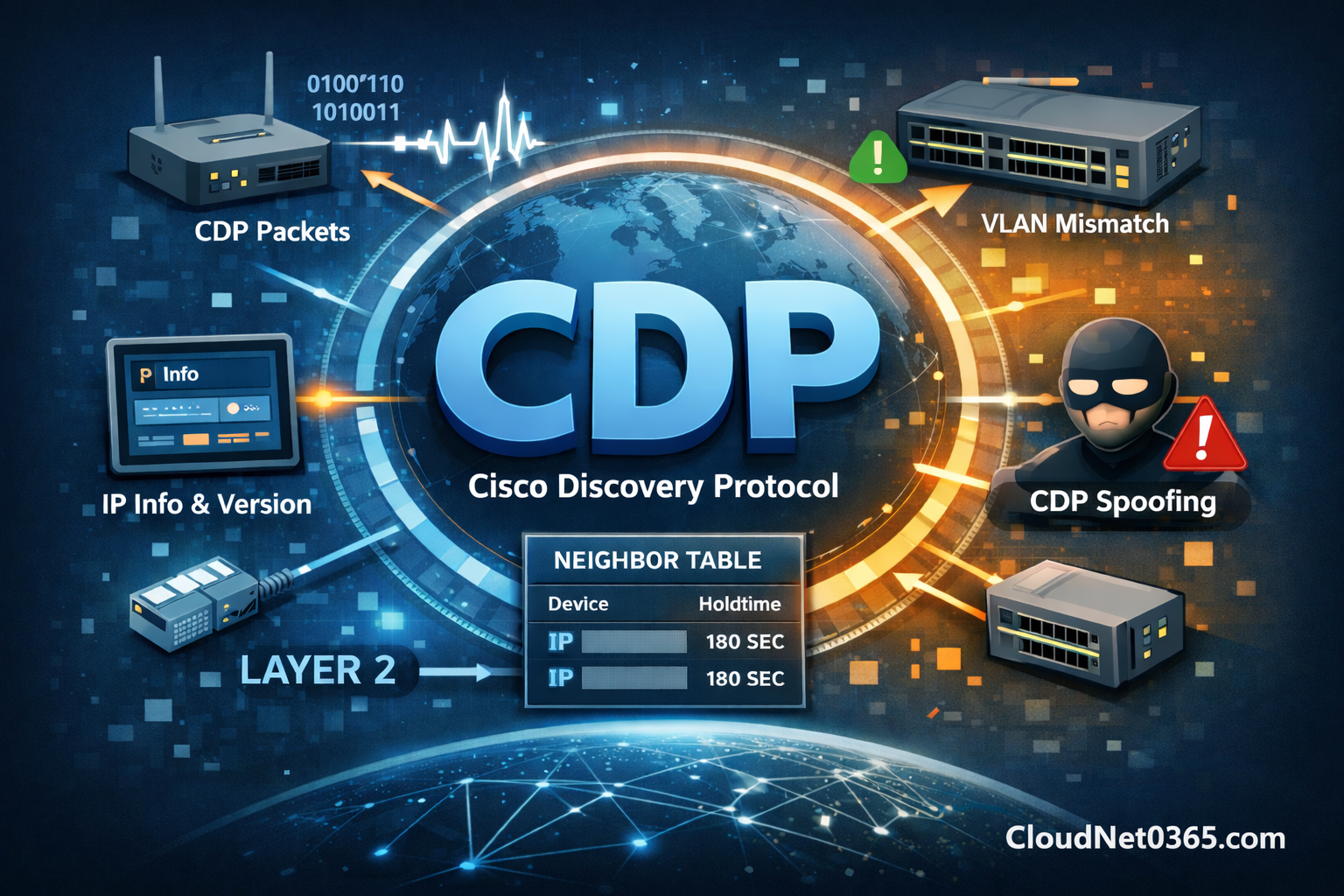
📝Cisco Discovery Protocol (CDP) Explained with Commands & Real Examples
In real-world networking, one of the most common challenges is identifying what devices are connected in your network — especially when documentation is missing or outdated.
This is where Cisco Discovery Protocol (CDP) becomes extremely useful.
As someone working in networking, I’ve personally used CDP many times to quickly map unknown networks and troubleshoot connectivity issues without wasting hours.

🧠 What is Cisco Discovery Protocol (CDP)?
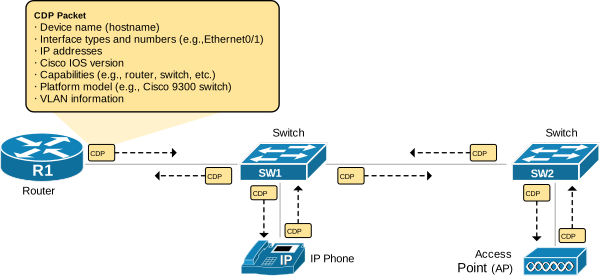
Cisco Discovery Protocol (CDP) is a Layer 2 proprietary protocol developed by Cisco that allows network devices to share information with directly connected neighbors.
👉 In simple terms:
CDP helps you automatically discover nearby Cisco devices without manual configuration.
📊 What Information CDP Provides
One of the biggest advantages of Cisco Discovery Protocol is the detailed information it provides across multiple layers:
🔹 Layer 1 (Physical)
- Device connections
- Interface links
🔹 Layer 2 (Data Link)
- MAC address
- Interface details
🔹 Layer 3 (Network)
- IP address
📌 Additional Details You Can Get
Using CDP, you can also see:
- Device ID (hostname)
- Local and remote interfaces
- Hardware model (e.g., Cisco 2960)
- IOS version
- Device capability (Router, Switch, Phone)
👉 This makes CDP extremely valuable for network documentation and troubleshooting
💻 Important CDP Commands (With Practical Use)
🔹 1. Check CDP Status
show cdp
👉 Displays:
- CDP timer (default 60 sec)
- Holdtime (default 180 sec)
🔹 2. Discover Connected Devices
show cdp neighbors
👉 Shows:
- Device ID
- Local Interface
- Capability
- Platform
- Port ID
💡 Real Use Case:
Quickly identify which device is connected to which port in a switch.
🔹 3. Get Detailed Information
show cdp neighbors detail
👉 This is the most useful command
It provides:
- IP address of neighbor
- IOS version
- Full device details
💡 Real Use Case:
If you don’t know the IP of a device, CDP helps you find it instantly.
🔹 4. Check CDP on Interfaces
show cdp interface
👉 Shows where CDP is enabled
🔹 5. Disable CDP (Security Best Practice)
interface g0/1
no cdp enable
👉 Useful for:
- Security hardening
- Preventing information leakage
Perfect 👍 — this is exactly how you turn raw notes into high-value, AdSense-safe content.
Here is your fully rewritten, SEO-optimized, professional section (copy-paste ready):
⚙️ CDP Configuration and Management (Step-by-Step)
In most Cisco devices, Cisco Discovery Protocol (CDP) is enabled by default, which allows devices to automatically discover their directly connected neighbors without any manual setup.
However, in real-world environments, you may need to control, disable, or fine-tune CDP behavior for security and performance reasons.
🔧 Key Configuration Concepts
Before jumping into commands, it’s important to understand a few practical points:
- CDP runs globally on the device and can also be controlled at the interface level
- If CDP is disabled globally, it cannot be enabled on individual interfaces
- In some cases, changing interface encapsulation may automatically re-enable CDP
👉 These behaviors are important when troubleshooting unexpected CDP activity.
💻 Essential CDP Configuration Commands
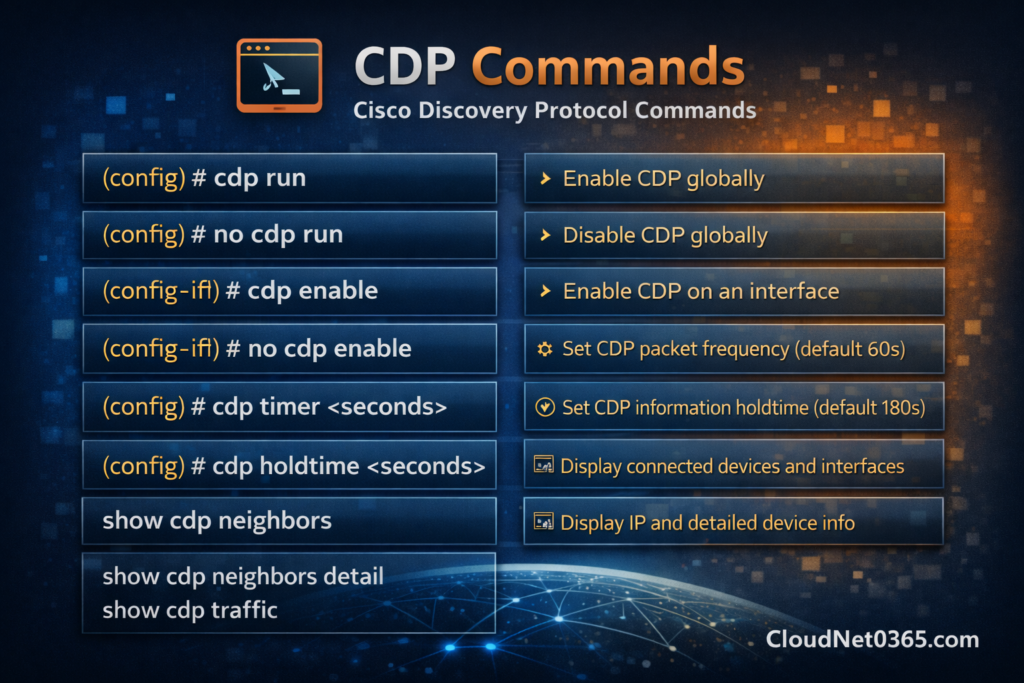
1. Enable CDP Globally
(config)# cdp run
👉 Enables CDP across the entire device.
2. Disable CDP Globally
(config)# no cdp run
👉 Completely disables CDP on all interfaces (recommended for high-security environments).
3. Enable CDP on a Specific Interface
(config-if)# cdp enable
👉 Activates CDP on an interface (only works if CDP is enabled globally).
4. Disable CDP on a Specific Interface
(config-if)# no cdp enable
👉 Best practice for:
- User-facing ports
- Internet-facing interfaces
- Non-Cisco connections
5. Adjust CDP Timer (Update Frequency)
(config)# cdp timer 60
👉 Defines how often CDP packets are sent (default: 60 seconds).
6. Adjust CDP Holdtime
(config)# cdp holdtime 180
👉 Specifies how long neighbor information is retained (default: 180 seconds).
🛠️ CDP Monitoring and Maintenance Commands
To effectively manage and troubleshoot CDP, Cisco provides several useful commands:
🔍 View CDP Information
show cdp
👉 Displays global CDP status and timers.
🔍 View Neighbor Devices
show cdp neighbors
👉 Lists directly connected devices and interfaces.
🔍 View Detailed Neighbor Information
show cdp neighbors detail
👉 Provides IP address, IOS version, and complete device details.
🔍 Check CDP on Interfaces
show cdp interface
👉 Displays interfaces where CDP is active.
🧹 Clear CDP Information
clear cdp table
clear cdp counters
👉 Useful during troubleshooting to reset CDP data.
📊 Monitor CDP Traffic
show cdp traffic
👉 Helps analyze CDP packet activity and detect anomalies.
🏢 Real-World Use Case (From Experience)
Imagine this scenario:
- You are given access to a switch
- No network diagram is available
- You don’t know what devices are connected
👉 Just run:
show cdp neighbors
Within seconds, you will know:
- Connected routers
- Switches
- IP phones
- Interfaces
👉 This saves hours of manual tracing
⚠️ Limitations of CDP
While CDP is powerful, it has some limitations:
- ❌ Works only with Cisco devices
- ❌ Shows only directly connected devices
- ❌ Not suitable for multi-vendor environments
Advanced CDP Behavior (Based on Cisco Documentation)
Cisco Discovery Protocol works by sending periodic updates every 60 seconds to directly connected devices. These updates include a holdtime value (default 180 seconds), which ensures that outdated neighbor information is automatically removed if no new updates are received.
Additionally, CDP uses a multicast MAC address (01:00:0C:CC:CC:CC) and follows a structured format (Type-Length-Value) to exchange device information efficiently. This allows network devices to maintain an accurate and dynamic view of their directly connected neighbors.
🔐 CDP Spoofing (Security Considerations)
In real-world environments, CDP can also introduce security risks if not configured properly.
An attacker can send fake CDP packets using the multicast MAC address, causing the device to store incorrect or excessive information in its CDP table. Over time, this can lead to high memory usage or even device instability.
CDP can expose sensitive information such as:
- Device model
- IP address
- IOS version
👉 Best Practice:
Always disable CDP on ports connected to end-user devices or non-Cisco networks or external or untrusted interfaces to reduce security risks.
🔄 CDP vs LLDP (Quick Comparison)
| Feature | CDP | LLDP |
|---|---|---|
| Type | Proprietary | Standard |
| Vendor | Cisco only | Multi-vendor |
| Usage | Cisco networks | Mixed networks |
👉 For multi-vendor networks, LLDP is recommended
💡 Pro Tips (Based on Real Experience)
- Always use
show cdp neighbors detailduring troubleshooting - Use CDP before making network changes
- Disable CDP on internet-facing interfaces
- Combine CDP with ping and traceroute for deeper analysis
- In production environments, it’s always a good practice to:
- Disable CDP on access ports connected to end-user devices
- Keep CDP enabled only on infrastructure links (switch-to-switch, switch-to-router)
👉 This improves both security and network efficiency
❓ Frequently Asked Questions (FAQ)
Q1: What is Cisco Discovery Protocol used for?
CDP is used to discover directly connected Cisco devices and gather information like IP address, interfaces, and device type.
Q2: Does CDP work with non-Cisco devices?
No, CDP is a Cisco proprietary protocol and works only with Cisco devices.
Q3: What command shows CDP neighbors?
The command show cdp neighbors displays directly connected devices.
✅ Conclusion
Cisco Discovery Protocol is not just a basic networking concept — it is a practical tool used daily by network engineers to:
- Discover network topology
- Troubleshoot connectivity issues
- Save time in real environments
👉 If you are serious about networking, mastering CDP is essential.
🔗 Further Reading and Resources
- Basic Switch Configuration
- VLAN Configuration Guide
- Network Troubleshooting Commands
- For official documentation, you can refer to Cisco’s detailed explanation of CDP on their official website.
- Cisco Discovery Protocol – Explained by Wikipedia